Email remains one of the most popular communication tools for sharing information about orders, contracts, and requests.
To send emails from keyCRM, you need to connect your email account in the communication settings.
Sending messages from the chat section
To write a message to a customer, go to the «Convos» section and click «+» above the list of chats on the left side of the window, next to the «Convos» label.
In the window that opens, fill in the fields:
-
Contact — find the customer to whom you are sending the message (you can search by name, phone number, or email address);
-
Channel — select an email address from the list of connected accounts;
-
Contact address — if the customer has multiple email addresses, select the one to which you want to send the message;
-
Mail subject — enter the subject of the email, which will be displayed when the buyer receives it;
-
Message — enter the message text or select a message template by clicking the «lightning bolt» icon. To attach a file to the email, click the «paperclip» icon:
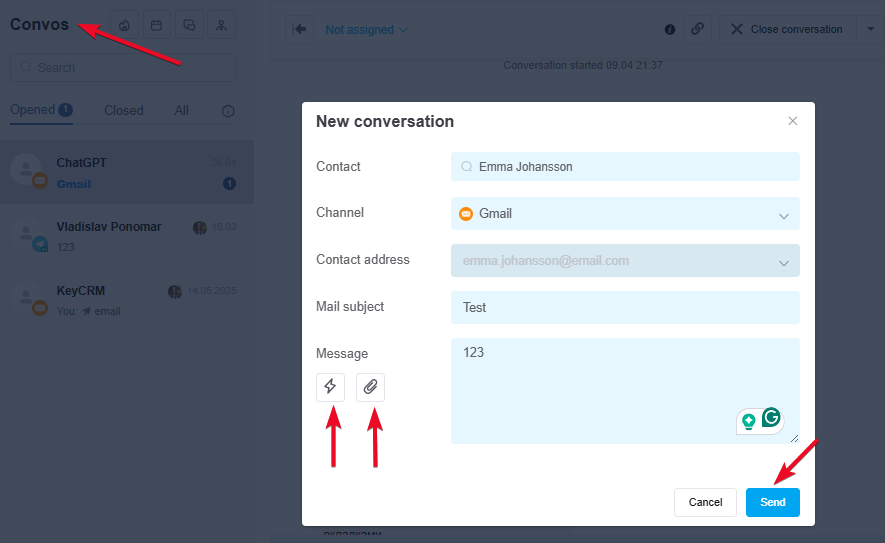
Click «Send», and the message will be sent immediately to the specified email address.
Sending emails from an order or a pipeline card
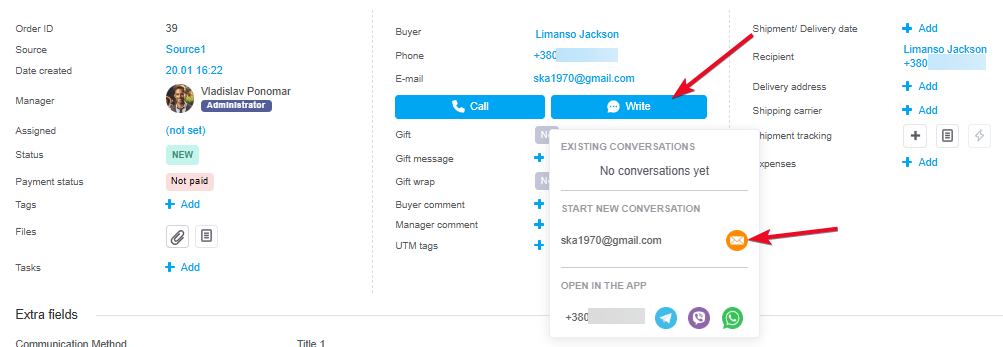
To send messages via an order, simply click the «Write» button. In the window that appears, click the envelope icon.
This will open a window similar to the one used when sending a message from the chat window, but with the customer and channel already selected. All you need to do is enter the subject of the message and write your message, or select an existing template:
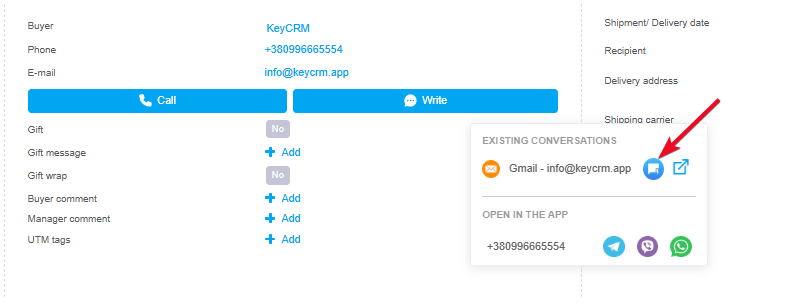
If you have previously sent an email to this customer from keyCRM, the email will appear in the existing conversations:
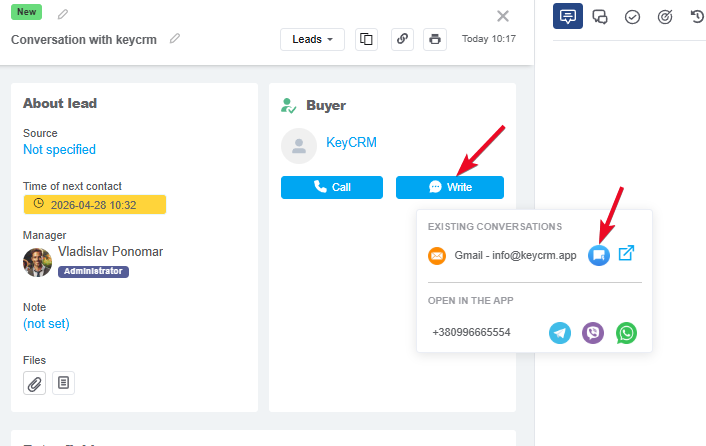
From the pipeline card, you can also send a message by clicking the «Write» button:
Features of email chat
Here are a few important points to note when working with email chats:
-
After sending or receiving emails, they appear in the «Chats» section;
-
When creating message templates, you can specify a subject line that will be used when sending the email;
-
if you reply to a received message, the subject line will not change, and the conversation will appear as a message thread;
-
if you send a message with a new subject line, it will arrive as a new (separate) thread.
