Prepared message templates can significantly speed up the processing of orders and customer inquiries. You can use them both for sending SMS and as quick replies in chats.
Where to find message templates
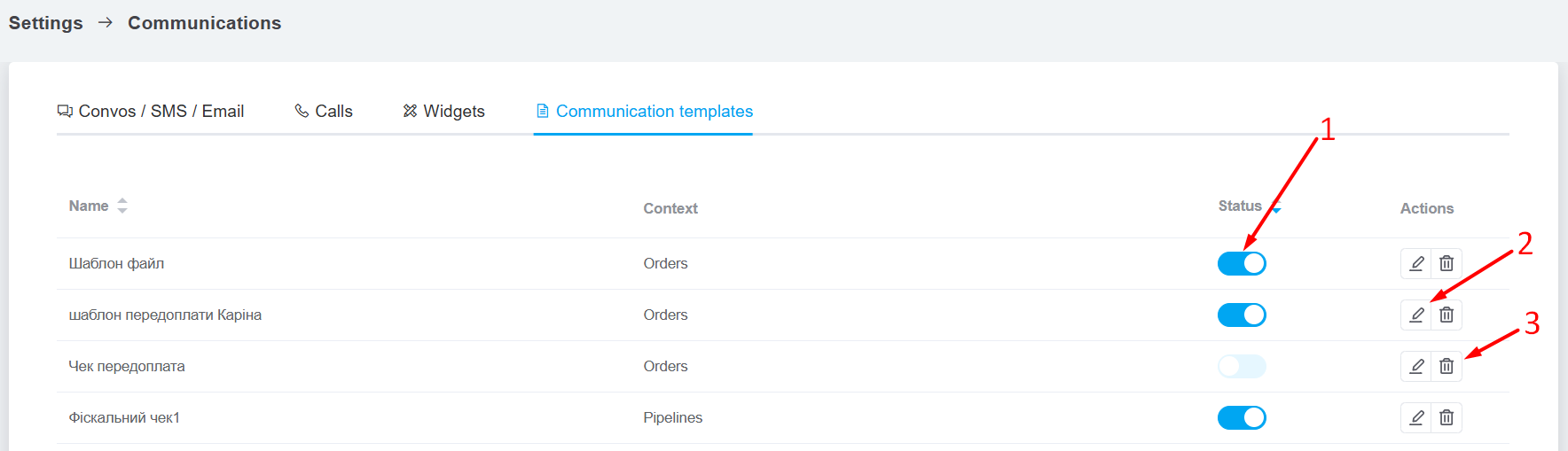
Go to «Settings» → «Communications» → «Communication templates» tab. In this section, you will see a list of all available templates and their names. You can sort them by name and status.
In the list of templates, you can:
-
Enable/disable a template by clicking on the switch in the «Status» column;
-
Edit a message template by clicking on the pencil icon, which will open the same window as when creating a template;
-
Delete a message template that is not used in orders or pipeline cards by clicking on the trash can icon.
Adding a template
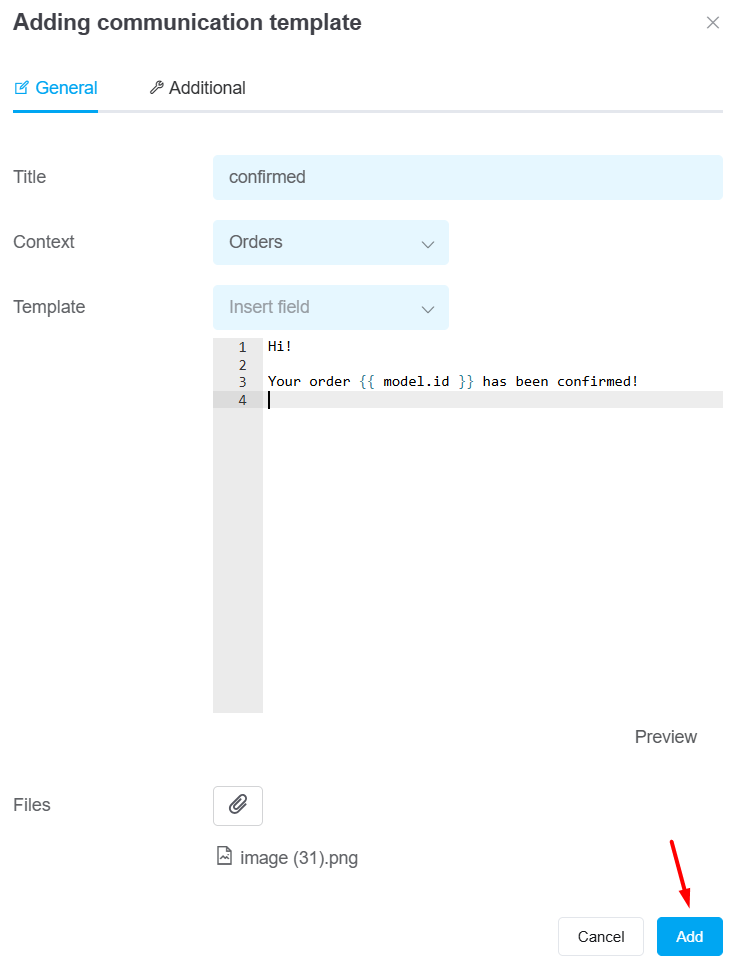
To add a new template, click the «Add communication template» button in this section. In the «General» tab:
-
Name: enter the name of the template. All templates in the list are sorted alphabetically.
-
Context: select the context: customers, orders, pipeline, general.
Clients ─ templates that are only available when writing messages from the shopper's card. You can use variables in them, which will pull the necessary values from the shopper's card fields (for example, name, phone number, email, etc.);
Orders ─ templates that will be available when sending from orders. You can use variables from orders in them (for example, buyer's name or tracking number);
Pipelines ─ templates that will be available when sending from pipeline cards. You can use variables from the card (for example, card name or contact name);
General ─ text templates in which variables do not work. They are needed for messages of the same type, for example, with payment details or quick replies in chats; -
Template — enter the template text. You can use variables so that when sending a message, the data is taken from the order or buyer. For example, the buyer's name and tracking code.
To do this, click on «Insert field» and select the field from which the data will be taken; - Files — You can attach up to 5 files (up to 20 MB each) in the following formats: JPG, JPEG, PNG, BMP, HEIC, MP4, PDF, DOCX, DOC, XLS, XLSX, AI, CDR, EPS, PSD, SVG, TIFF. When selecting a template in chats, cards, or triggers, files are automatically imported (except for SMS campaigns).
In the «Additional» tab: - Email subject — specify the subject that is used only when writing a message from the «Email» and «Gmail» channels. The email subject is needed to create separate email chains on the email side.
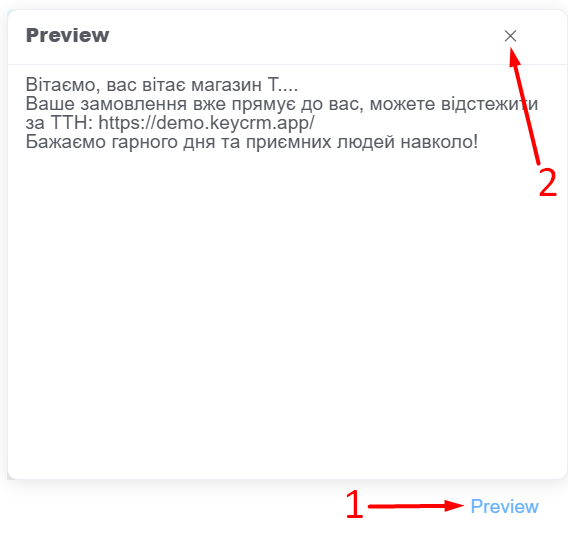
To see how the message will look:
-
Click «Preview»;
-
Click «X» to close the preview.
 When you have filled in everything, click «Add» to save the template. It will appear in the list.
How to choose the right context for a template
The choice of context depends on the task you want to solve with the template.
Context «Clients»
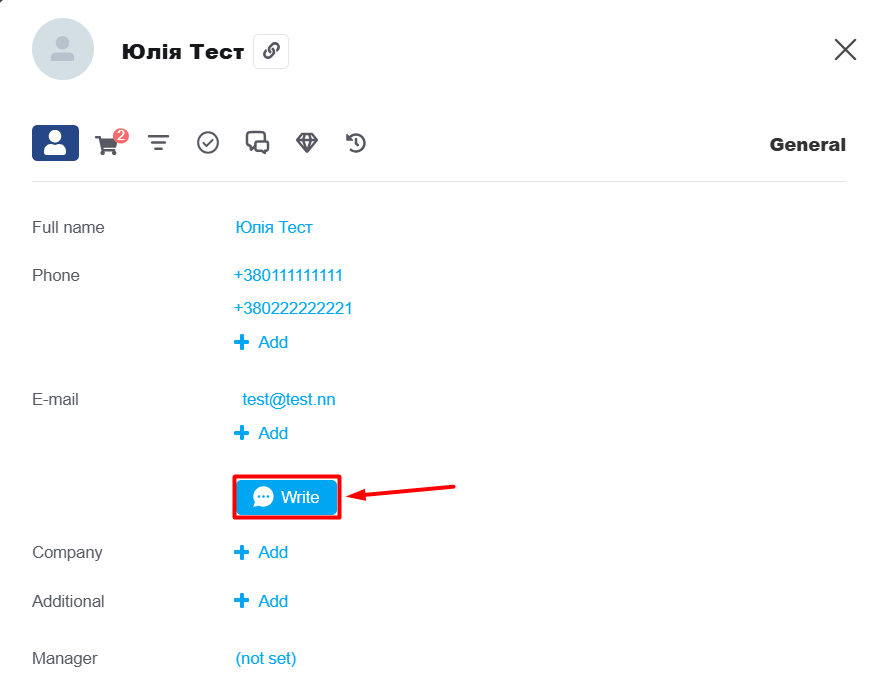
Templates with this context can only be used when sending messages from the customer card using the «Write» button:
Context «Orders»
When selecting a message template from any location, the variables in the template will pull the required values from the order.
If you need to set up automation (trigger) for an order, the template must be specified with the «Order» context.
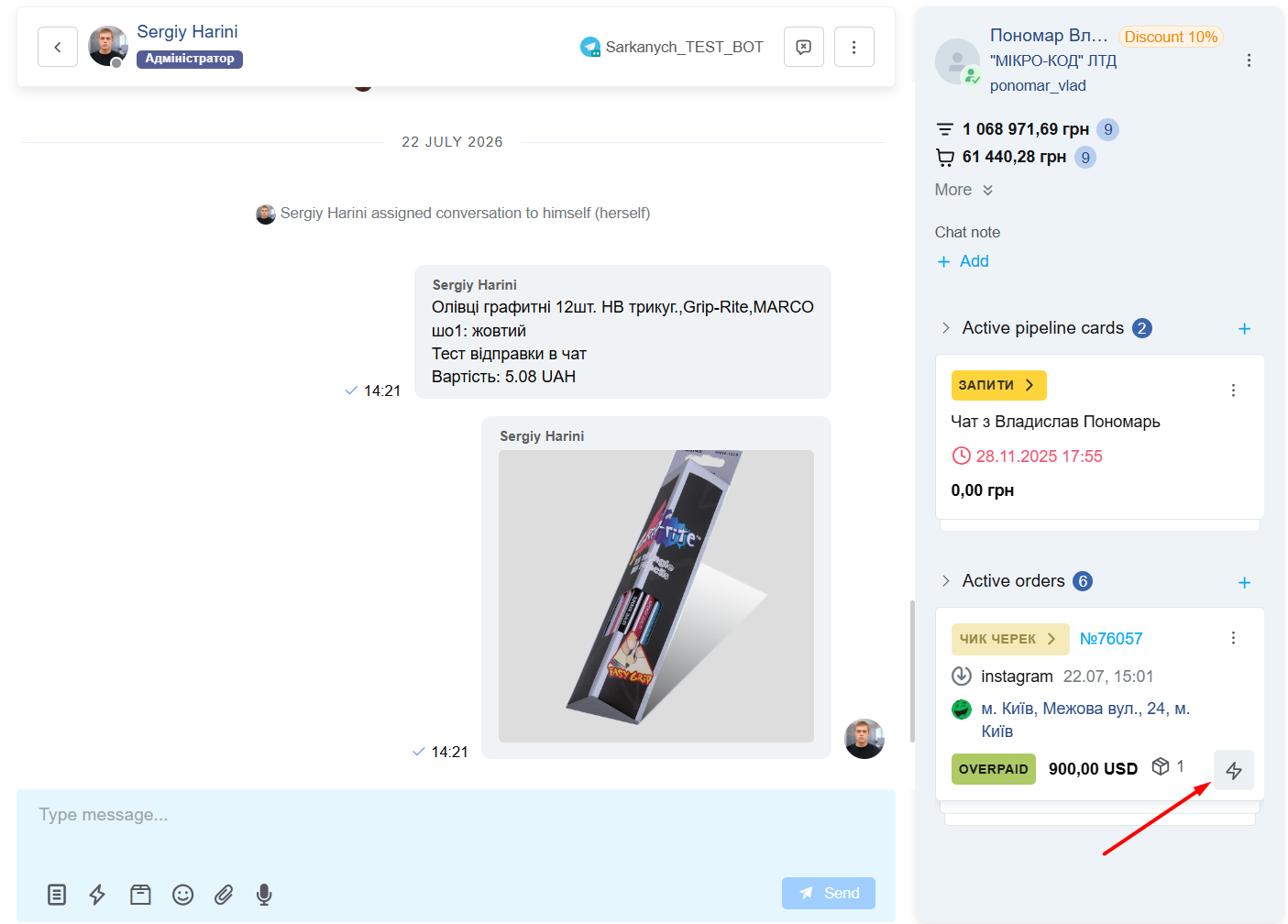
Templates with this context can be used in three places:
-
When writing the first message via the «Write» button in the order;
-
When automatically sending messages via triggers;
-
When sending messages about orders in chats.
Context «Pipelines»
When selecting a message template from anywhere, the variables in the template will pull the required values from the pipeline card.
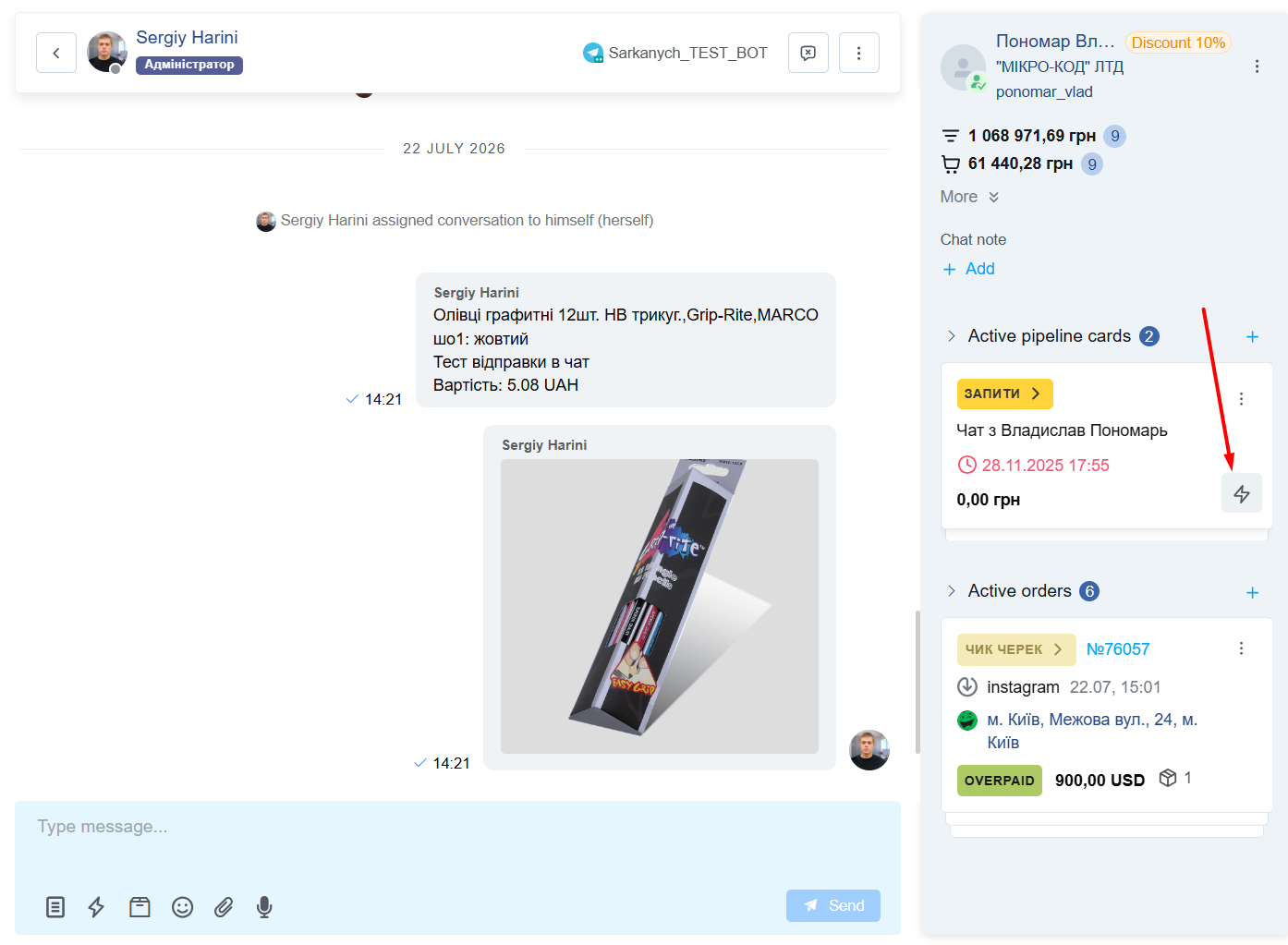
Templates with this context can be used in two places:
-
When writing your first message using the «Write» button in the pipeline card;
-
When sending messages via pipeline cards in chats.
Context «General»
General templates do not work in triggers!
Templates with this context can be used:
-
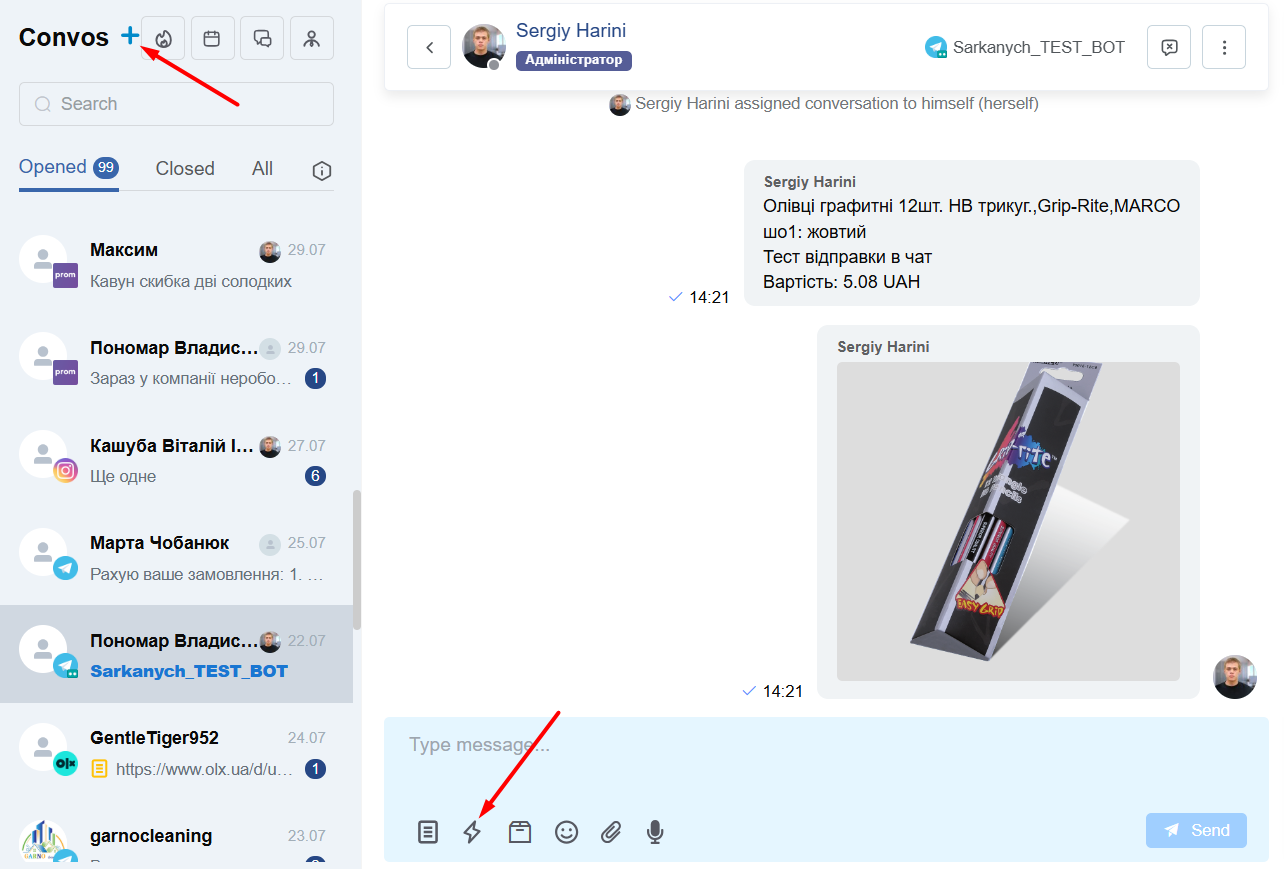
As quick replies in chats (other contexts are not available here);
-
When writing a message in chats, via the «Write message» button;
-
When writing the first message via the «Write» button in the order, pipeline card, and customer card.
This guide discussed the creation of message templates for different contexts and the methods of sending for each of them.
