Typically, CRM systems allow you to connect a bot from Telegram or Viber (we have one too, by the way 🙂). However, communicating with customers directly within the system interface using your personal Viber account is a challenging task—but we’ve solved it.
Once connected, all new messages will start appearing in chats, including: stickers, reactions, files, quotes, call information, and forwarded contacts. You can send files up to 20 MB in size.
Therefore, keyCRM is not responsible for any potential blocking of your number.
Let’s take a look at the basic rules we recommend following:
-
The older your account is, the lower the chance of getting banned. Therefore, if you want to create a new Viber account and connect it to KeyCRM, we recommend waiting a few days, using the app, and only then connecting it;
-
After activating the number in KeyCRM, you cannot delete the Viber app from the mobile device used for activation (however, you can simply turn off the phone or leave it offline);
-
Do not use the «Change number» feature in the mobile app;
-
Do not send identical messages to different clients, as this will be perceived as spam;
-
Initiate no more than 20 chats per day with new users.
-
Do not activate a new Viber number on a device that has previously been blocked. This may result in the new number being blocked.
The main recommendation is this: if you use the integration with your personal Viber account in the most «natural» way possible, you won’t have to worry about getting blocked!
Connecting Viber to keyCRM
Go to «Settings» → «Communications» → the «Chats / SMS / Email» tab and click the «Add new channel» button.
In the window that opens, on the «General» tab, fill in the fields:
-
Title — enter any name for the channel;
-
Channel — select «Viber Direct»;
-
Phone — enter the phone number you want to connect and click the «Authorize» button. A QR code will appear, which you must scan within 3 minutes using the phone with this Viber number:
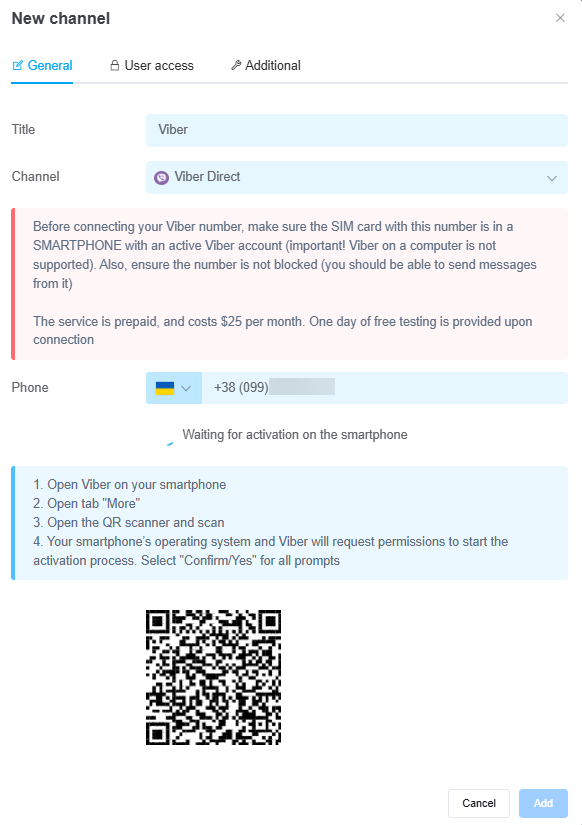
The channel will appear in the list, and all messages received after connecting will begin to appear in chats. On average, it takes 20–30 seconds for a message to be sent by the system, as the system emulates manual typing to reduce the likelihood of being banned.
If necessary, you can also configure user access to the channel and additional settings for its operation.
How to pay for a Viber number
Number activation is billed separately from your main account plan: $25 per number per month.
After activation, you are granted a one-day trial period; after that, you must pay for the channel. To do so:
-
Top up your account balance if you do not have enough funds to pay for the plan;
-
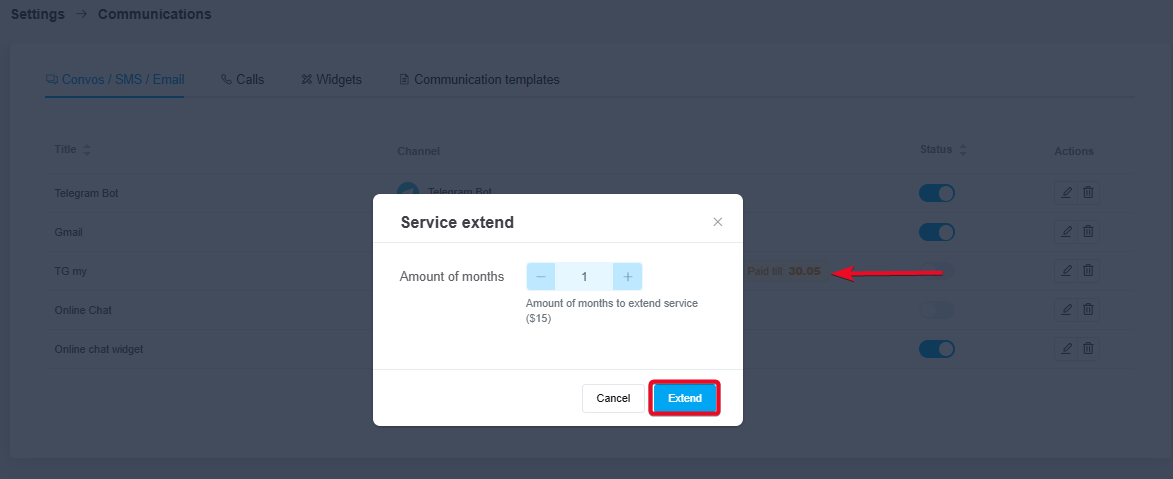
Go to «Settings» → «Communications» → the «Chats / SMS / Email» tab, click on the plan duration next to the channel you want to pay for;
-
Enter the number of months for which you want to renew the plan and click «Extend»:
The fee for plan renewal will be deducted from your account balance. The plan can then be automatically renewed for 1 month if there are sufficient funds in your account balance on the plan’s expiration date.
Common errors when sending messages
-
Send error. Try again — this means there was an error sending the message on Viber itself, and you can try sending the message again in 1–2 minutes;
-
Sending is blocked on the Viber side — this means the number has been partially banned; to verify this, you can use the bot;
-
Tariff Expired — appears when the paid plan for the number has expired, and you need to renew the channel’s plan in the settings. If there is a paid plan for this number in the CRM, contact our support team for assistance;
-
Number requires activation — the number requires activation, and you need to complete authorization in the channel settings. Main reasons: app deletion, number change, integration session deletion, partial block from Viber.
The channel may turn off automatically if:
-
During a routine check (once a day), the system detected that the number needs to be activated. You need to complete the authorization process in the channel settings and enable it;
-
An error message «Tariff Expired» or «Number requires activation» — as described above — appeared in the chat.
When the channel is automatically deactivated, all administrators will receive a notification and an email.
Now you can easily chat with customers on Viber right from CRM chats, send automated messages, and view all chats in one place.
