If you use a Telegram bot to communicate with customers, we recommend connecting it to your CRM because:
-
All correspondence takes place directly in your dashboard;
-
You can easily create a customer profile or find a customer in the database using their information;
-
You can create an order or a sales funnel card directly from the chat with the customer.
Step 1. Get your bot's API key
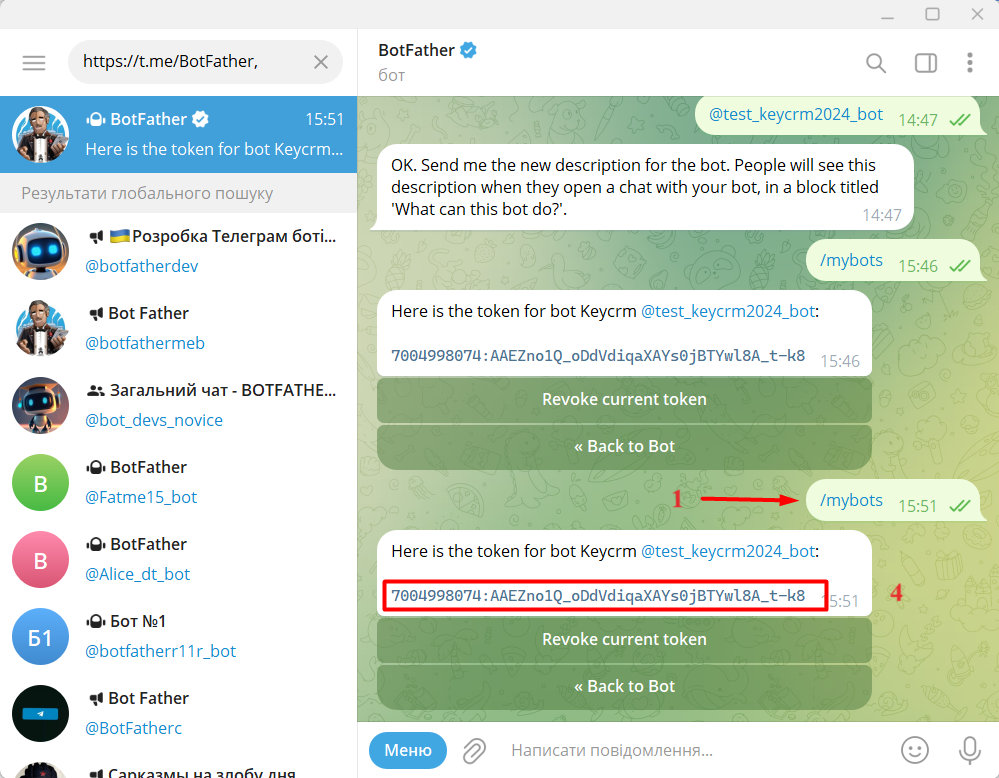
In your Telegram account, type «BotFather» into the search bar and select the one marked with a blue icon. Or simply follow this link: https://t.me/BotFather.
-
Enter or select the command /mybots;
-
Select the desired bot from the list of bots you have created;
-
Click on the API Token action for the bot;
-
An API key will appear, which you must copy to connect to keyCRM.
Step 2. Connecting the bot to keyCRM
Go to «Settings» → «Communications» → the «Chats/SMS/Email» tab and click the «Add new channel» button.
In the connection window, on the «General» tab, fill in the fields:
-
Title — enter any name for the channel;
-
Channel — select «Telegram Bot»;
-
API Key — paste the bot’s API key that you copied earlier;
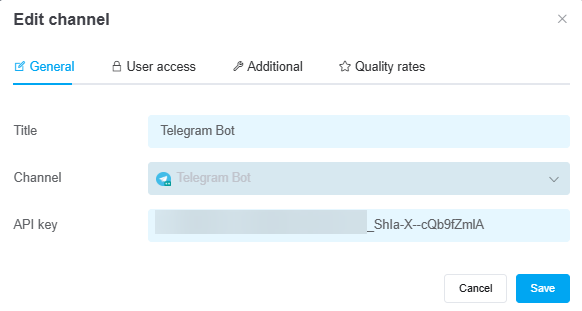
Once you've entered all the necessary settings, click the «Add» button. The channel will appear in the list, and all messages received after the connection is established will start appearing in the chats.
If needed, you can also configure user access to the channel, additional settings for its operation, and operator ratings in the chat.
To start receiving messages:
1. Disconnect the other service. The bot should only be connected to keyCRM;
2. Disconnect the channel in keyCRM for a few seconds, then reconnect it. The bot will reconnect and messages will start coming in.
