To be the first to send a message via WhatsApp Business, or if 24 hours have passed since the customer’s last reply, you must use registered and verified message templates.
Please note that there is a 1,600-character limit per message.
Registering message templates
To add a new template in Twilio, open the «Messaging → Content Template Builder» section and click «Create new».
Fill in the fields:
-
Template Name — come up with a name for your template;
-
Template Language — specify the template language;
-
Select Content Type — select the content type for your template: Text.
Click «Create» to proceed to the next template settings.
In the next window, paste the entire template from the CRM into the text input field. Then edit the variables inside the curly braces, replacing them with numbers in ascending order (starting with 1 and higher).
For example, a template in CRM:
Hello, {{ model.client_name }}! Your order {{ model.id }} is on its way. Tracking number: {{ model.tracking_code }}
In Twilio, it should look like this:
Hi, {{ 1 }}! Your order {{ 2 }} is on its way. Waybill: {{ 3 }}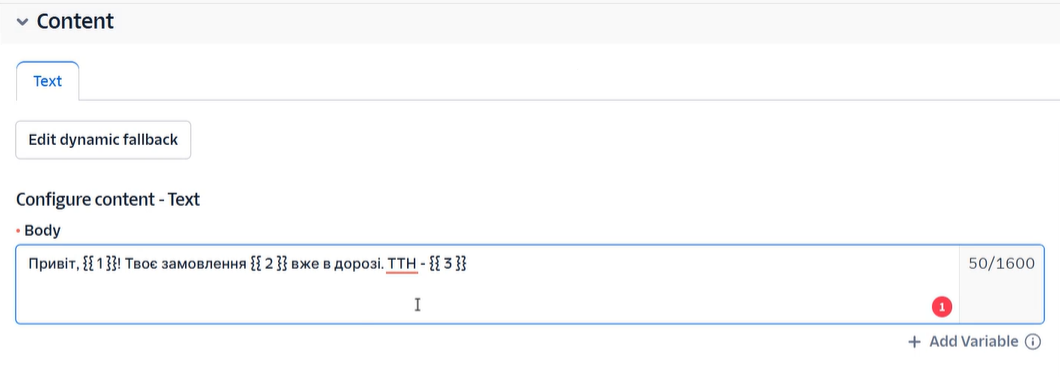
When you're ready, click «Save and submit for WhatsApp approval» at the bottom of the window. A window will open where you need to click on the body; a field will then appear for each variable in the template. In these fields, you need to enter sample data that will be substituted for these variables:
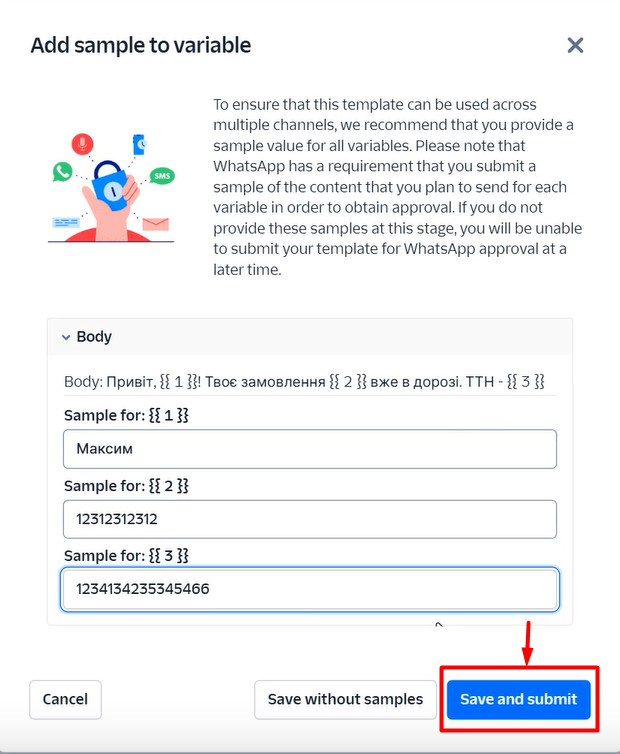
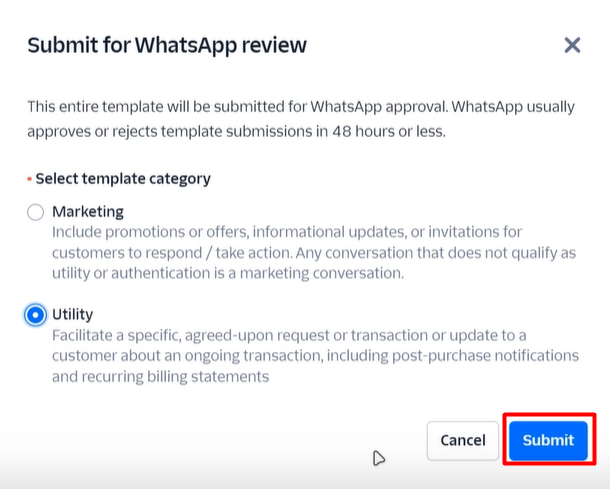
Next, click «Save and submit», select the template category, and click «Submit»:
-
Marketing – business-initiated templates that do not qualify as utility templates or require authentication (e.g., promotions, offers, informational updates, survey requests);
-
Utility - specific customer requests (e.g., order information), transactions, post-purchase notifications, or billing reminders.
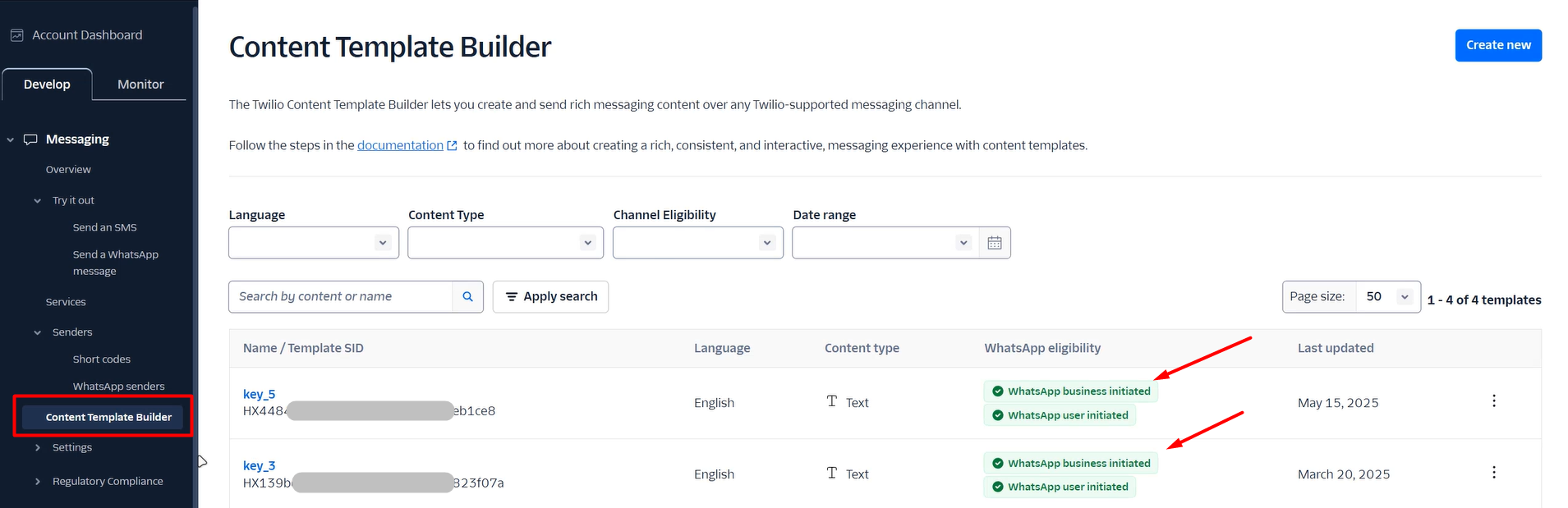
The template will be submitted to WhatsApp for review, which may take up to 24 hours. Once it has been successfully approved, you will see two green checkmarks next to it in the template list.
Connecting registered Twilio templates to CRM
Each template in the CRM must be linked to the corresponding Twilio templates.
To do this:
-
In the WhatsApp channel settings, go to the «Communication templates» tab;
-
Click «Add template»;
-
In the window that appears, fill in the fields:
-
Message Template — select a message template in the CRM;
-
Template SID from Twilio — specify the SID of the corresponding template from Twilio.
After saving, the link to the template will be added to the list on this tab; you can edit or delete it as needed.
When sending this template from the CRM manually or via triggers, the WhatsApp template linked to it will be sent.

To copy a template's SID from Twilio, open the «Messaging → Content Template Builder» section and click on the desired template. In the window, you will see the SID for that template:
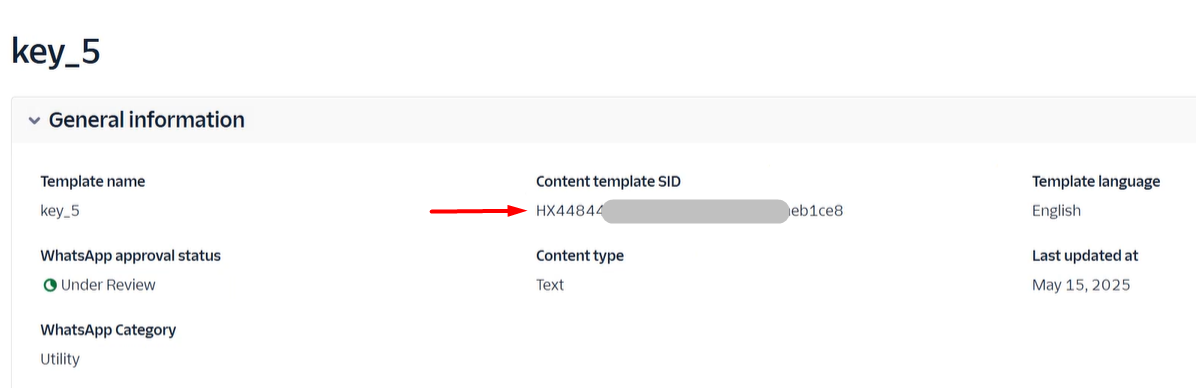
Repeat these steps for all the necessary templates and save the channel settings. After that, you can send the templates from the CRM to chats and select them in triggers.
Basic rules for creating templates
WhatsApp may reject a template for a variety of reasons. For the latest information, see the official documentation. Based on this, we have compiled some key recommendations that you should follow:
Content and style of the message:
-
Clear and understandable content — the message should be logical, well-written, and have a specific purpose;
-
No grammatical or spelling errors;
-
No offensive or threatening content;
-
Do not ask for confidential information.
Proper use of variables (placeholders):
-
Correct format — only
{{ 1 }},{{ 2 }}, etc., within curly braces; -
Sequence — do not skip variable numbers (do not use:
{{ 1 }}, {{ 3 }}without{{ 2 }}); -
Do not place variables right next to each other or at the beginning/end of the message body;
-
Avoid special characters in variables (%, #, $, etc.);
-
Do not overload the template with variables — if there are too many for a short text, simplify it.
Content and policies:
-
Follow WhatsApp's policies (commercial and business policies);
-
Do not use the word «survey» — instead, ask users to «leave a review»;
-
Do not copy existing templates — identical text will be rejected as a duplicate.
Formatting:
-
No emojis in titles, footers, and variables;
-
Do not use line breaks
\n; -
Select the correct language and template type when submitting for moderation.
Recommendations:
-
Review the template with your colleagues before sending it;
-
Include a greeting that addresses your client by name and introduce yourself, especially if this is your first message;
-
Think of the template as a conversation starter — leave room for a reply.
