Integrating TurboSMS with keyCRM will allow you to:
-
send SMS messages to customers who do not use messaging apps;
-
set up automatic SMS sending;
-
send SMS messages to customers manually;
-
create templates for SMS messages, with automatic insertion of data from orders, pipelines, and customers.
Step 1. Preparations before connecting in the TurboSMS dashboard
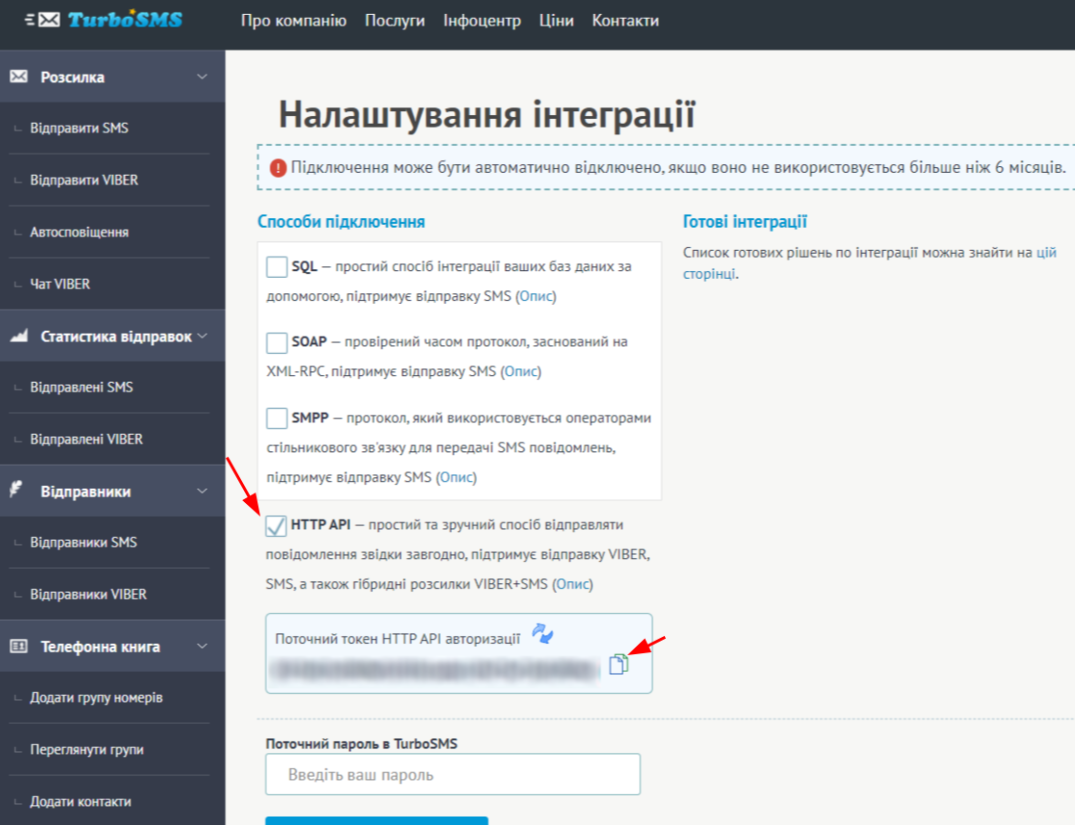
In the TurboSMS dashboard, go to «Gateway (API)» → «API Settings».
Check the box next to «HTTP API» and copy the key that appears:
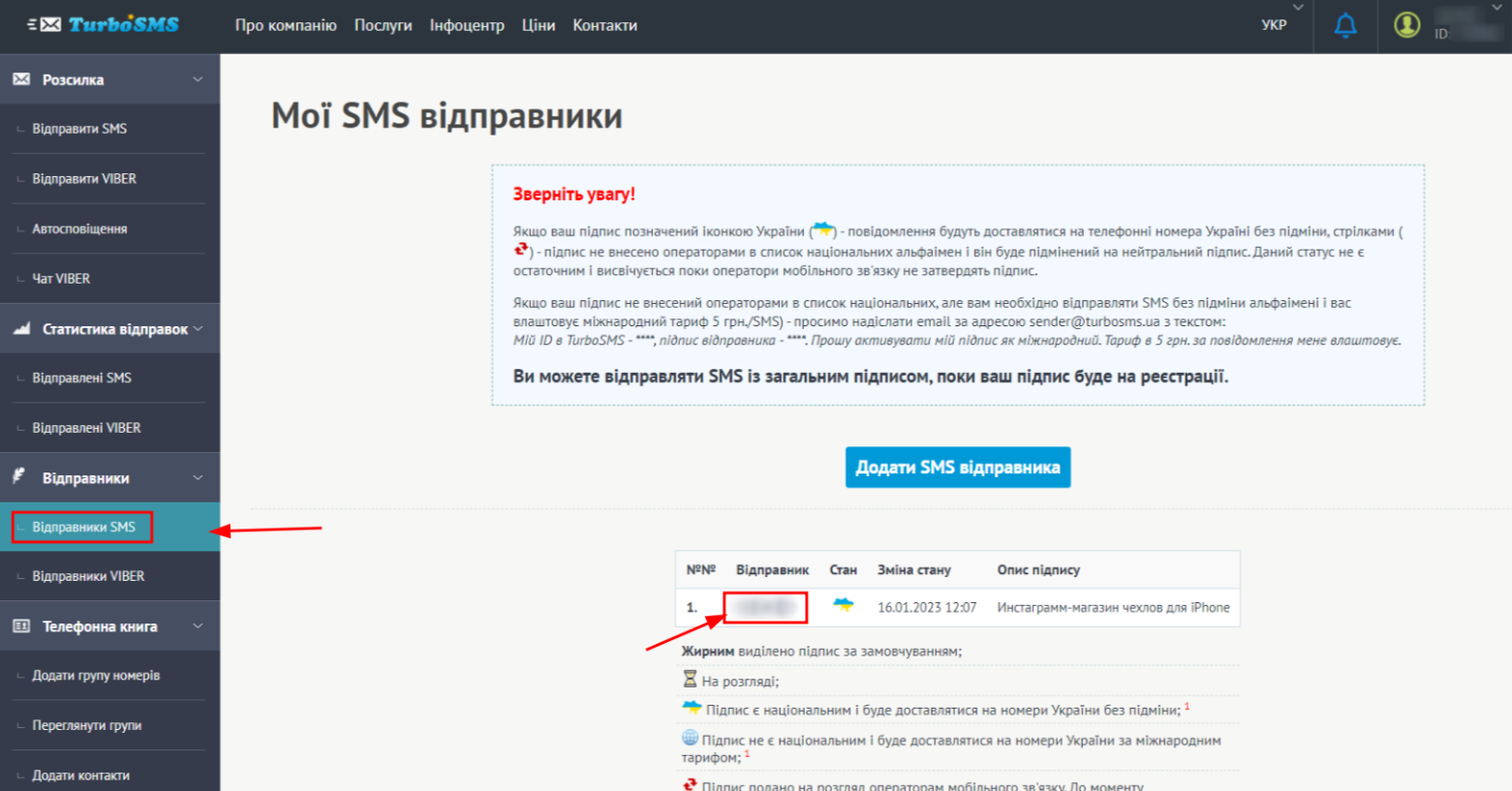
Next, go to the «SMS Senders» section and copy your alpha name, which is required to connect to keyCRM:
Step 2. Connecting TurboSMS to keyCRM
Go to «Settings» → «Communications» → the «Chats / SMS / Email» tab. A list of connected channels will appear in this section. At the bottom of the list, click «Add new channel».
In the window that opens:
- Title — enter a name for the channel;
- Channel — select the SMS channel type from the list;
- SMS Provider — select TurboSMS;
- Sender name — enter the alpha name you copied from your TurboSMS account;
Note! The alpha name must be exactly the same as in your TurboSMS account. - API key — enter the API token you copied from your TurboSMS account;
- Viber priority — toggle the switch if you want messages to be sent to Viber first. The message has a 24-hour lifespan; if it is not delivered, it will be sent as an SMS;
Note! To send bulk messages to Viber, you must sign a contract with TurboSMS.
- Message type — select the desired message type: promotional or transactional (a template must be registered in TurboSMS);
- Viber sender name — enter the sender name for Viber, which can be copied from your TurboSMS account:
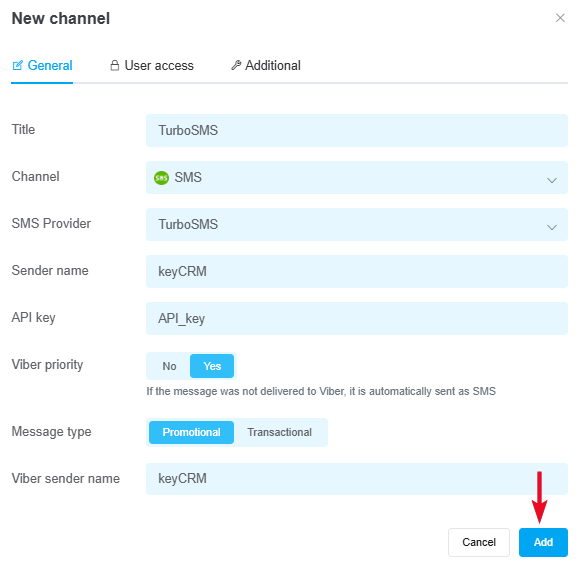
If necessary, you can also configure user access to the channel.
Additional settings
On the «Additional» tab, enable the «Reassign manager» toggle if you want to automatically assign a manager to the chat after a message is sent.
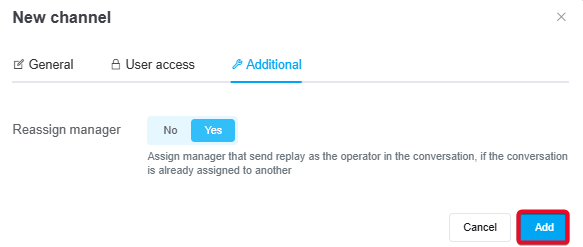
After entering the information, be sure to click the «Add» button, and your channel will be ready to go!
Now you can notify your customers about their order status, send them the waybill number, and provide other important information by creating message templates. To streamline the process, set up automatic message sending.
