With the integrated SMS services, you can send messages both manually and automatically. Sometimes you may need to check whether an SMS was delivered to the recipient, whether an error occurred during sending, or view the entire history of sent messages, etc.
How to view the communication history in a customer's profile
SMS messages appear in the communication history with the customer along with other messages and calls. To view the history:
-
Open the customer's profile from an order, pipeline card, chat, or in the «Customers» section;
-
Go to the «Communications» tab to view sent messages, where:
-
SMS messages are marked with a green «SMS» icon next to the profile picture of the user or bot who sent them;
-
If the message came from a pipeline card, you can see a clickable link to that card;
-
When you hover over a message, a button appears to open the chat—there you can view the delivery status.
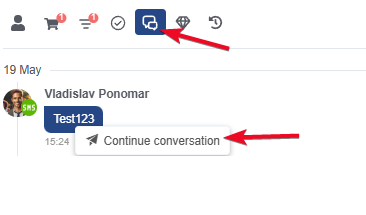
View sent SMS messages in the pipeline card
If an SMS was sent from the pipeline card via the «Write» button or automatically via a trigger, only then will you be able to see it in the communication history within the card.
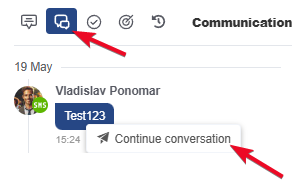
To view the history, go to the «Communications» tab:
-
SMS messages are marked with a green «SMS» icon next to the profile picture of the user or bot that sent them;
-
When you hover over a message, a button appears to open the chat — there you can view the delivery status.
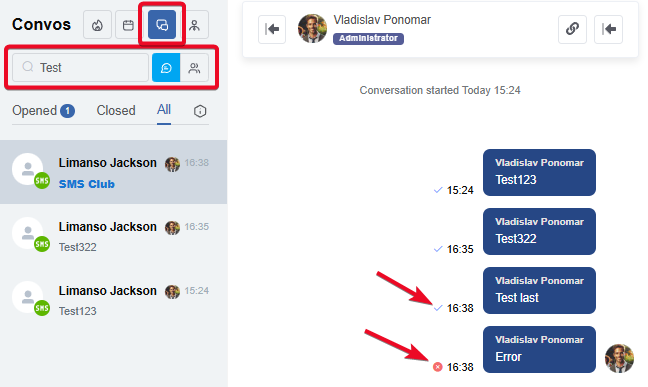
How to find an SMS channel conversation in the Chats section
In the chats section, you can find the desired conversation in several ways:
-
By filtering the list of conversations by SMS communication channel;
-
By searching by the customer’s phone number;
-
By searching by the text of the message from the desired SMS.
A blue checkmark will appear if the message is sent successfully, and an error icon will appear if it fails, allowing you to view the error message.