Integration with CallsApp can be set up in just a few steps and will allow you to:
-
make calls from the CRM and handle incoming calls;
-
see who is calling you if the customer is already in the system;
-
create customers, orders, or requests directly from the call card;
-
view the entire call history, including call recordings.
Step 1. Create a call channel in keyCRM
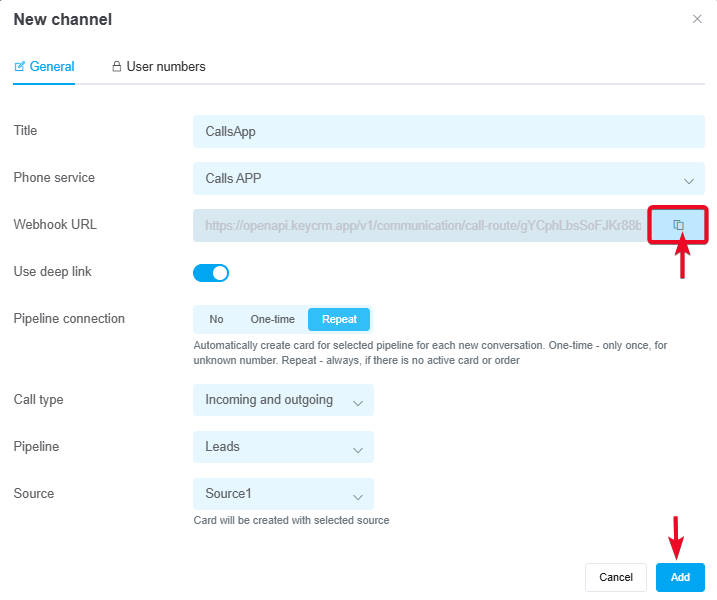
Go to «Settings» → «Communications» → the «Calls» tab and click the «Add new integration» button.
In the window that appears, on the «General» tab:
-
Title — Enter the name of the telephony service;
-
Phone service — Select «Calls App».
-
Webhook URL — copy the link for further configuration;
-
Use Deep Link — enable this if you are using a softphone that supports this technology;
-
Pipelines connection — enable this and select a value:
• No — cards will NOT be created automatically from calls;
• One-time — cards will be created only once, provided there is no existing card with this number;
• Repeat — cards will always be created for repeat calls, provided the number does not have a card in active statuses (all statuses except successful and rejected). -
Call type — select the call type from which cards will be created: only incoming, only outgoing, or all — incoming and outgoing;
-
Pipeline — specify the pipeline for creating cards. If you have only one pipeline, it is selected automatically, and the selection field will not appear;
-
Source — select the source from which the card will be created. If not selected, the card will be created with an empty value in the source field.
How the deep link feature works
Deep link – a feature that immediately initiates a call in the device's default app.
How it works:
-
If your device has a default softphone app for calls, and it is active with the deep link feature enabled in the phone settings, tapping «Call» in the CRM will immediately open this app to place a call to the customer.
-
You should enable deep linking only if you use a softphone that supports this technology (for example, MicroSIP or the paid version of Zoiper). If you’re unsure, you can test it. Enable it first; if outbound calls from the CRM don’t work, then disable it.
-
If you disable deep linking, the call will be made through the telephony system itself. First, the CRM sends a request to the telephony system to initiate the call; upon receiving it, the telephony system places the call to the manager’s softphone or IP phone, the manager picks up the phone, and the connection with the client begins.
-
IP phones do not support the deep link feature, so when working with them, it must be disabled.
Step 2. Connecting the numbers
In the settings window, go to the «User numbers» tab and fill in the details:
-
Internal number — the internal line number (corresponds to the login for the softphone or IP phone);
-
UUID of the internal line — must be obtained from CallsApp support for each line;
-
Manager — the user in the CRM who corresponds to this number.
The dropdown list will include users who have been granted access to telephony.
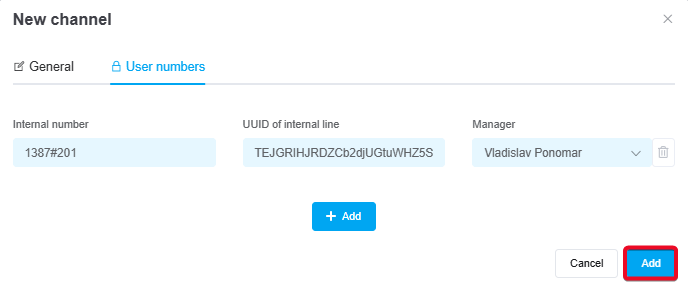
After entering the information, be sure to save the channel and proceed to the next step.
Step 3. Configuring webhooks in CallsApp
Go to your CallsApp dashboard and click on «Manage». In the settings, select «Addons», where you will find the «Common CRM» service connected to each line as follows:
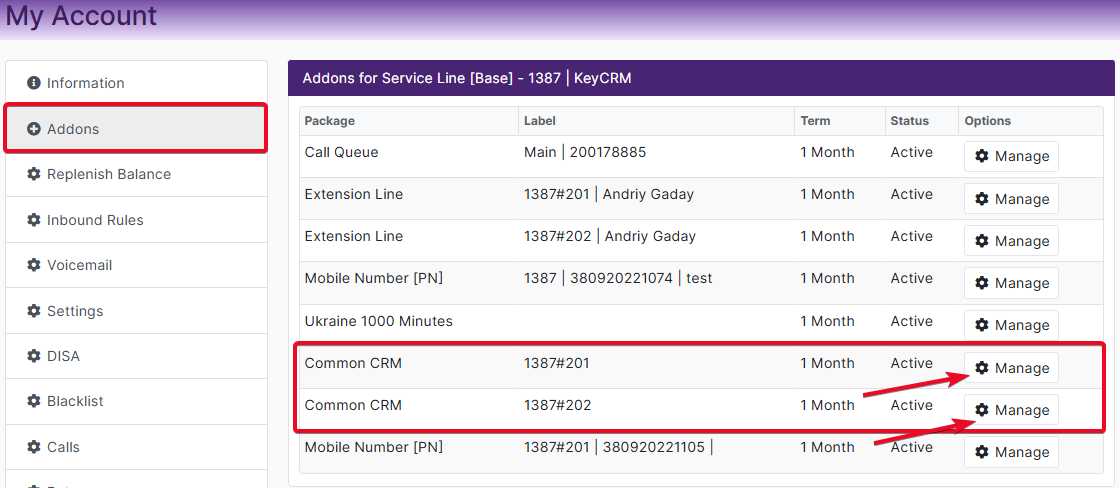
Open the line settings by clicking the «Manage» button and select «Settings». In the URL field, enter the webhook link you copied earlier in «Step 1» and check all the options:
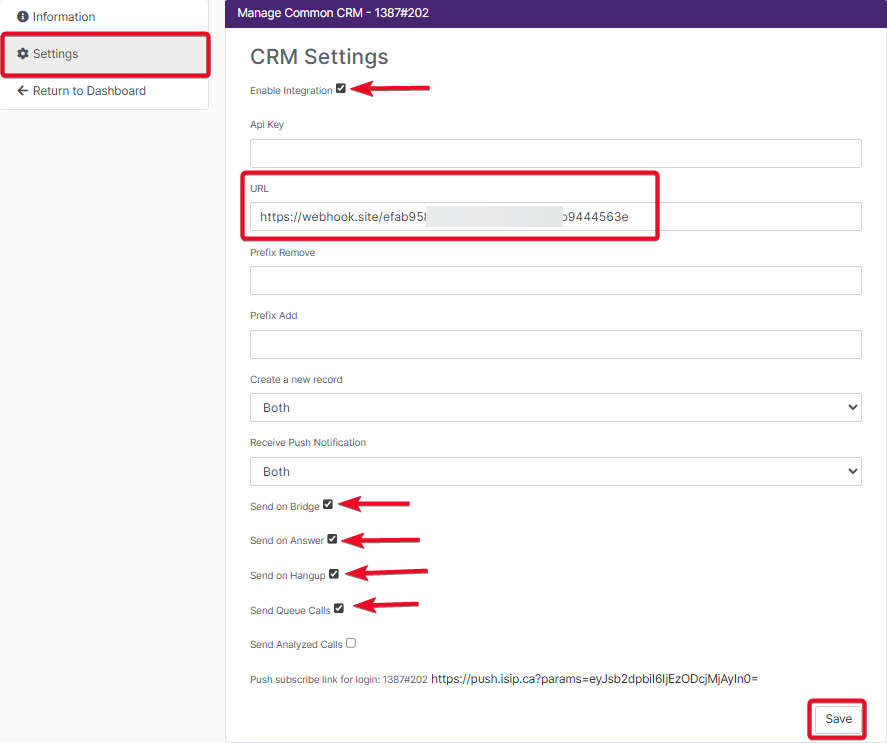
After completing these steps, be sure to save your settings in CallsApp.
