First and foremost, the administrator must connect and configure the phone system. The following phone services are currently available for connection:
-
Binotel;
-
UniTalk (Nextel);
-
Phonet;
-
Ringostat;
-
Stream Telecom;
-
CallsApp;
-
IPTel;
-
Custom phone system integration based on Asterisk (PBX).
How to make calls from the CRM and handle incoming calls
Outgoing calls
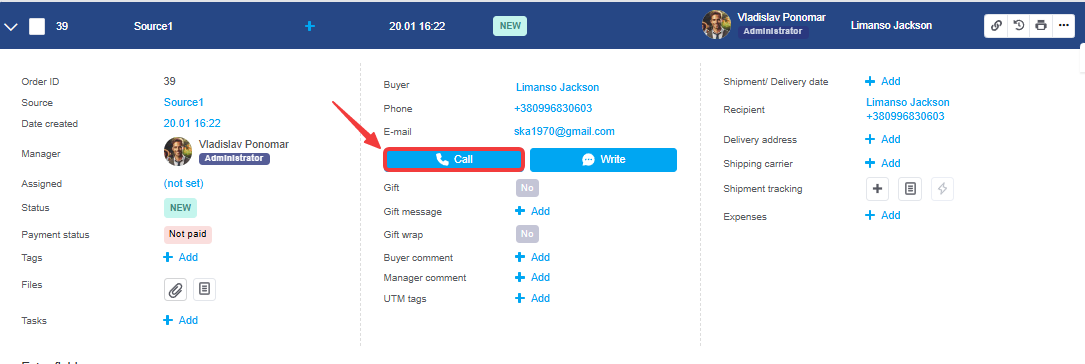
To call a customer, open the order and click the «Call» button next to the customer's phone number. In the customer's profile, a phone icon appears next to each number, which performs the same action:
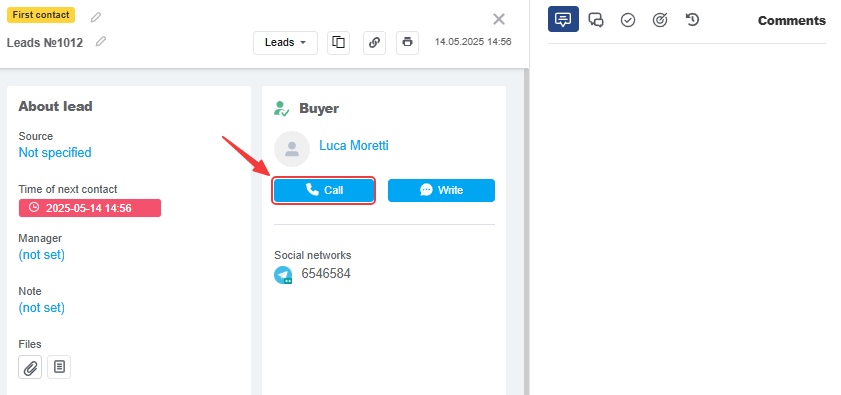
On the pipeline card, simply click the «Call» button:
-
If you have several telephony services connected, a list of them will appear when you click the icon; to start a call, select the one you want.
-
Once the call begins, your softphone or IP phone will receive an incoming call — this is the call from the telephony service. You need to pick up the phone, after which the connection with the customer will begin and a call card will appear in the CRM.
-
If your softphone supports deep linking and your administrator has enabled it in the settings, the connection will start immediately.
-
In the mobile app, calls via the telephony service are not possible, so the call will be made from your mobile phone.
-
In the mobile browser version, if deep link is disabled and the manager is added to internal lines, the call will be made via the connected phone system. If the manager is not added to internal lines, the call will be made from a mobile phone. If deep link is enabled, the call will also be made from a mobile phone.
How the deep link feature works
Deep link — a feature that immediately initiates a call using the device's default app.
How it works:
-
If your device has a default softphone app set for calls, and the deep link feature is enabled in the phone settings, when you click «Call» in the CRM, this app opens immediately to place a call to the customer.
-
You should enable deep linking only if you use a softphone that supports this technology (for example, MicroSIP or the paid version of Zoiper). If you’re unsure, you can test it. Enable it first; if outbound calls from the CRM don’t work, then disable it.
-
If you disable deep links, the call will be made through the telephony system itself. First, the CRM sends a request to the telephony system to initiate the call; upon receiving it, the telephony system places the call to the manager’s softphone or IP phone, the manager picks up the phone, and the connection with the client begins.
-
IP phones do not support the deep link feature, so when working with them, it must be disabled.
Incoming calls
Incoming calls can be divided into two types:
-
a call from a customer who has an assigned manager — in this case, the call will be routed directly to that manager, and the call card will appear immediately when the call comes in (exception: Ringostat, where the call card will always appear after the call is answered);
-
a call from a customer who does not have an assigned manager (or simply a new customer)—in this case, the call will be routed to a manager according to the routing rules on your PBX. The call card will appear only after you pick up the phone.
Call identification
When a call comes in, the system automatically searches for the customer in the account and links the call to them, as well as to the oldest card (if there are multiple cards).
If you open another active card from the call, an indicator will appear next to it, indicating that the call will be linked to it.
If the system fails to find a customer at the time of the call — the search is performed in the «Pipeline» section by phone number — the call is linked to the oldest card (if there are multiple cards).
This logic ensures that a complete and accurate history of interactions with the customer is preserved within a specific pipeline card, allowing you to view only those calls that pertain to the relevant card when needed.
Call card: creating customers, orders, and pipeline cards during a call
Regardless of the type of call, the same call card will be displayed in the CRM.
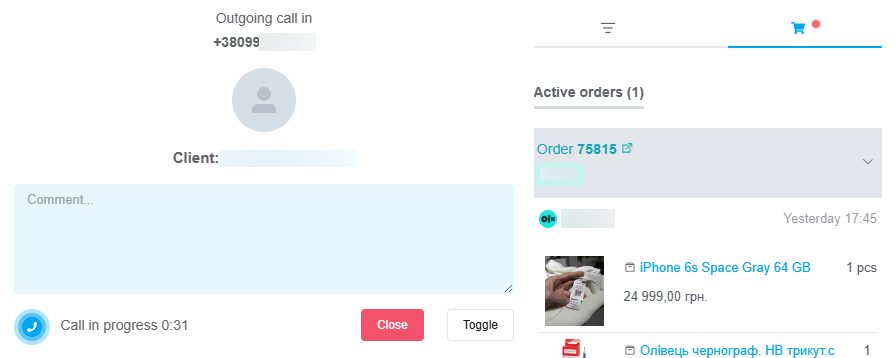
In the call card:
-
The call type and phone number are displayed;
-
If the system does not yet have a customer with this number, it will display «Unknown caller». If a customer exists, their name will be displayed;
-
If there is no customer with this number — the «Create Customer» button, which opens the standard window for creating a new customer, where the phone number will be automatically populated;
-
Active orders for the customer (maximum 3);
-
The «Add Order» button opens the standard order creation window. The customer will be automatically populated. If there is no customer associated with this number yet, you can also create one when creating the order;
-
Active pipeline cards with the subscriber’s phone number (maximum 3). The color indicator next to the card indicates that this call is linked to it;
-
The «Add Lead/Application/Request/Deal» button also opens the standard pipeline card creation window;
-
You can leave notes about the call, which will be saved in the history;
-
The status and duration of the call are displayed;
-
You can hang up. The call card will not close. To close it, click the «Close» button;
-
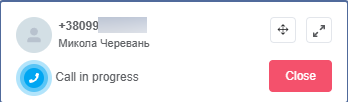
You can minimize the card. It will become smaller and appear in the lower-left corner so as not to interfere with your work in the CRM:
Where to view call history
Go to the «Sales» menu → «Call History»; this section displays all incoming and outgoing calls made by users. You can quickly search and filter these calls.
The table displays:
-
Call Type — (incoming, outgoing). Successful calls are marked with a blue icon. Unsuccessful calls are marked with a red icon;
-
Call Time — When the call was received;
-
Contact — if already in the system, the customer’s link will appear:
• if pipeline cards are automatically created from calls — the card name;
• if automatic card creation is not enabled, cards can also be created manually via this section;
• if neither the customer nor the pipeline card exists — just the phone number; -
Manager — the person who made or received the call. The extension number is displayed next to the name;
-
Telephony — the phone number used during the call and the telephony name in the system;
-
Comment — comments left by the user in the call card will be displayed here;
-
Recording — by clicking the play icon, you can listen to the conversation recording;
-
Actions — the ability to create an order or a customer:

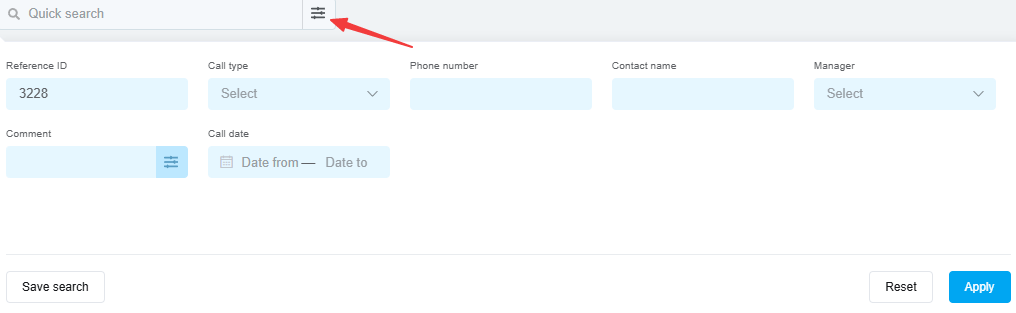
Filtering allows you to find the call you're looking for based on any of the fields listed above, as well as by the external identifier (the call ID from your phone system):