Neuron24 – a platform for creating, implementing, and analyzing AI-powered sales scripts.
You can configure:
-
the display of pre-made scripts from Neuron24 during calls in your CRM;
-
receiving AI call analysis in your CRM pipeline – we explain how in this article.
Step 1. Preparing for integration in the keyCRM account
- Create a pipeline (if you don't have one) and enable integration with it in the telephony system;
- Add your own field to the pipeline with the name «Analytics_from_NEURON24» and the field type «Text»;
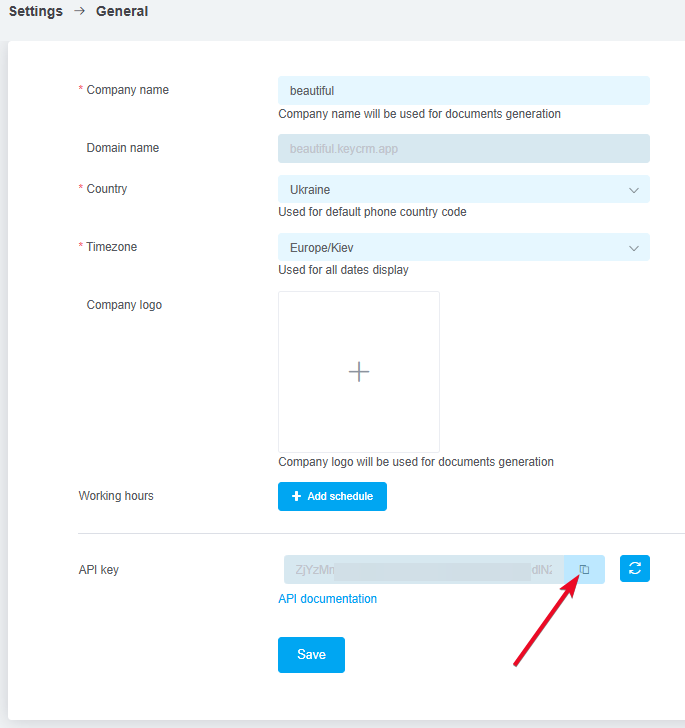
Important! The field name must be exactly «Analytics_from_NEURON24». - Go to «Settings» → «General» and copy the API key:
Step 2. Connecting the integration in the Neuron24 account
Go to the «Integrations» section → the «CRM-Phones» tab and click on «keyCRM» in the list. Next, fill in the fields:
-
integration/index.domain_crm: Enter the link to your CRM dashboard. In the format
https://yourdomain.keycrm.app/; -
Webhook for CRM: copy the webhook link and save it for later configuration in keyCRM;
-
api_token: enter the API key you copied earlier from keyCRM;
-
Type: select «Target Calls by Lead» to connect with CRM pipelines. «Target Calls by Deal» is not yet available;
-
Telephony: select the telephony service you use. Additional fields will appear for entering the connection details for your telephony service.
https://integrator-neuron.systems/telephony/key_crm/yourdomain.keycrm.app
Be sure to replace
yourdomain with your CRM's domain.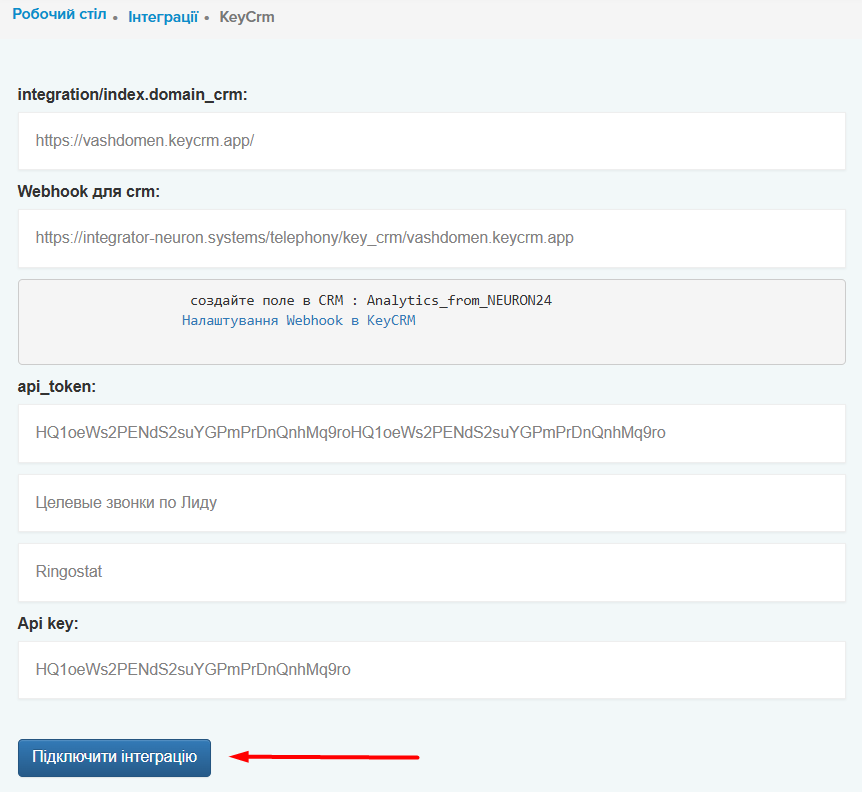
Click «Enable Integration», and you'll see the message «Integration enabled» along with a link to proceed to the next settings: «Go to Settings».
In the integration settings, fill in the fields for each employee. Calls will be selected for analysis based on the specified criteria:
-
Enter the manager's ID: the employee's internal phone number;
-
Specify the transcriber and language of the calls:
-
Inbound and outbound script: select a script for the calls;
-
Call duration filter from and to;
-
Specify the number of inbound calls per day;
-
Specify the number of outbound calls per day.
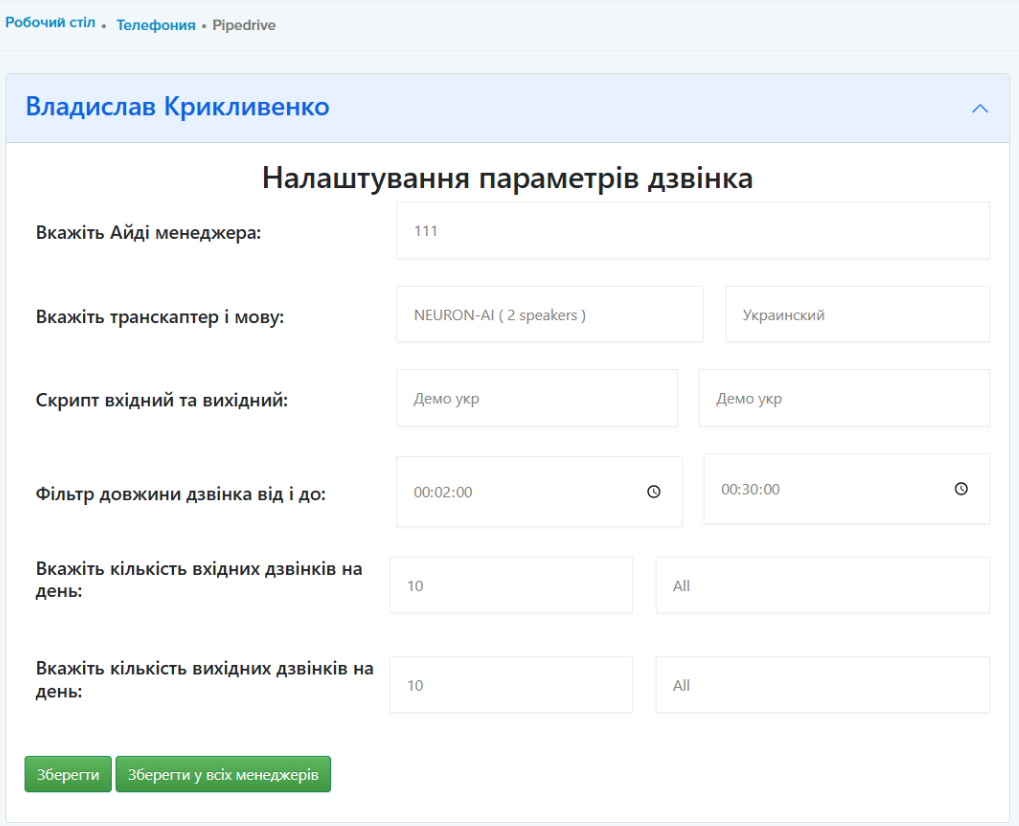
Click «Save» or «Save for All Managers» to quickly apply the settings to other employees.
Step 3. Configuring the webhook in keyCRM
To receive an analysis and evaluation of a call, you need to set up an automatic trigger that will send information about the call card to Neuron24. You can choose at which stage of processing the card you want to receive the analysis.
To add a new trigger, go to «Settings» → «Advanced» → «Automation», click the «Add Trigger» button, and fill in the fields:
-
Name — any name for the trigger;
-
Event — select «Pipeline / Card Status Change»;
-
Pipeline — select the pipeline where cards from calls are created;
-
Pipeline Status — specify the stages at which you want to receive call analytics;
-
Execution Time — set the time after which the trigger will fire once the card transitions to the statuses listed above;
-
Conditions — set the conditions the card must meet for the trigger to execute;
-
Action → «Send Webhook», then you need to add the copied webhook link from Neuron24 and select the HTTP request method — POST.
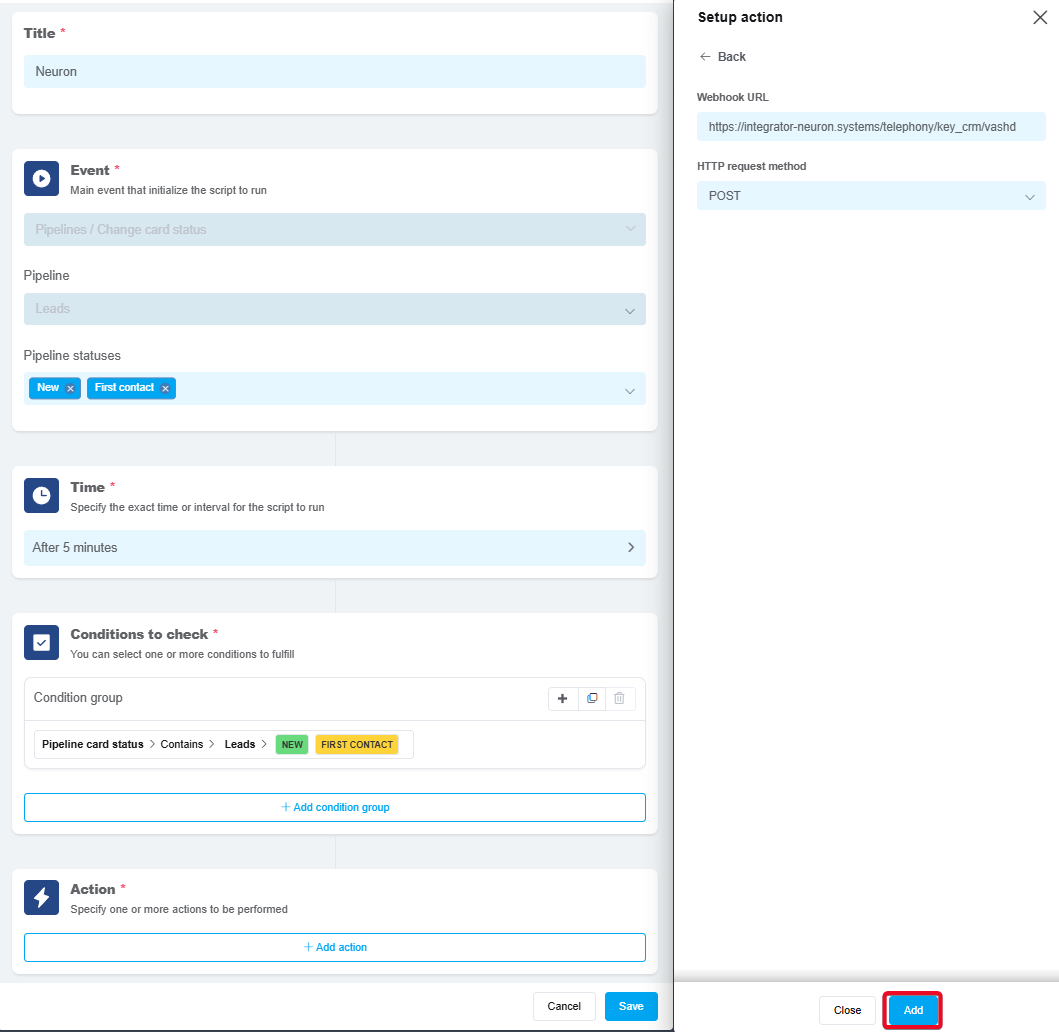
Once you've finished configuring the settings, save the trigger.
How the integration works:
-
After the call, the user in the CRM sets the card to the appropriate status, which triggers a webhook based on the settings in the trigger;
-
Neuron24 receives information about the card and the calls associated with it and performs an analysis;
-
After analyzing the calls, Neuron24 sends the analysis results to this card in a previously created additional field named «Analytics_from_NEURON24».
