Neuron24 – a platform for creating, implementing, and analyzing AI-powered sales scripts.
You can configure:
-
AI call analysis in your CRM pipeline;
-
displaying pre-made scripts from Neuron24 during calls in your CRM – we explain how in this article.
How to configure settings
Neuron24's features are already integrated into keyCRM, but you'll need to configure both systems before you can get started.
Step 1. Settings in keyCRM
-
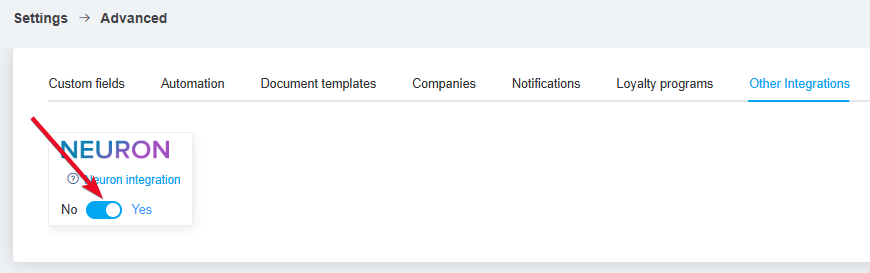
Go to «Settings» → «Advanced» → the «Other Integrations» tab and toggle the switch:
-
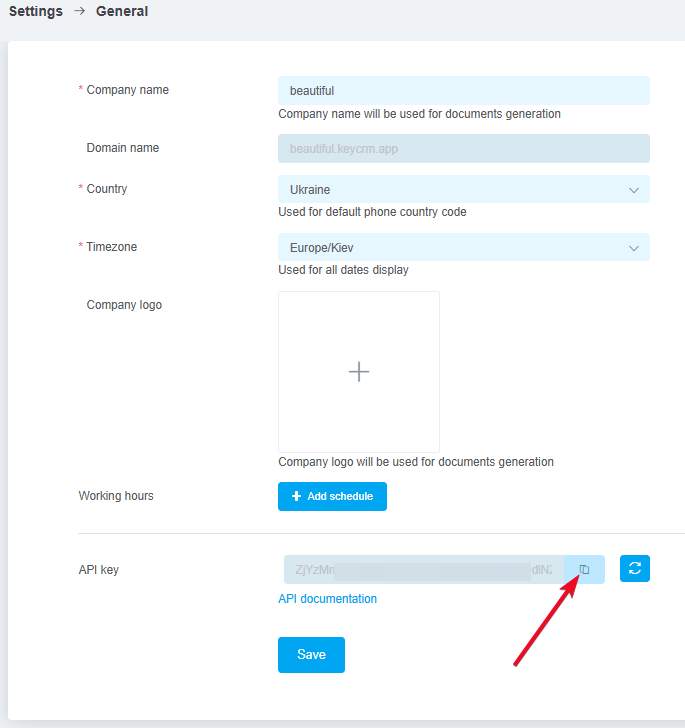
Next, go to «Settings» → «General» and copy the API key.
-
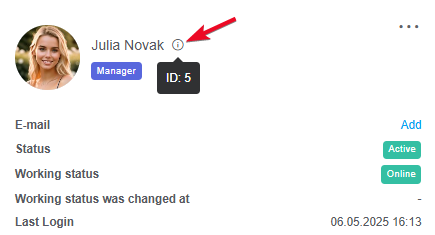
For the next step, be sure to save the IDs of the users who will be using scripts in Neuron24. To find the ID of added users, go to «Settings» → «Users» and hover over the (i) icon:
Step 2. Configuration in Neuron24
Go to the «Integrations» section → the «CRM» tab and click on «KeyCRM» in the list. Next:
-
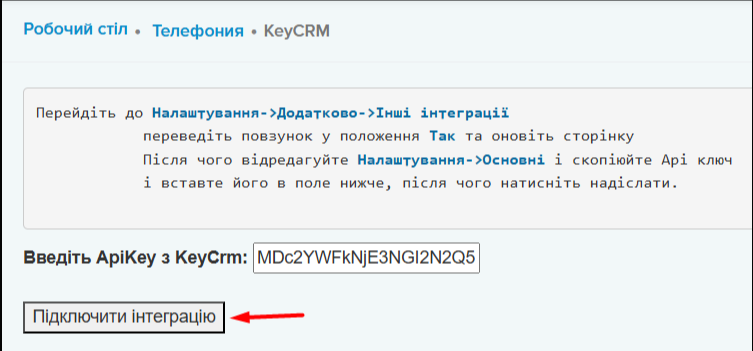
Enter the API Key that you previously copied from the KeyCRM settings;
-
Click «Connect Integration»:
Once the connection is successful, you will see the message «Integration connected» and a link to proceed to the next settings: «Go to settings».
In the integration settings, fill in the following fields:
-
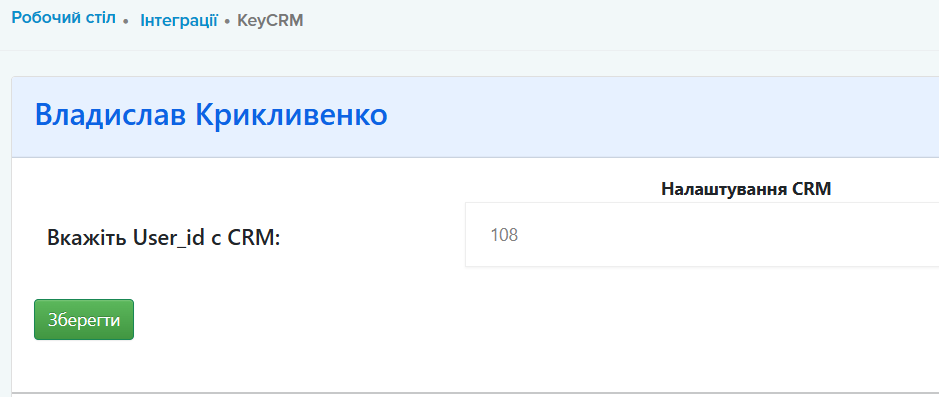
Enter the User_id from CRM - the user ID from keyCRM that you copied earlier:
Once you've configured these settings, when you make a call from a pipeline card or an order, a page will open showing the available scripts from Neuron24.