keyCRM does not deviate from the classic rules of stock management and control. You can add the necessary warehouses, specify important information about them, and set up automatic write-offs of products in orders.
After activating the stocks, you will have access to:
-
The ability to record products;
-
Edit stocks;
-
Import stocks;
-
Move products between warehouses;
-
Conduct warehouse inventory;
How to activate stocks management
To activate warehouse accounting, go to «Settings» → «Products» → «Stocks» tab and enable the «Stocks management» switch.

After activating warehouse accounting, two settings blocks will appear:
-
Warehouses;
-
Decrease stocks settings.
The «Warehouses» block
This block contains a list of warehouses that you have added to the system and displays the following information:
-
Warehouse name;
-
Description;
-
Address;
-
Buttons for editing, deactivating/activating, and deleting the warehouse.

Adding a warehouse
Click on the «Add warehouse» button in the upper right corner.
In the window that opens, enter the name of your warehouse. The description and address are optional.

Click «Add» to save the data, and the created warehouse will appear in the list.
Editing, deactivating, deleting a warehouse
-
To edit the name, description, or address of a warehouse, click on the «pencil» icon.
-
To deactivate a warehouse, click on the «disable» icon. When deactivating a warehouse, you can reset the balances or transfer them to another warehouse.
-
Deactivated warehouses will be displayed in
grayin the list.

-
After deactivation, the warehouse can be reactivated by clicking on the «triangle» icon. After reactivation, you must re-enter the warehouse balances.
-
To delete the warehouse, click on the «bin» icon.
«Decrease stocks settings» block
In this block, you can configure rules for reserving/writing off products, warehouses by default, and updating balances on sources:
-
Decrease stock levels of warehouses — activating the switch will allow you to select the status for reserving and writing off products;
-
Warehouses by default — activating the switch will allow you to select warehouses for your sources, which will be specified by default after adding a products;
-
Sync sources stocks — activating the switch will display a list of sources to which balances will be transferred immediately after they are changed in keyCRM:
-
Activate the «Update balances on sources» switch to automatically transfer balances;
-
Select the warehouses from which the balances should be transferred;
-
Or use a fixed number to transfer balances.
To transfer stock balances to CMS platforms or self-written websites, use webhooks.
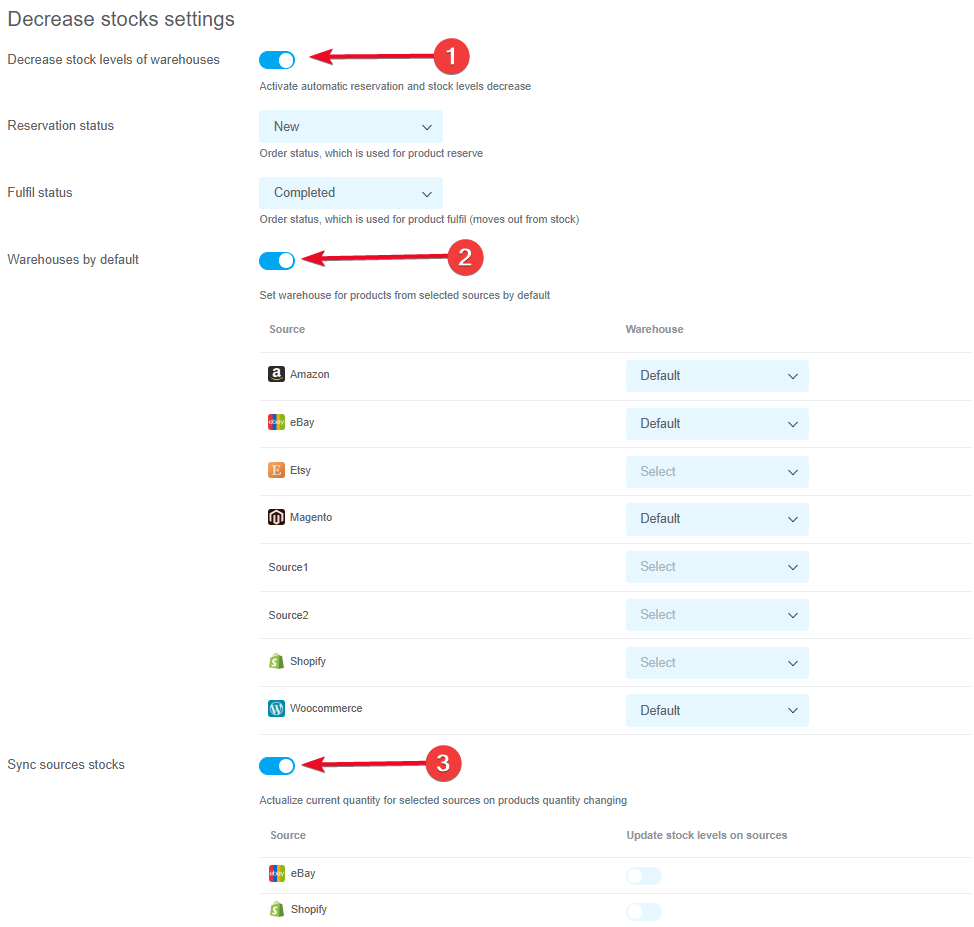
After completing all settings, click the «Save» button at the bottom of the page.
Webhooks block
To transfer balances to other sources (ERP, CMS, self-written websites, etc.), you can add a webhook to which data on product balances will be sent after they change. We have described the detailed settings and operation of this feature in a separate article.
