By connecting your Etsy shop to keyCRM, you can:
- Receive all order information (products, payments, discounts, delivery details and date, tracking numbers, and more) and process it in one place;
- Automatically send tracking numbers from keyCRM to Etsy;
- Import listings from Etsy and create products;
Once connected, orders from all shops will appear in your account, which you can then access from any location or IP address.
Connecting a shop
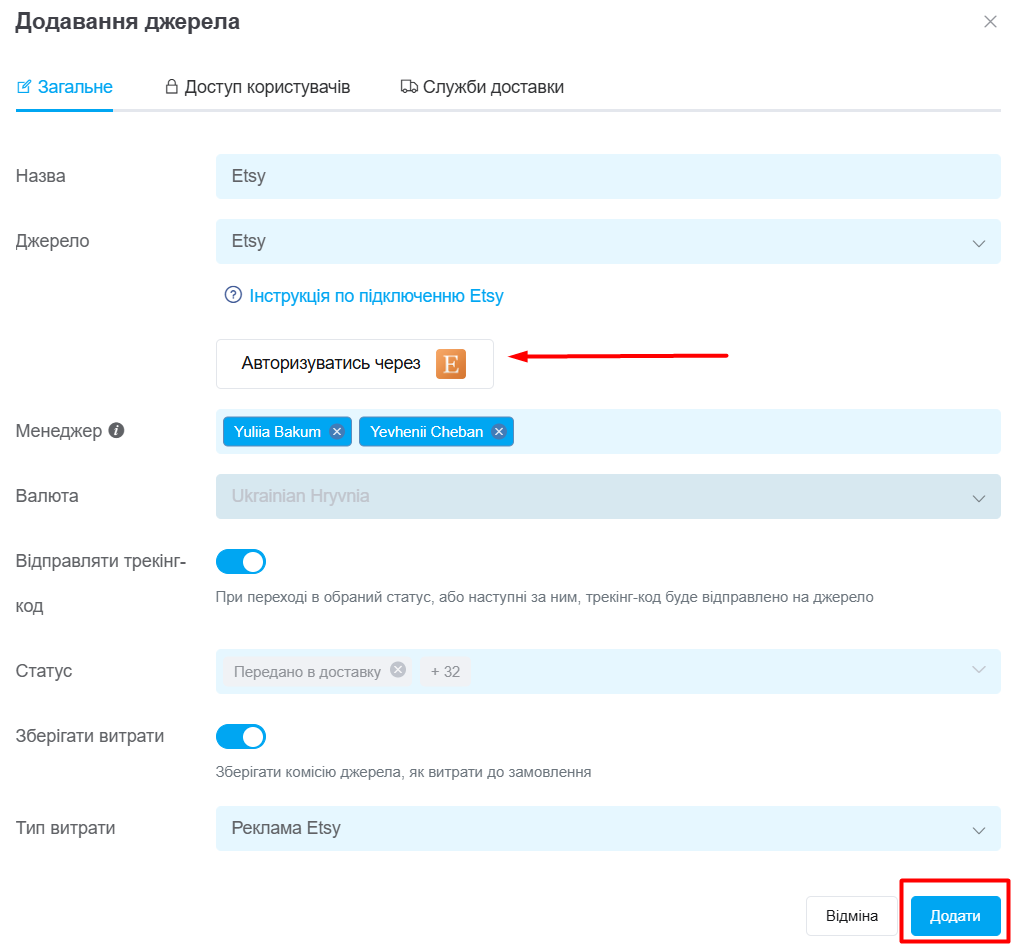
Go to «Settings» → «Sources». You will see a list of connected sources. Click «Add source» at the bottom of the list.
In the window that opens:
- Name — enter a name for the source;
- Source — select Etsy from the list;
- Click «Authorize», enter your Etsy account username and password, and confirm the connection by clicking «Allow Access»:
Note: Authorization takes place in a pop-up window, so pop-ups must be allowed in your browser!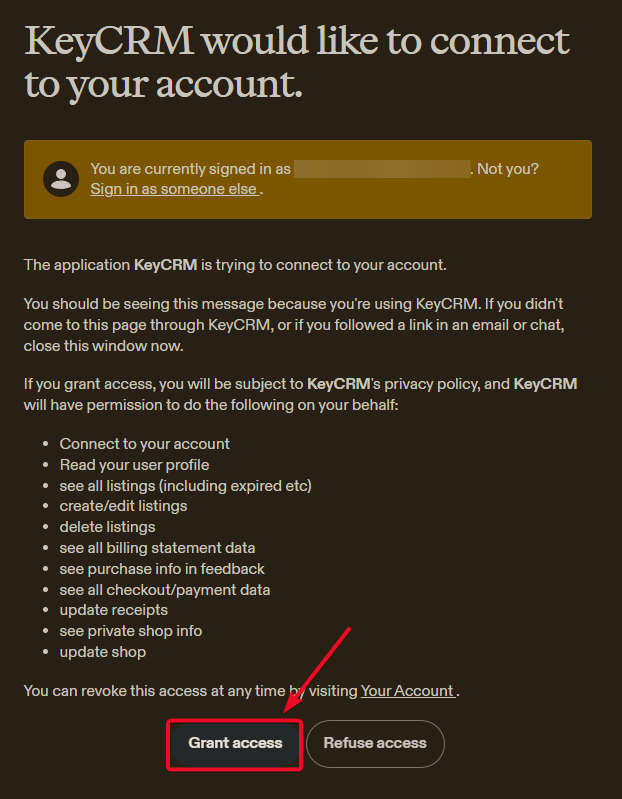
-
Manager — select the manager to whom all orders from this shop will be assigned. If you add multiple managers, orders will be assigned to them in turn. You can leave this field empty;
- Currency — the currency is automatically retrieved from the source;
- Send tracking number — enable this option to send order tracking numbers to Etsy;
Note: After an order’s tracking number is sent to Etsy, its status changes to Marked as shipped.
- Status — select the statuses. When an order enters one of these statuses, its tracking number will be sent to Etsy;
- Save expenses — enable this option to save marketplace fees in the order;
- Expense type — select the expense type under which marketplace fees will be saved. Expense amounts will appear in analytics;
- On the «User access» tab, select the users who will have access to orders from this source;
- On the «Shipping services» tab, you can select default shipping services;
- Click «Add» to save the settings:
Shortly after connecting the shop, all orders from the last two months will be imported. New orders will then arrive automatically approximately every 30 minutes.
Order status changes are not sent to Etsy. However, once Etsy receives a tracking number from the CRM, it will close the order itself.
You can now process your orders. For more convenient work, open «Listings» and create products from your connected Etsy shop.
You can update stock levels using an import. Automatic stock synchronization is currently under development.
