Asterisk (PBX) (Private Branch Exchange) is an open-source communications platform used to implement software-based PBX systems, voice communication systems, VoIP gateways, IVR systems (interactive voice response), voicemail, conference calls, and call centers.
Many phone systems based on this technology can be integrated with keyCRM to:
-
make calls from the CRM and handle incoming calls;
-
see who is calling you if the customer is already in the system;
-
create customers, orders, or requests directly from the call log;
-
view the entire call history with call recordings.
Step 1. Create a call channel in keyCRM
Go to «Settings» → «Communications» → the «Calls» tab and click the «Add new integration» button.
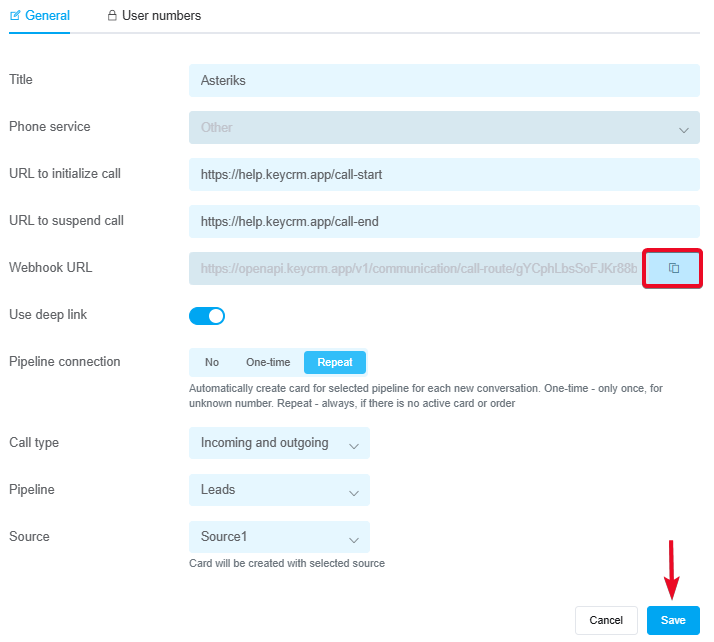
In the window that appears, on the «General» tab:
-
Title — enter the name of the telephony service;
-
Phone service — select «Other».
-
URL to initialize call — the URL is generated on the telephony side. Once the CRM manager initiates a call, a POST request in JSON format will be sent to it;
-
URL to suspend call — The URL is generated on the telephony side. A POST request in JSON format will be sent to it when the manager ends the call from the call card in the CRM;
-
Webhook URL — copy the link for further configuration on the telephony side;
-
Use deep link — enable this if you are using a softphone that supports this technology;
-
Connection to pipelines — enable this and select a value:
• No — cards will NOT be created automatically from calls;
• One-time — cards will be created only once, provided there is no existing card for this number;
• Repeat— cards will always be created for repeat calls, provided there is no card for the number in active statuses (all statuses except successful and rejected). -
Call type — select the call type from which cards will be created: only incoming, only outgoing, or all — incoming and outgoing;
-
Pipeline — specify the pipeline for creating cards. If you have only one pipeline, it is selected automatically, and the selection field will not appear;
-
Source — select the source from which the card will be created. If you do not select one, the card will be created with an empty value in the source field.
How the deep link feature works
Deep link – a feature that immediately initiates a call in the device's default app.
How it works:
-
If your device has a default softphone app for calls, and it is active with the deep link feature enabled in the phone settings, tapping «Call» in the CRM will immediately open this app to place a call to the customer.
-
You should enable deep linking only if you use a softphone that supports this technology (for example, MicroSIP or the paid version of Zoiper). If you’re unsure, you can test it. Enable it first; if outbound calls from the CRM don’t work, then disable it.
-
If you disable deep linking, the call will be made through the telephony system itself. First, the CRM sends a request to the telephony system to initiate the call; upon receiving it, the telephony system places the call to the manager’s softphone or IP phone, the manager picks up the phone, and the connection with the client begins.
-
IP phones do not support the deep link feature, so when working with them, it must be disabled.
Step 2. Connecting the numbers
In the settings window, go to the «User numbers» tab and fill in the details:
-
Internal number — the telephony internal line number;
-
Manager — the user in the CRM who corresponds to this number.
The dropdown list will include users who have been granted access to telephony.
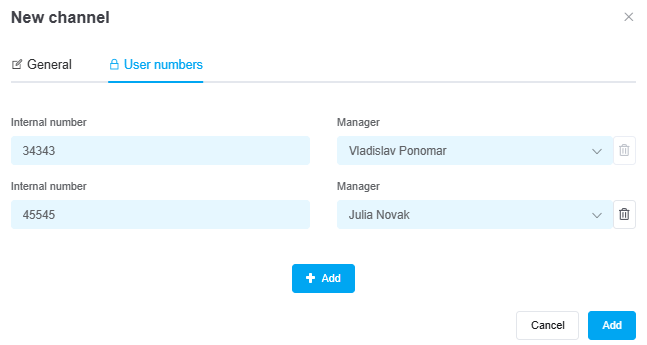
After entering the information, be sure to click «Add» and proceed to the next step.
Step 3. Configuration on the telephony side
keyCRM receives call information from the telephony system and displays it within the system. Therefore, data transfer from the telephony system to the CRM must be implemented.
All requests must be sent using the POST method in JSON format. Parameter descriptions:
| Parameter | Data type | Must-have | Description |
| action | string | yes |
|
| call | objects | yes | An object containing detailed call information, including the following parameters: |
| id | string | yes | a unique call identifier generated on the telephony side |
| direction | string | yes |
Call origin:
|
| destination_number | string | yes | always the customer's phone number |
| caller | string | yes | the manager's internal phone number |
| state | string | yes |
Call status:
|
| duration | int | no | The call duration in seconds should only be transmitted after the call has ended |
| audio_url | string | no | A link to the audio recording of a call should only be sent after the call has ended |
Example of a request to save a call:
{
  "action": "call",
   "call": {
      "id": "1233123",
      "direction": "outgoing",
      "destination_number": "380730000001",
      "caller": "301",
      "state": "started",
      "duration": 5666,
      "audio_url": "https://google.mp3"
   }
}
Examples of integration use cases
1. Outgoing call when the deep link is disabled
-
The manager clicks «Call» in the CRM;
-
The CRM sends a POST request in JSON format to the link specified in the telephony settings under «Call Initialization Link»:
{
 "caller": "333", // the extension number of the manager who initiated the call
 "destination_number": "380730000001"  // the customer's phone number
}
-
The telephony system receives the request and initiates the call on its end. It then sends a call initiation request to the CRM via the Webhook specified in the telephony settings:
{
  "action": "call",
   "call": {
      "id": "1233123",
      "direction": "outgoing",
      "destination_number": "380730000001",
      "caller": "333",
      "state": "started"
   }
}
-
After the call is answered, the telephony system sends the same request to the CRM, but with the call status set to answered.
-
After the call ends, the telephony system sends the same request to the CRM, but with the call status set to completed, along with additional parameters: duration and audio_url.
2. Incoming call
-
When an incoming call is received, the telephony system immediately sends a POST request to the CRM indicating the start of the incoming call in JSON format to the Webhook specified in the telephony settings:
{
  "action": "call",
   "call": {
      "id": "1233123",
      "direction": "incoming",
      "destination_number": "380730000001",
      "caller": "333",
      "state": "started"
   }
}
-
The telephony system then sends requests based on changes in the call status.
3. Saving the audio recording of a call to the CRM call history
You can send the call duration and audio recording immediately along with the request, specifying the call status as «completed».
Alternatively, if you receive this data later, you can send it at any time, making sure to include the call ID:
{
  "action": "call",
   "call": {
      "id": "1233123",
      "direction": "incoming",
      "destination_number": "380730000001",
      "caller": "333",
      "state": "completed",
      "duration": 5666,
      "audio_url": "https://google.mp3"
   }
}
4. Example of obtaining information about a customer
-
To retrieve customer data from the CRM database, you need to send a POST request in JSON format to the Webhook from the telephony system. The «action» parameter for this request must always be set to «route», and the «route» parameter must contain the customer's phone number:
{
  "action": "route",
  "route": "380730000001"
}
-
In the reply, you will receive:
{
   "client": {
       "id": 47820,    // customer ID in the CRM
       "profile_url": "https://demo.keycrm.app/app/clients?id=47820",     // link to the customer's profile in the CRM
"name": "Vladislav Ponomar",    // customer's full name
       "manager": {
           "id": 81,     // ID of the customer's assigned manager in CRM
"name": "Vladislav Ponomar",  // name of the customer's assigned manager in CRM
           "number": null      // phone number of the customer's assigned manager, specified in their CRM profile
       }
   }
}
