Since OLX has an internal chat feature and doesn't provide delivery information via API, handling messages from your customers is a great way to ensure you don't miss any orders!
How to add OLX to your communication channels
To set up the connection, go to «Settings» → «Communications» → the «Chats / SMS / Email» tab and click the «Add new channel» button.
A connection window will appear; on the «General» tab, fill in the following fields:
-
Title — enter any name for the channel;
-
Channel — select «Chats from marketplaces»;
-
Marketplace — select the OLX source from which you want to receive messages:
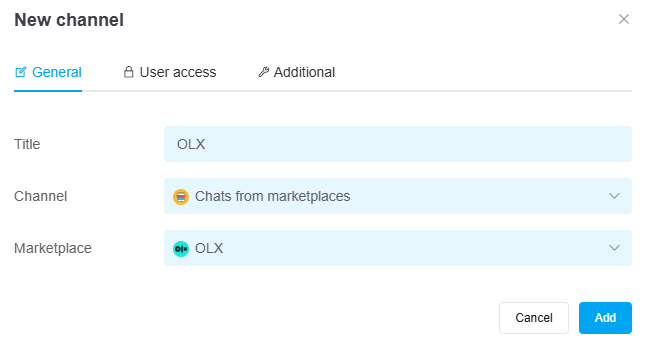
Once you've entered all the necessary settings, click the «Add» button. The channel will appear in the list, and all messages received after you connect will start loading into chats within 5 minutes.
If necessary, you can also configure user access to the channel and additional settings for its operation.
