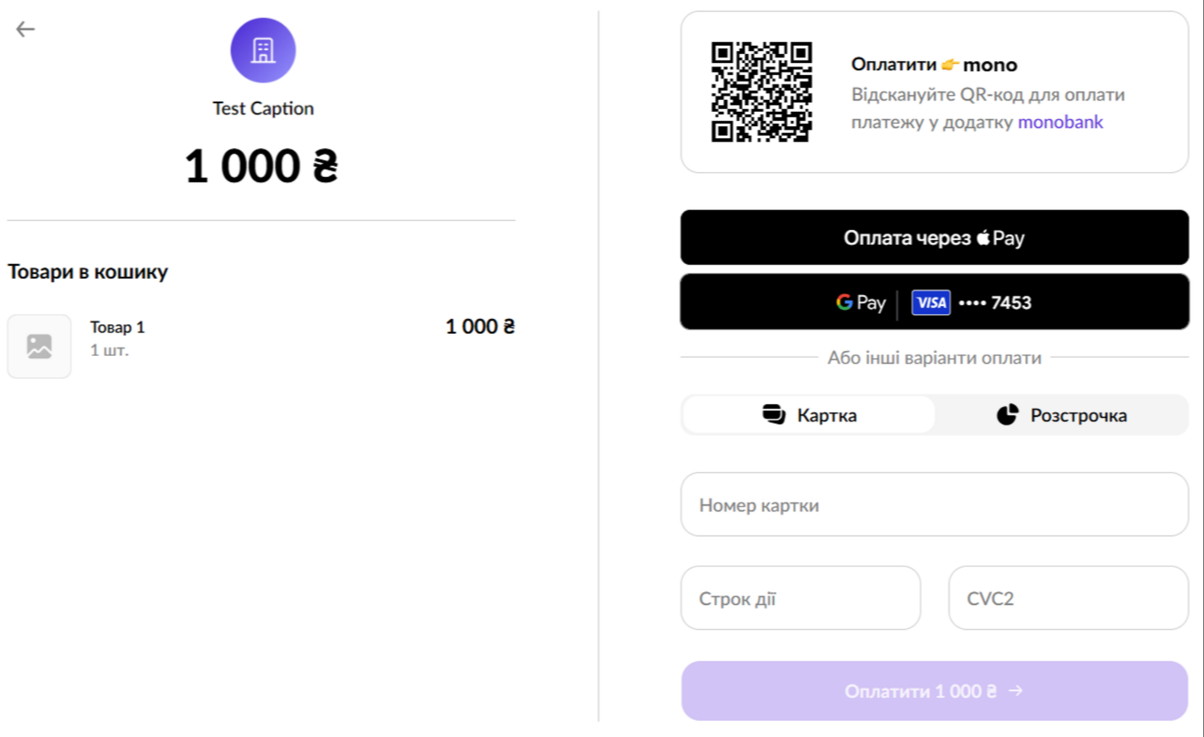
Plata by mono is a payment processing service from monobank that enables businesses to accept payments for goods and services using bank cards. You can integrate it with keyCRM and quickly issue invoices that are automatically settled upon payment.
Data transfer settings in Plata by mono
To enable the invoicing feature, follow these steps:
-
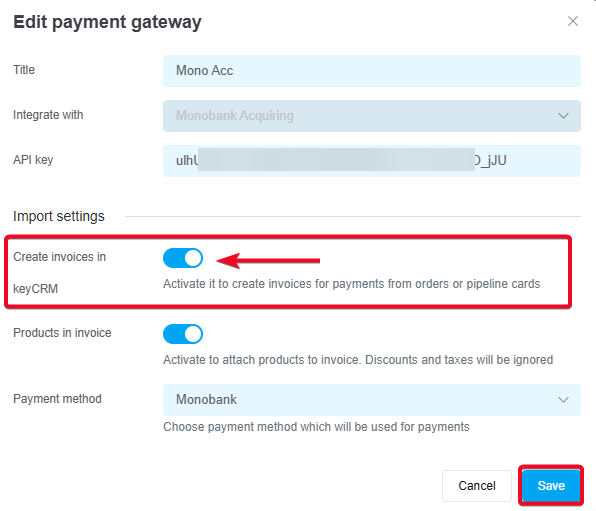
Go to «Settings» → «Finance» → «Payment gateway» and open the Plata by mono integration settings;
-
In the «Import settings» section, toggle the «Create invoices in keyCRM» switch;
- Enable «Products in invoices» to transfer product data;
If you have fiscalization enabled on the Mono side, be sure to toggle this switch so that items are added to the receipt and fiscalization is performed correctly. -
Select the payment method for the payment that will be added to the order after the invoice is issued, and save your settings.
Invoicing
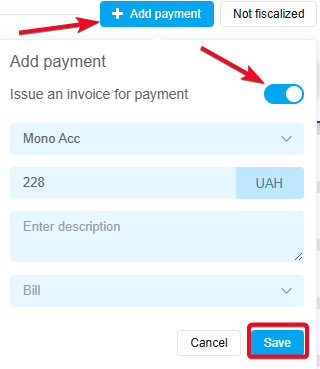
After configuring the settings, you can generate an invoice for payment within an order or a funnel card. To do this:
-
In the payment section, click «+ Add Payment»;
-
Toggle the «Issue an invoice for payment» switch;
-
Select the payment service from which the invoice will be issued;
-
Enter the amount to be paid;
-
Optionally, you can leave a description for this payment in the system (it is not included in the invoice and is used for internal notes);
-
Click «Save».
How to manage invoices
After creating an invoice, the corresponding payment will be added to the payments in the order or in the sales funnel card. You can:
-
Track the payment status, which automatically updates after the invoice is paid;
-
Copy the payment link to send to the buyer. The link is valid for 1 week;
-
Cancel the created invoice. Hover over the payment status, and the «Rejected» button will appear.

What the generated payment invoice looks like
When the customer clicks the payment link, the payment service page will open.