Answer: To fiscalize receipts, complete the following steps:
- Enable the «Fiscalization» field under Settings → Orders → Order fields and set the required permissions.
- Give users who will fiscalize receipts access to the payments field.
- Add order sources in the cash register settings in keyCRM using the «Sources» field.
If these steps do not resolve the issue, contact support.
Answer: Configure an automatic fiscalization trigger and complete all required fields in the trigger.
Answer: An item on a receipt cannot have a price of zero. To fiscalize an order with a gift, you can:
- Set the gift price to UAH 0.10 (10 kopiykas).
- Fiscalize the order without the gift, then add the gift to the order items after the receipt has been created.
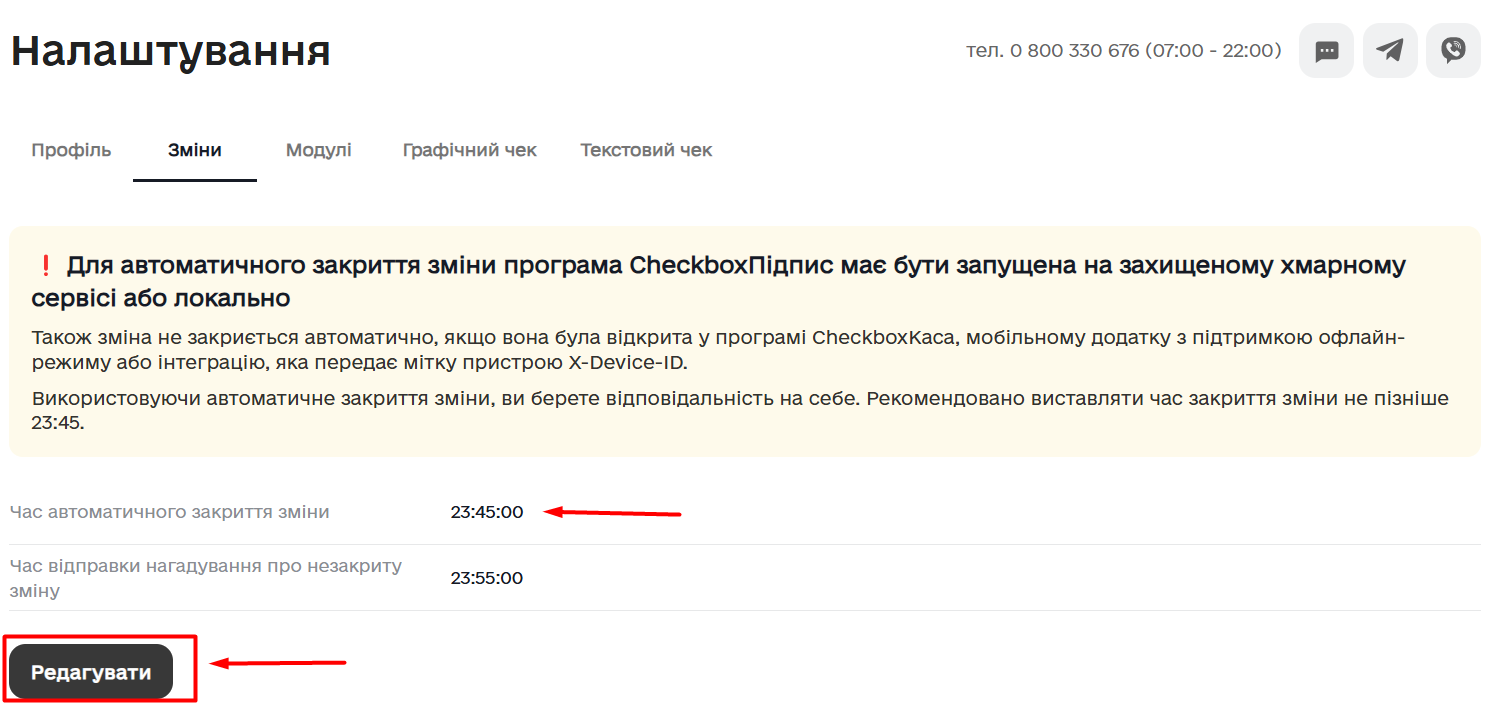
Answer: When connecting the cash register to the CRM, set the closing time on the «Parameters» tab. You can also configure automatic shift closing directly in Checkbox.
In Checkbox, open «Settings» → «Shifts» and set the desired time in the «Automatic shift closing time» field:
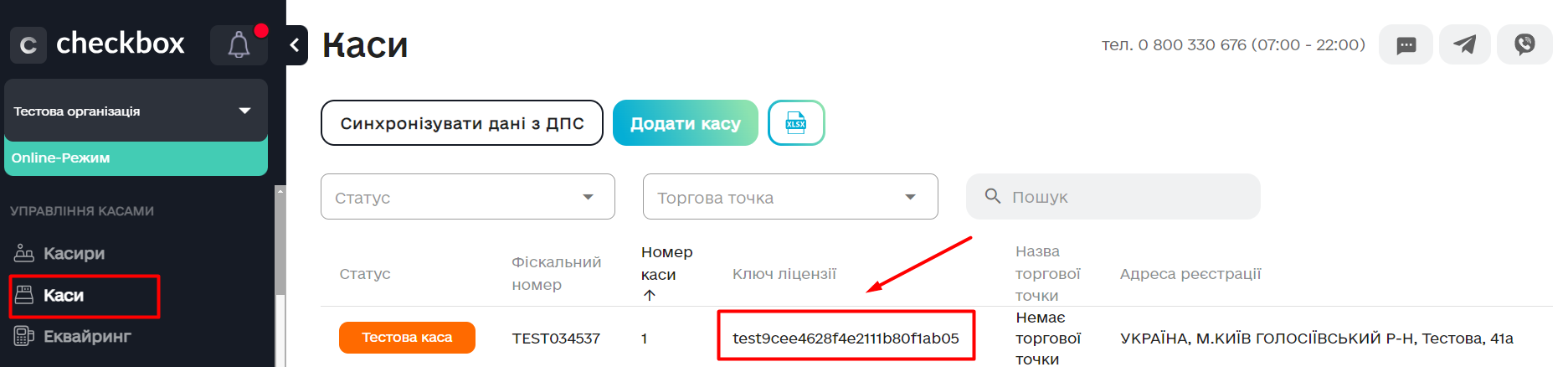
Answer: If the cash register’s license key has not changed after updating the cashier’s signature keys, and it is the same in keyCRM and Checkbox, reauthorize the existing cash register connection in keyCRM.
If the cash register’s license key has changed, create a new cash register connection in keyCRM and enter the new details.
Answer: Open your Checkbox account and go to «Cash Registers».
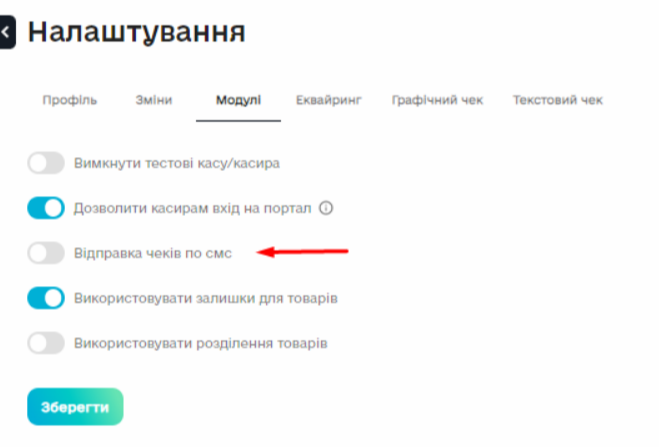
Answer: Checkbox automatically sends receipts by email if the customer’s email address is specified in the order.
You can also enable delivery via SMS/Viber in your Checkbox account:
You can configure triggers to send fiscal receipts from keyCRM and create your own message template for delivery.
Answer: Check the customer’s email address for spaces or invalid characters, correct it, and fiscalize the order again.
Answer: Check your digital signature in your Checkbox account and follow the instructions.
If this does not resolve the issue, contact Checkbox support, as the error is returned by Checkbox.
Answer: Check that the license key entered in the cash register settings is correct and matches the current key in your Checkbox account (see question 6).
If the keys differ, get the new key from your Checkbox account and add a new cash register by following the setup instructions. The license key cannot be updated in an existing cash register connection in keyCRM.
Answer: The fiscalization type determines how receipts are generated for this payment method:
-
Prepayment:
- The receipt contains one item named “Prepayment for order No. ***” for the payment amount.
- The comment contains: “Order No. ***: item name (price, currency, quantity)”.
- The order number from the source is used. If it is unavailable, the keyCRM order number is used.
-
Postpayment:
- The receipt includes a discount equal to the prepayment amount, labeled “Prepayment for order No. ***”.
- Prepayment amount = total order value − payment amount.
- The comment contains: “Received under prepayment receipts: prepayment amount, currency. - fiscal_code [prepayment receipt code]: prepayment amount, currency”.
- The order number from the source is used. If it is unavailable, the keyCRM order number is used.
-
Full payment: A receipt is created for the full order value with the complete list of items.
Answer: You cannot view a regular cashier’s password. To change it, click the three dots next to the cashier and select «Edit».
For a test cashier, the password is the same as the login, and you can view it.
Answer: If the license key has not expired and is the same in keyCRM and Checkbox, reauthorize the existing cash register connection in keyCRM.
Answer: This error can occur for several reasons:
- The cash register is connected to another service or mobile app and to keyCRM via the API at the same time.
- The cash register is blocked in Checkbox, usually because the subscription has not been paid.
- Checkbox is experiencing a temporary issue.
Answer: This notification appears if the license key was changed in your Checkbox account.
In this case, you cannot cancel fiscalization using the old key from keyCRM. Cancel it directly in your Checkbox account.
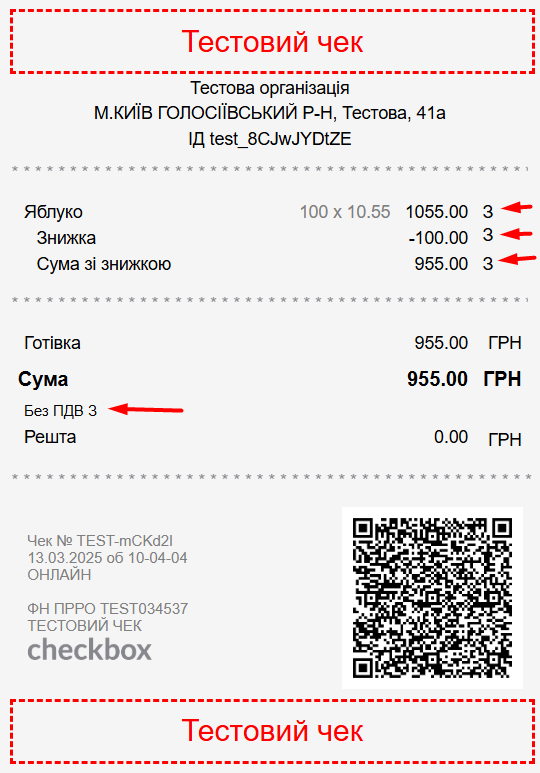
Answer: Yes. Select your tax rate in the cash register settings. The tax rate code appears next to the item amounts and any item discounts. The tax rate and its code also appear below the receipt total:
Answer: Checkbox returns this error when you try to create a refund receipt (cancel fiscalization) for an order whose items have changed and no longer match the original fiscal receipt.
Common causes:
-
The item data sent to the fiscal receipt has changed.
-
An item was removed, or new items were added after the receipt was created.
What to do:
-
Check the product code sent to the fiscal receipt and the other item details, including names and prices.
-
If anything has changed, restore the order to its state when the receipt was created.
-
Cancel the receipt.
-
After canceling it, you can make the required changes again.
Answer: Automatic fiscalization uses the following process to ensure stable operation:
- The trigger sends Checkbox a request to create a receipt and immediately moves on to the next order without waiting for a response. This avoids queues and speeds up receipt creation.
- After creating the receipt, Checkbox sends confirmation, and the status in keyCRM updates. If confirmation is missing or delayed, keyCRM automatically checks all receipts with the «Processing» status every 10 minutes.
Receipt information therefore takes up to 10 minutes to update. Although you may want to see the result immediately, this approach helps prevent failures when many receipts are fiscalized at the same time, as Checkbox limits the number of requests.
