Integration with IPTel can be set up in just a few steps and will allow you to:
-
make calls from the CRM and handle incoming calls;
-
see who is calling you if the customer is already in the system;
-
create customers, orders, or requests directly from the call card;
-
view the entire call history, including call recordings.
Step 1. Retrieve the connection details from your IPTel account
In the IPTel dashboard, go to «Settings» → «Integrations» → «KeyCRM», then select the «KeyCRM Profiles» tab and click the phone icon in the right corner.
In the window that opens, you'll see two links that you'll need for the next step of the setup:
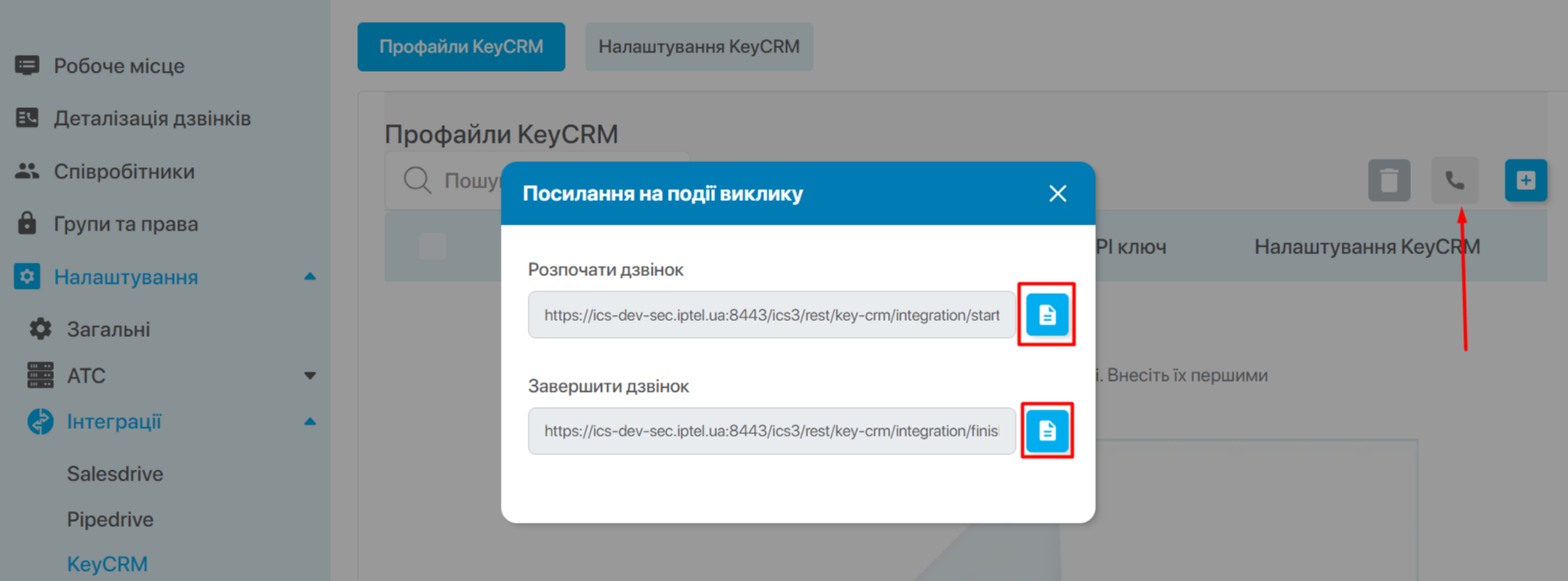
So leave this window open and proceed to the next step.
Step 2. Create a phone channel in keyCRM
Go to «Settings» → «Communications» → the «Calls» tab and click the «Add new integration» button.
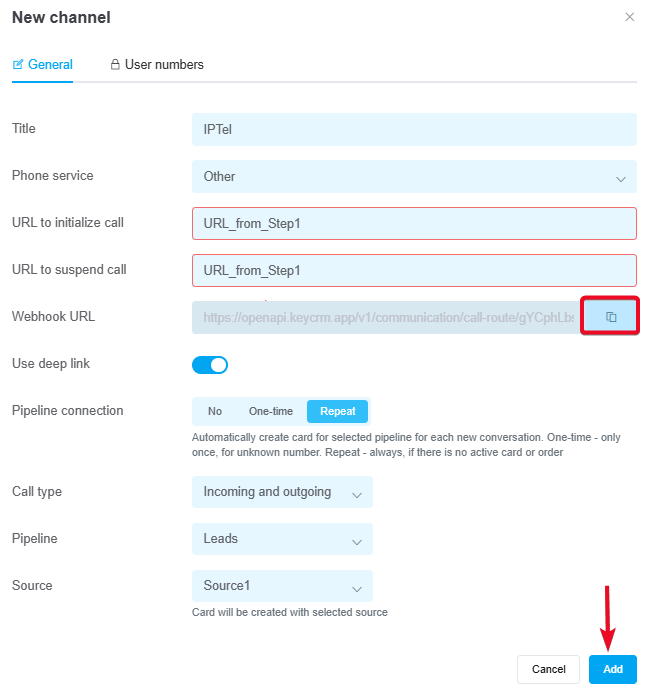
In the window that appears, on the «General» tab:
-
Title — enter the name of the telephony service;
-
Call service — select «Other».
-
URL to initialize call — paste the «Start Call» URL from your IPTel account;
-
URL to suspend call — paste the «End Call» URL from your IPTel account;
-
Webhook URL — copy the URL for further configuration on the telephony side;
-
Use deep link — enable if you are using a softphone that supports this technology;
-
Pipelines connection — enable and select a value:
• No — cards will NOT be created automatically from calls;
• One-time — cards will be created only once, provided there is no existing card with this number;
• Repeat — cards will always be created for repeat calls, provided the number does not have a card in active statuses (all statuses except successful and rejected). -
Call type — select the call type from which cards will be created: only incoming, only outgoing, or all — incoming and outgoing;
-
Pipeline — specify the pipeline for creating cards. If you have only one pipeline, it is selected automatically, and the selection field will not appear;
-
Source — select the source from which the card will be created. If you do not select one, the card will be created with an empty value in the source field.
How the deep link feature works
Deep link – a feature that immediately initiates a call in the device's default app.
How it works:
-
If your device has a default softphone app for calls, and it is active with the deep link feature enabled in the phone settings, tapping «Call» in the CRM will immediately open this app to place a call to the customer.
-
You should enable deep linking only if you use a softphone that supports this technology (for example, MicroSIP or the paid version of Zoiper). If you’re unsure, you can test it. Enable it first; if outbound calls from the CRM don’t work, then disable it.
-
If you disable deep linking, the call will be made through the telephony system itself. First, the CRM sends a request to the telephony system to initiate the call; upon receiving it, the telephony system places the call to the manager’s softphone or IP phone, the manager picks up the phone, and the connection with the client begins.
-
IP phones do not support the deep link feature, so when working with them, it must be disabled.
Step 3. Connecting the numbers
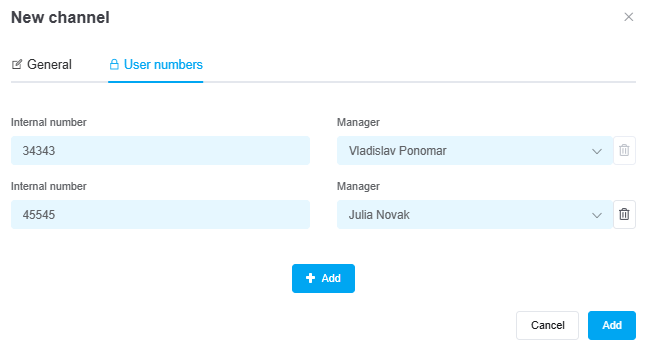
In the settings window, go to the «User numbers» tab and fill in the details:
-
Internal number — the IPTel internal line number;
-
Manager — the user in the CRM who corresponds to this number.
The dropdown list will include users who have been granted access to telephony.
Step 4. Configuring the integration in the IPTel dashboard
keyCRM Settings:
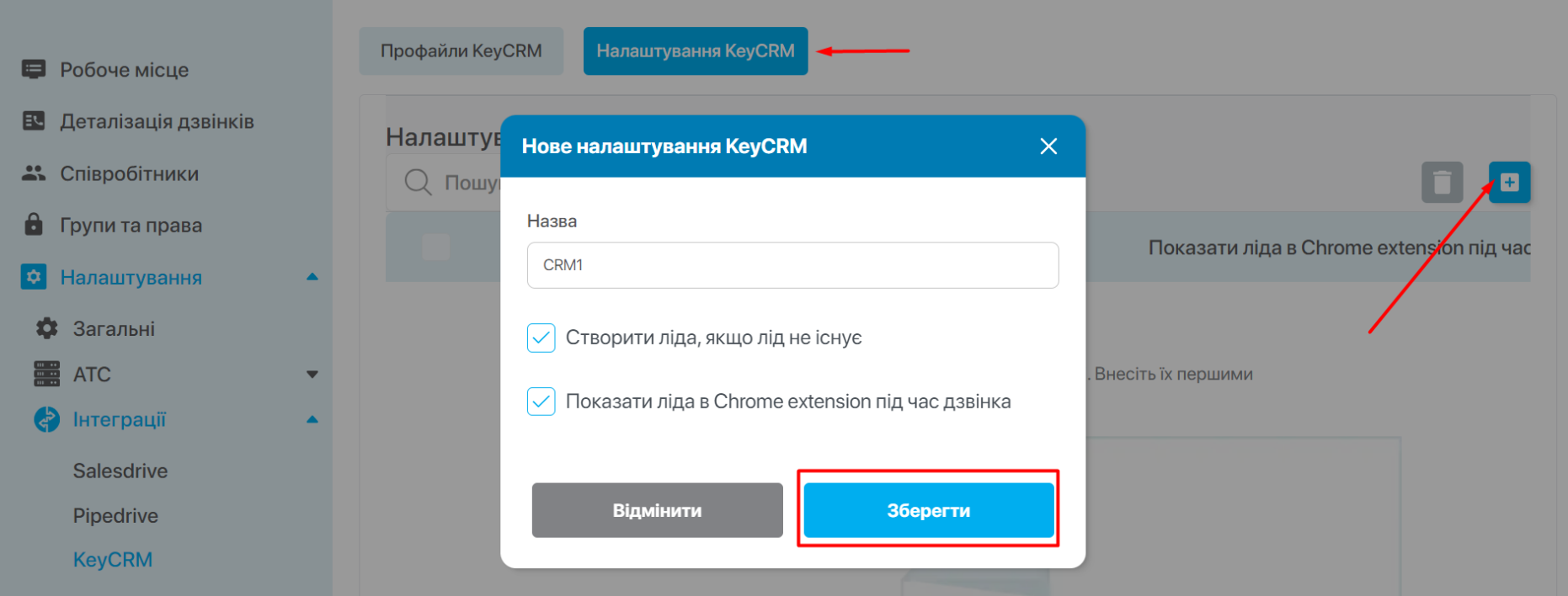
In the IPTel dashboard, go to «Settings» → «Integrations» → «KeyCRM», then to the «KeyCRM Settings» tab, and click the plus icon in the right corner.
Enter a name and select the desired options:
-
Create a lead if the lead does not exist: if the call comes from a number not found in KeyCRM, a new lead will be created;
-
Show the lead in the Chrome extension during the call: display the lead found by phone number on the current browser page.
Create a profile
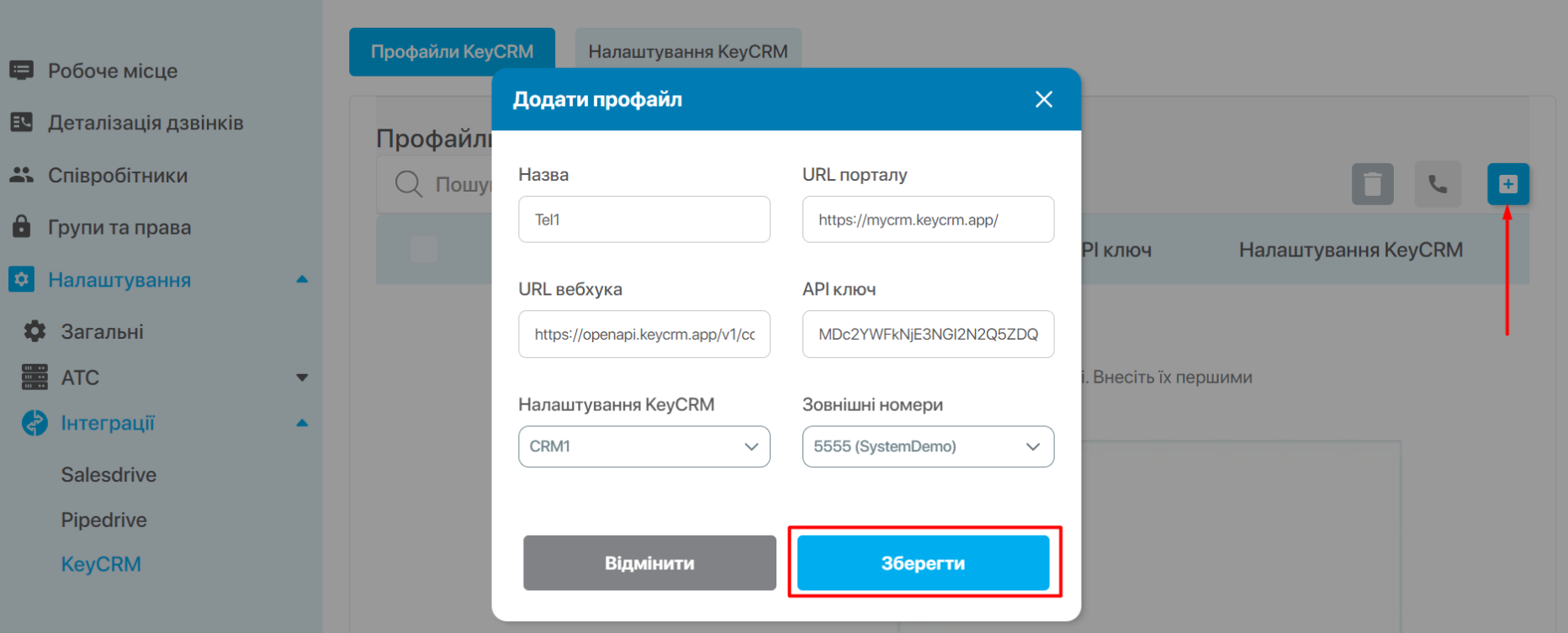
In the IPTel dashboard, go to «Settings» → «Integrations» → «keyCRM» → «KeyCRM Profiles» and click the plus icon in the top-right corner.
In the window that opens, fill in the fields:
-
Name of the profile.
-
URL of your KeyCRM portal in the format
https://domain.keycrm.app/; -
Webhook URL, which you copied earlier in «Step 2»;
-
API Key — you need to copy it from your KeyCRM dashboard;
-
KeyCRM Settings — select the configuration you created;
-
External Numbers — select the numbers that will be used with this integration.
Extension settings
To access the extension settings, select «IPTel extension» from your list of extensions, or click the corresponding icon in the navigation bar (if you have pinned the «IPTel extension»).
A form will appear in the window; enter the following information:
-
CRM system — select keyCRM;
-
Server path — if you do not know the server path, contact IPTel technical support;
-
IPTel login — your IPTel username;
-
Authorization token — you can find this by going to the «Profile» tab in the IPTel web app. The token is unique for each IPTel user.
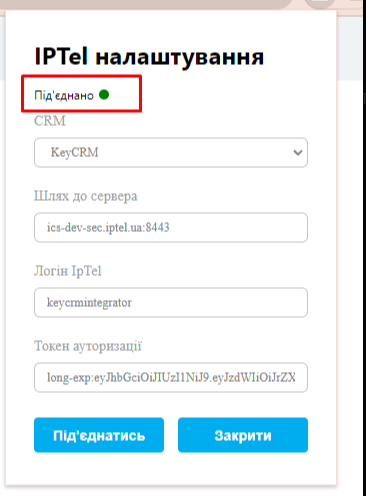
After entering all the information, click the «Connect» button. If everything was done correctly, the connection indicator will light up green.
Reloading the browser or restarting the computer
After restarting your browser or turning on your computer, you’ll need to reopen the extension.
After that, the connection between IPTel and keyCRM will be established automatically (provided the last user’s details were entered correctly).
If the user needs to be changed (or all fields are empty), enter the necessary information and click the «Connect» button.
Tips for using the extension
When using the «IPTel extension», please follow these guidelines:
-
After updating the extension, you must restart (close and reopen) your browser.
-
The IPTel user must be online.
-
The Chrome browser must be open in a single window.
-
If, at the moment of an incoming call, the user is on the extensions page or on a new Google Chrome page, a pop-up with a link to the lead will appear on the keyCRM page.
