Facebook Messenger is a very popular messaging service; integrating with it will allow you to handle all communications through the chat window, save customer profiles, and process orders or requests directly from a single window.
Private Facebook profiles do not support integration with external services.
Connecting Facebook to keyCRM
Go to Settings → Communications → Chats / Email and click «Add new channel».
In the window that opens, on the «General» tab, fill in the fields:
-
Title — any channel name that works for you;
-
Channel — Facebook Messenger;
To connect your account:
-
click «Continue with Facebook». If the window doesn’t open — make sure pop-ups are allowed in your browser;
-
at the start of the authorization process, Facebook may ask you to log in or switch from the Page to your Profile. To connect, use a Profile with admin rights for the public Page linked to the desired Instagram account;
-
During authorization, grant access to all available businesses and pages.
This is only required to conveniently connect other pages in the future—the CRM will receive messages only from the page you select in the next step; -
After completing authorization, select the Facebook page from which you want to receive messages in the channel window within the CRM.
Once the channel is saved, you will not be able to change the page.
Each Facebook page is connected as a separate channel.
To connect a new page, follow the same steps, but in the authorization window, select «Reconnect» instead of granting access again.
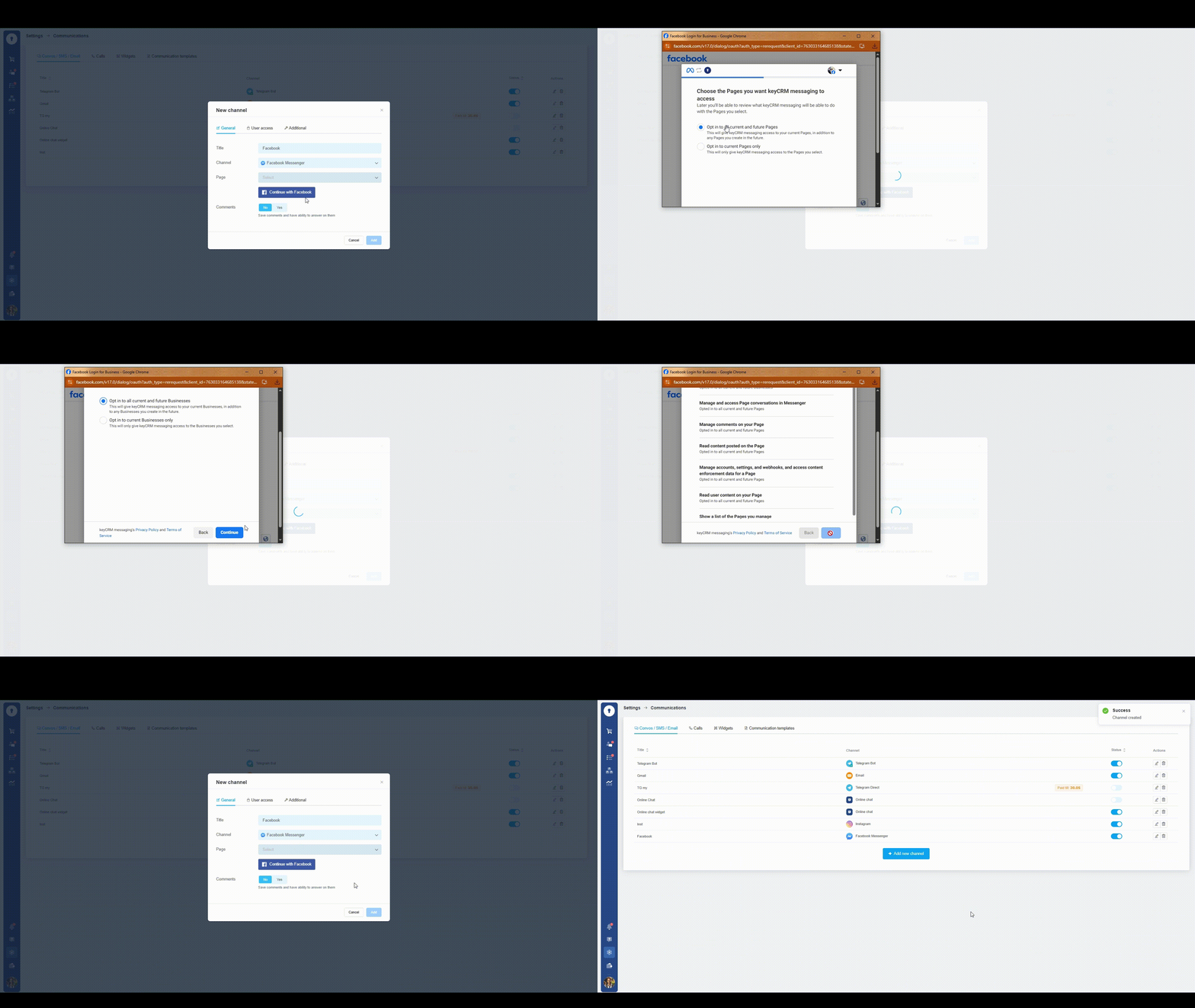
That completes the channel setup — save the channel so that new messages start coming into the CRM immediately.
If needed, you can also configure user access to the channel and additional settings for its operation.
To ensure that the communication channel operates smoothly and without interruptions, we strongly do not recommend:
-
change the password of the Facebook account used for authorization;
-
change the two-factor authentication settings for this Facebook account;
-
change previously granted access to companies or pages while authorizing in other channels;
-
violate Meta’s rules, which may result in the page being blocked.
Such actions may cause the integration to temporarily stop working or become permanently unavailable. For more details on resolving such issues, see the «Facebook Messenger FAQ» guide.
