Installing the WordPress (WooCommerce) plugin allows you to:
-
automatically transfer orders to keyCRM as soon as they are placed on your website;
-
export all orders to the CRM in one click;
-
send stock levels and order statuses from the CRM to your website;
-
import products and variations from your website to the CRM (all products at once, then new ones automatically);
-
send leads from forms (Contact Form 7, WPForms) to your pipelines;
-
update the payment status in the CRM if it changes on your website.
Step 1. Create a source in keyCRM
Go to Settings → Sources. A list of connected sources will appear.
Click Add source at the bottom of the list and fill in the fields:
- Name — enter any name for the source;
- Source — select WordPress;
- Source URL — enter a direct link to your store;
- Manager — if needed, specify the manager to whom all orders from this store will be assigned automatically. If you add several managers, orders will be assigned to each manager in turn. You can leave this field blank;
- Currency — specify the store currency;
- Under the User access tab, specify who will have access to orders from this source.
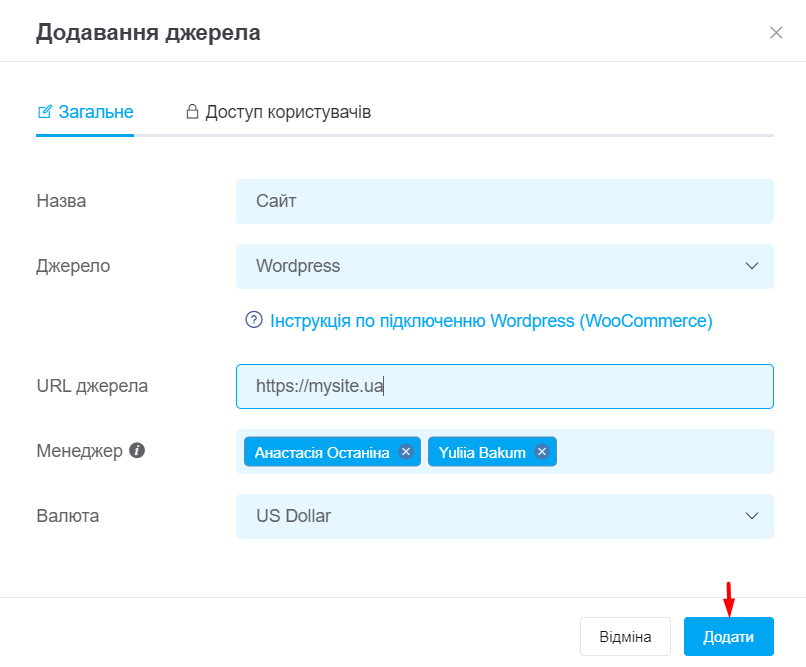
Once you have entered all the required settings, click Add.
Otherwise, you will get a critical error while installing the module!
Step 2. Upload the module to your website
The plugin supports the following versions:
● WordPress 6.7.2–6.8.2
● WooCommerce 9.5.1–10.0.2
● PHP 7.4–8.2
To install the integration plugin on your website:
- Open your website's admin panel, hover over Plugins in the sidebar, and select Add New Plugin;
- Click Upload Plugin at the top, then click Choose File;
- Select the downloaded plugin archive on your computer and click Install:
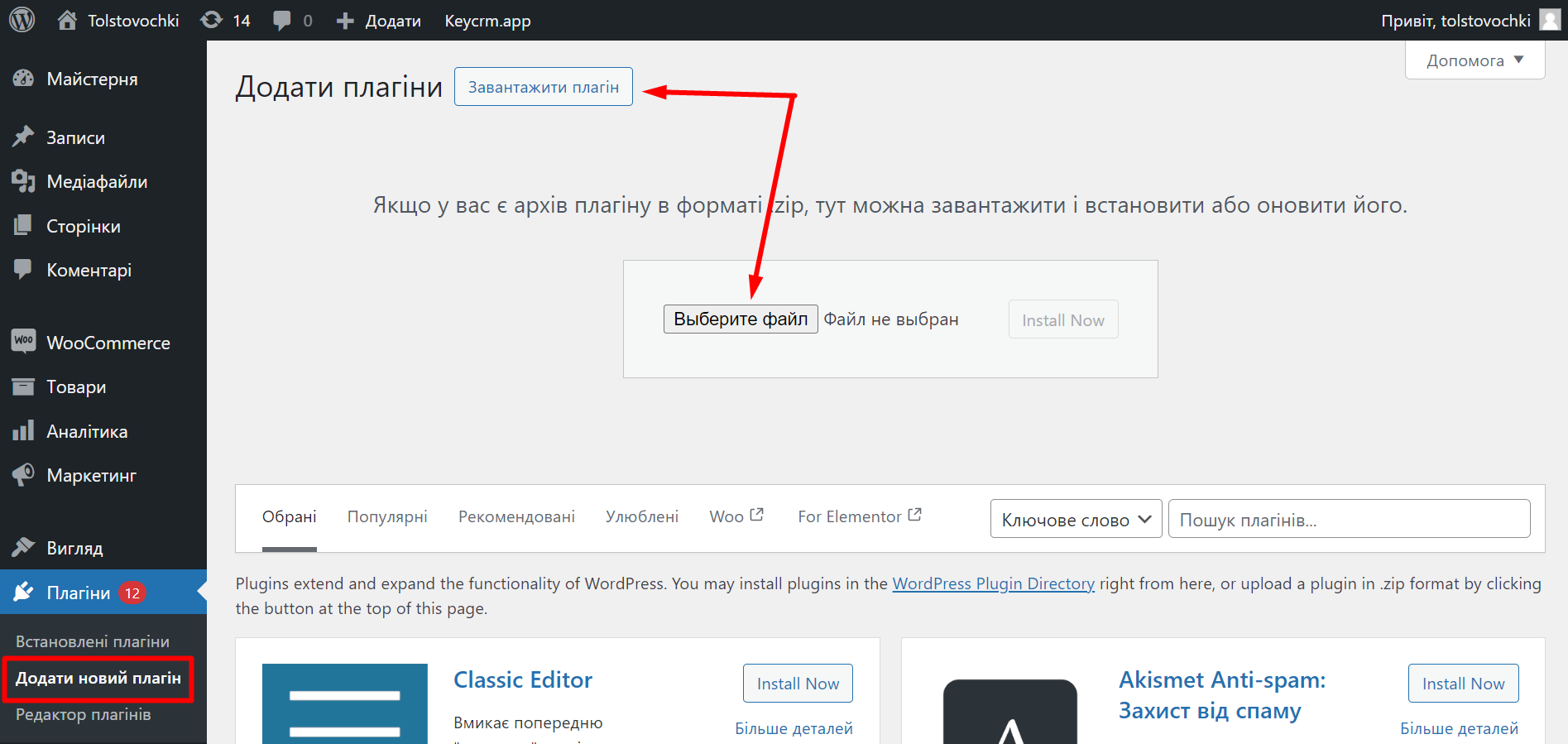
Once the plugin has been uploaded, activate it and proceed to the next step.
Step 3. Configure the module on your website
To open the integration settings:
- Hover over keycrm.app in the top menu and click Settings;
- Paste your key from keyCRM into the API key field, click Save, and make sure the page refreshes.
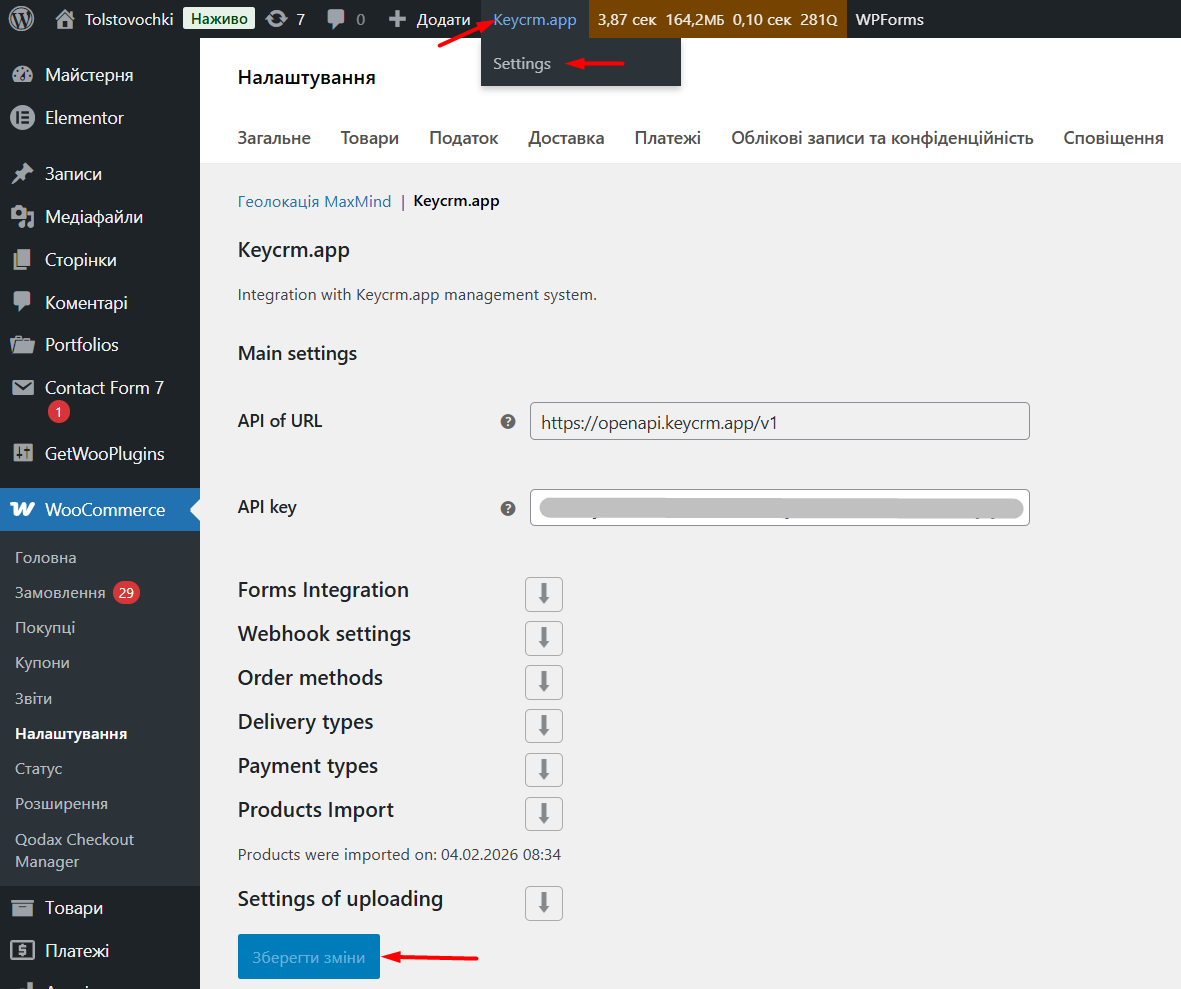
Next, let's look at each settings tab separately.
Forms Integration
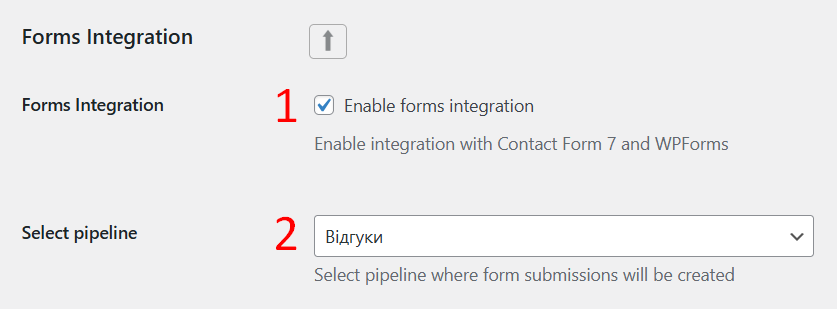
On this tab, you can set up lead transfer from Contact Form 7 and WPForms. To do this:
- Check the box next to “Enable forms integration”;
- Select the pipeline in keyCRM to which you want to send requests.
The standard fields — name, phone number, and email — are transferred to the corresponding contact fields in the card. Other fields and additional data are added as a note.
Webhook settings
You can configure the transfer of order statuses and product stock levels from keyCRM to WordPress.
Detailed settings, data update specifics, and instructions for checking transfer errors are described in a separate guide.
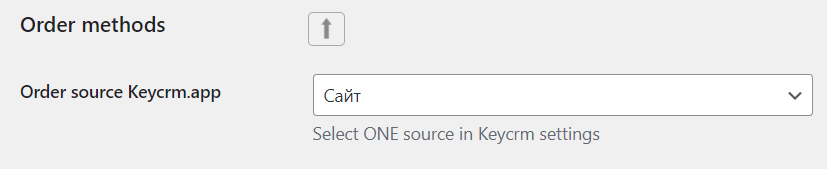
Order methods
On this tab, select the source you created earlier in keyCRM (Step 1) from the list:
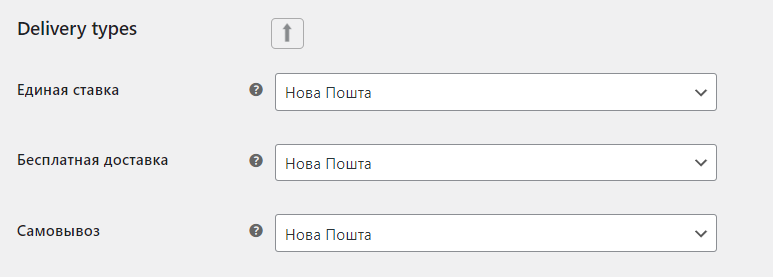
Delivery types
Your website's delivery types are shown on the left. On the right, map them to the corresponding delivery types in keyCRM.
If the delivery type you need is not available in the system, you can create a new delivery service.
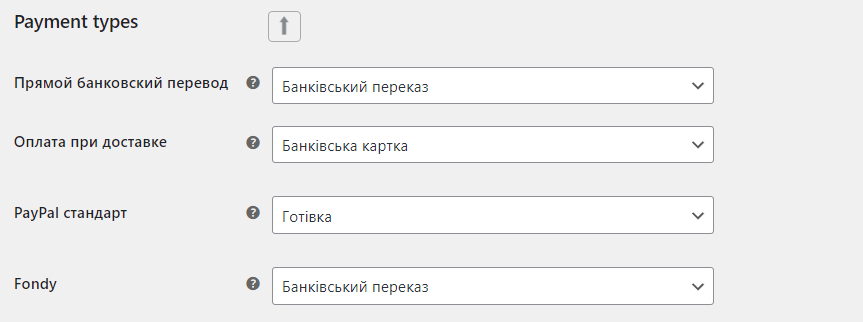
Payment types
Map the payment types. The types used on your website are shown on the left, and the corresponding keyCRM payment types on the right.
You can also add more payment types in your account.
Note! By default, all payments are sent to the CRM for the full order amount. To transfer partial payments, you need to modify the plugin code on your website.
Products Import
On this tab, you can import all products and variations to the CRM once, so that new products added to your website are created automatically afterward.
Detailed settings, product transfer specifics, and instructions for checking transfer errors are described in a separate guide.
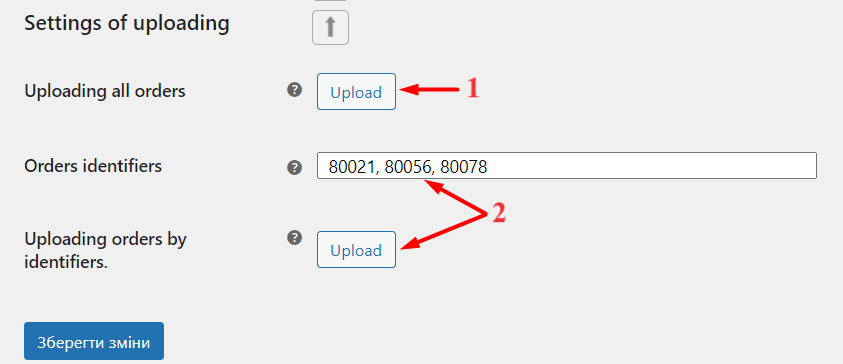
Settings of uploading
Use this tab to upload your existing orders to keyCRM.
- Uploading all orders — click Upload to upload all old orders;
- Orders identifiers — enter order numbers separated by commas and click Upload to upload specific orders individually.
New orders will appear in your account instantly, as soon as they are placed!
Error log
Every day, the plugin creates a log file named “keycrm + creation date” under WooCommerce → Status → Logs. It contains:
- order data collected before it is sent;
- data sent to the CRM and the format in which it was sent;
- errors that occurred while sending orders;
- errors related to product export or the creation of a new product or variation;
- errors when changing statuses and transferring stock levels.
Example of an order transfer error:
- The source uuid has already been taken: this means the order has already been sent to keyCRM, and WordPress is trying to send it again.
If you have any questions, contact our support team and attach the log file, which you can download using the button below:

This article covered the settings for the WordPress (WooCommerce) integration to receive orders in keyCRM, as well as how to view the log when errors occur. You can now process orders in the system and analyze them.
