àbank is a payment service that allows businesses to accept payments for goods and services via bank cards. Once integrated with keyCRM, you’ll be able to manage payments in a single window and generate invoices that are automatically marked as paid upon receipt of payment.
Connecting àbank to keyCRM
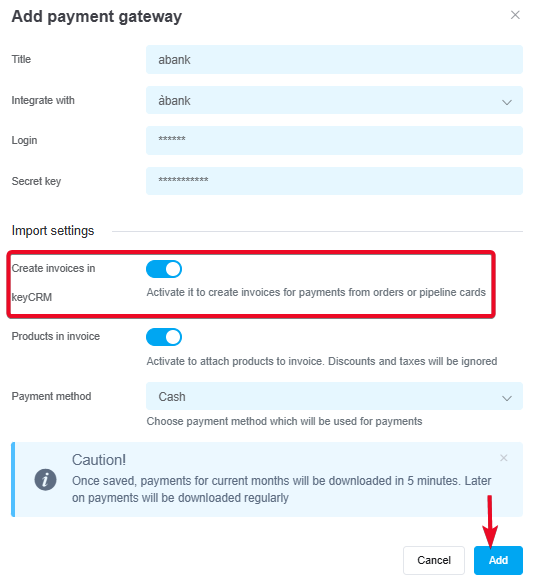
Go to the «Settings» → «Finance» → «Payment gateways» section and click the «Add payment gateway» button.
In the window that opens:
-
Title — enter a descriptive name for the payment gateway;
-
Integrate with — select àbank ;
-
Login — enter your login;
-
Secret key — enter your secret key;
-
Create invoices in keyCRM — enable the toggle if you need to generate invoices using keyCRM;
-
Payment method — select the payment method under which payments will be saved in the system;
-
Products in invoices — enable this option to transfer product data.
-
Click the «Add» button to save the settings:
Once you've added the payment service, it will appear in the list, and you can start issuing invoices for payment.
Invoicing
After configuring the settings, you can generate an invoice for payment within an order or a funnel card. To do this:
-
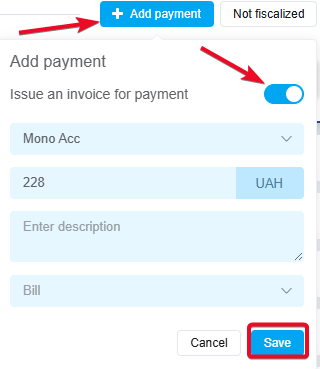
In the payment section, click «+ Add Payment»;
-
Toggle the «Issue an invoice for payment» switch;
-
Select the payment service from which the invoice will be issued;
-
Enter the amount to be paid;
-
Optionally, you can leave a description for this payment in the system (it is not included in the invoice and is used for internal notes);
-
Click «Save».
How to manage invoices
After creating an invoice, the corresponding payment will be added to the payments in the order or in the sales funnel card. You can:
-
Track the payment status, which automatically updates after the invoice is paid;
-
Copy the payment link to send to the buyer. The link is valid for 1 week;
-
Cancel the created invoice. Hover over the payment status, and the «Rejected» button will appear.

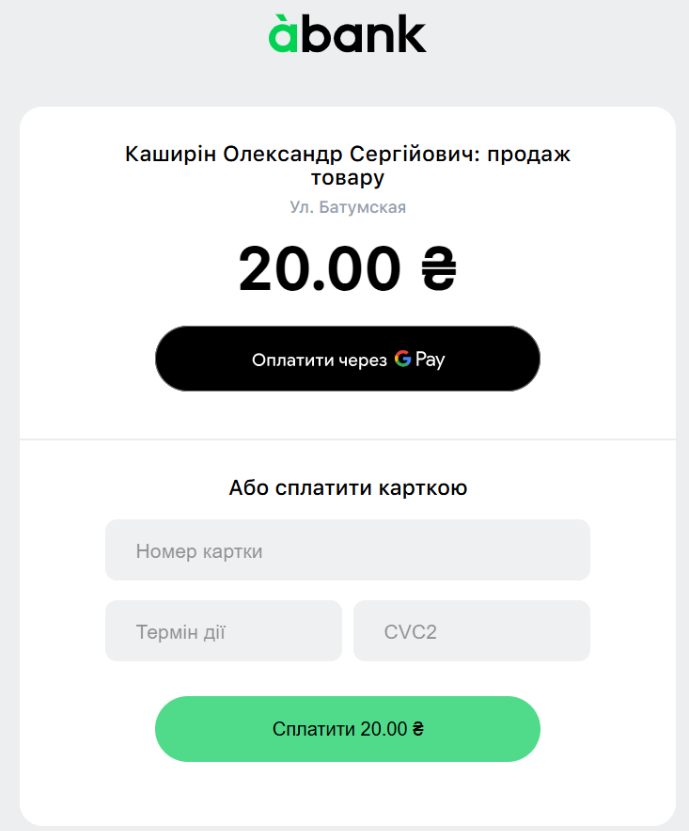
What the generated invoice looks like
When the customer clicks the payment link, the payment service page will open: