Monobank is one of Ukraine's largest banks. By connecting your account, you'll receive payment statements from your personal or sole proprietor account and be able to add payments to orders and expenses with just a few clicks.
You can also attach statements from Monobank acquiring if you use it to receive payments.
Step 1. Obtain an API key from monobank
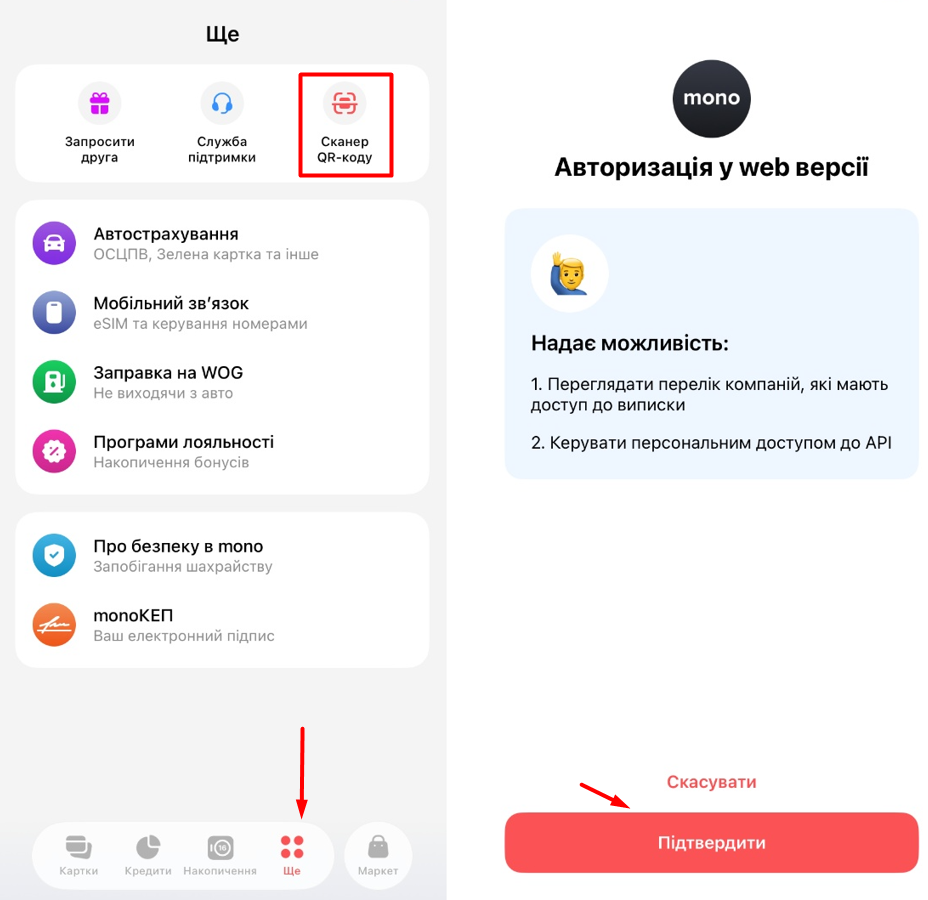
Open the official Monobank API website in your browser and scan the QR code from your app. To do this, tap the «More» icon in the bottom-right corner and select «QR Code Scanner».
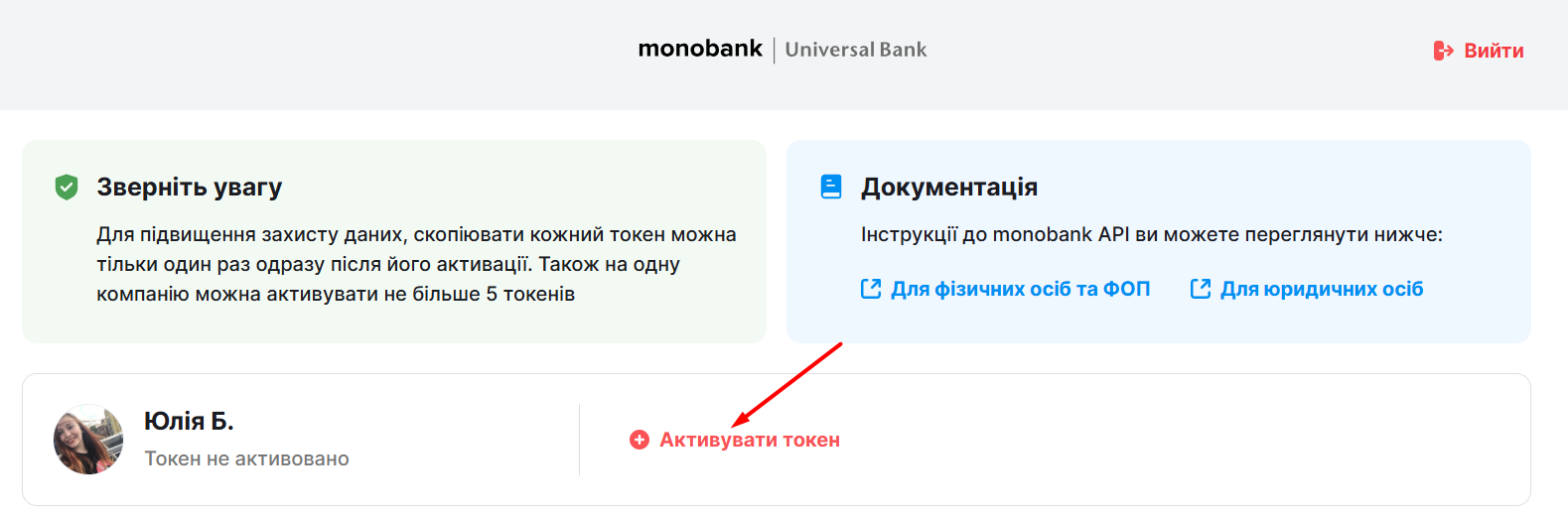
Once you've confirmed your authorization, click the «Activate token» button on the updated monobank page to generate a token (API key), then copy it.
Important! Use this token only to connect account statements. A different token is created for integration with Equaring.
Step 2. Connecting monobank to keyCRM
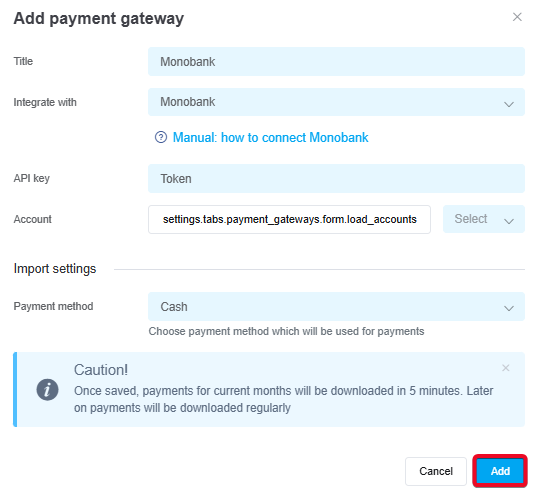
Go to the «Settings» → «Finance» → «Payment gateways» section and click the «Add payment gateway» button.
In the window that opens:
-
Name — enter a descriptive name for the payment gateway;
-
Integrate with — select Monobank;
-
API Key — enter the token (API key) you copied from Monobank;
- Account — click «Load accounts» and select the account from which you want to receive statements;
Note! If you need to receive statements from multiple accounts, you can add another payment service and select a different account. -
Payment method — select the payment method under which payments will be saved in the system;
-
Click the «Add» button to save the settings:
Once added, the payment service will appear in the list. Within 5 minutes, transactions for the current month will be loaded; thereafter, payments will be automatically updated every 15 minutes during the day and every 4 hours at night.
Now you don't need to log in to Monobank to see incoming payments. All payments for linked accounts will appear in the «Sales» → «External Transactions» section.
Don't miss any payments — add them in just a few clicks to orders or general expenses.
