Integrating payment services will allow you to receive information about payments and transactions received from customers. This will help you analyze expenses, add payments to orders, and view fund withdrawals from bank accounts.
keyCRM currently supports integrations with the following payment systems:
|
Banks:
|
Where payments are displayed
Once you have connected at least one payment service, a section titled «External transactions» will appear in your account dashboard, where the following information will be displayed:
-
transaction number;
-
payment service;
-
comment;
-
amount;
-
date and time of payment.
The paperclip icon next to a transaction indicates that it is linked: in orders, to a payment or expense; in the pipeline, to a payment. When you hover over it, you’ll see the order number or card name (this is a link that opens the corresponding item), as well as the payment type and a comment:
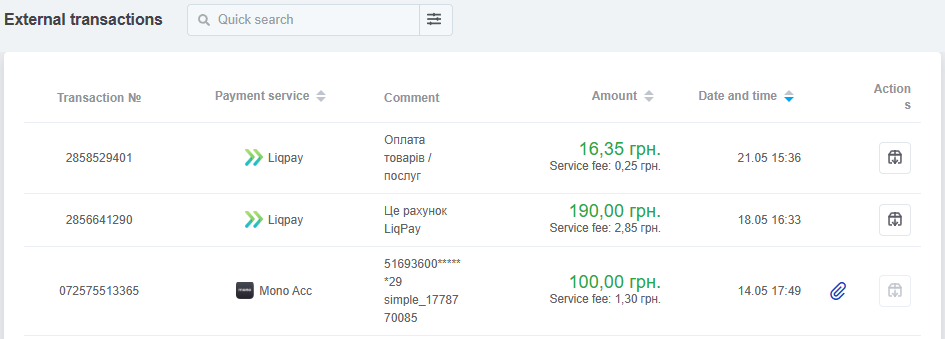
To archive a statement, click the icon in the Actions column. This will allow you to hide transactions that are not related to sales. Transactions are deleted only when the payment service is removed, but they remain in the payments to which they are linked.
Search and filter payments
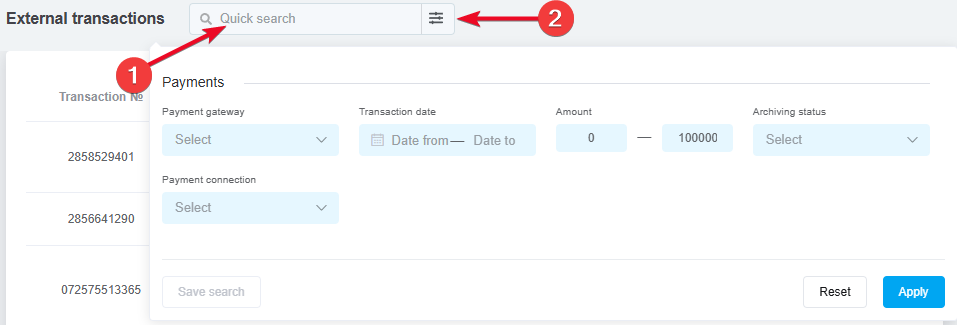
Saves time and helps you find the payments you need more efficiently. There are two types:
-
Quick Search. Works only with text from the comment and the transaction amount;
-
Filter by various criteria. You can filter by payment service, transaction date, amount, archiving status, and payment reference.
How to add a payment to your order
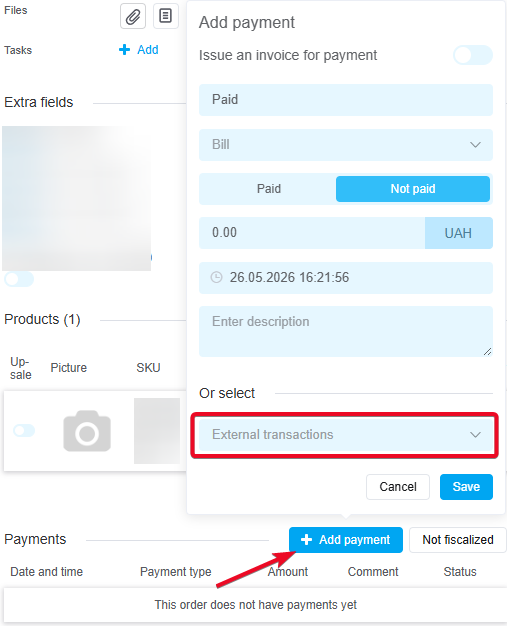
Open the order and, in the «Payments» section, click the «Add payment» button. Once the payment services are connected, an «External transactions» field will appear in this window. Click on it and select the desired payment from the list:
How to add a payment to order expenses
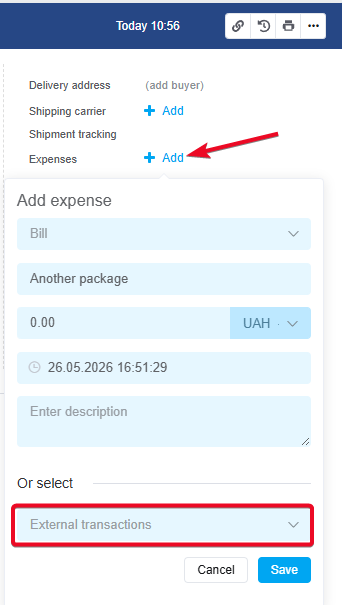
Open the order and, in the right-hand column, click «Add» next to the «Expenses» row. The «External transactions» field will appear in the window that opens. Click on it and select the desired payment from the list:
How to add a payment to total expenses
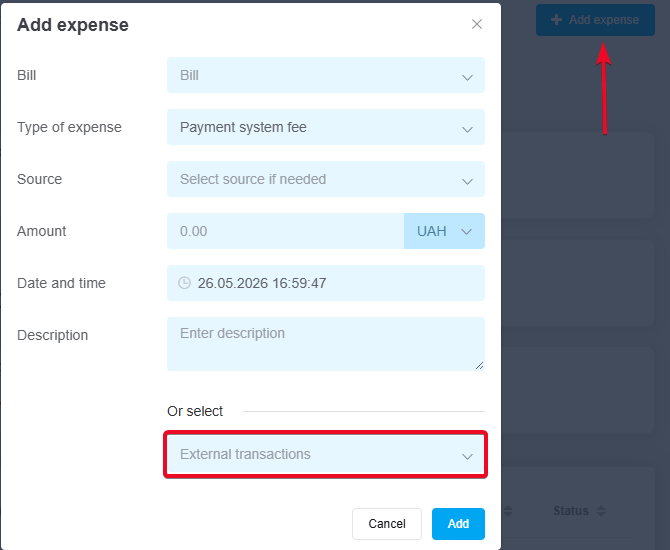
Go to the «Sales» section → «Payments journal» and click «Add expense» in the upper-right corner.
The «External transactions» field will appear in the window that opens. Click on it and select the desired payment from the list.
The amount, date, and description will be pulled from the transaction, and you can specify the source if needed.