Integrating the Vchasno virtual cash register with keyCRM lets you fiscalize receipts while processing orders. You can also create and cancel receipts, copy receipt links to send to customers, and print receipts.
Step 1. Connect to keyCRM
Go to «Settings» → «Finance» → the «Cash registers» tab, then click «Add cash register».
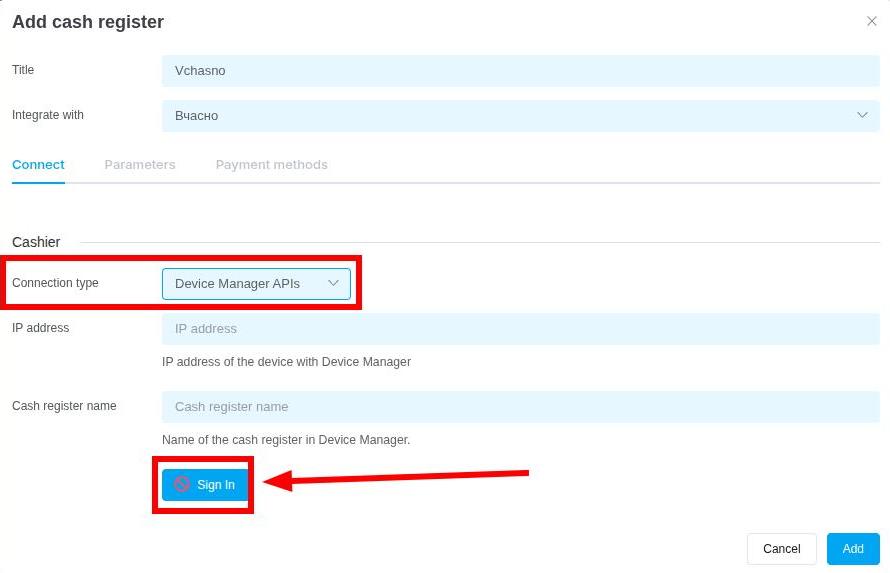
In the window that opens, enter a name for the cash register and select «Vchasno» as the service. In the «Cashier» section, select the «Connection type». Two options are available:
- Cloud API: Enter the cash register token. You can generate it in the cash register settings in your Vchasno account.
- Device Manager API: Complete the following two fields:
• Device IP address — the IP address of the device on which Device Manager is installed;
• Cash register name — the name of the virtual cash register created in Device Manager.
Click «Sign In». You can change the connection details at any time:
Step 2. Configure additional settings
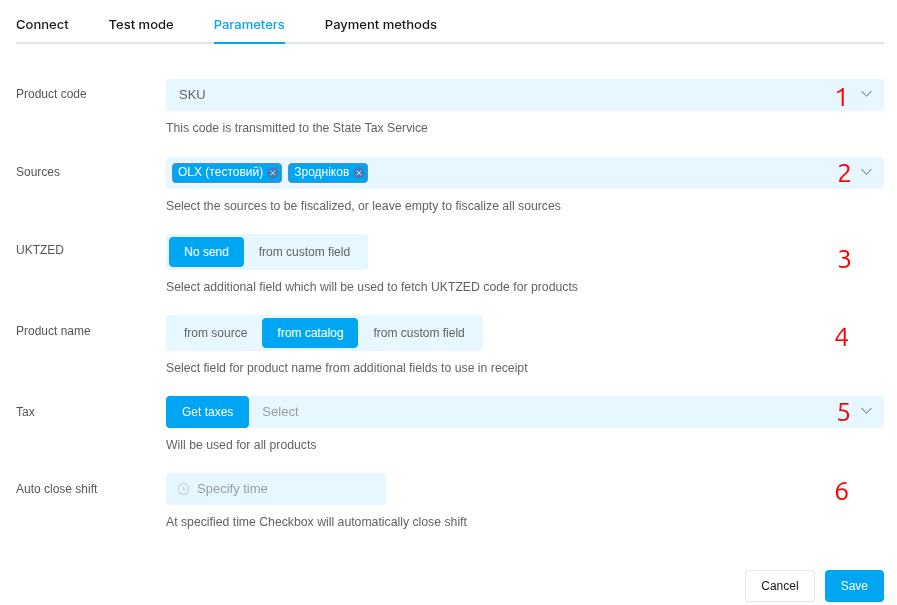
After authorizing the cash register, open the «Parameters» tab and complete the fields:
- Product code — choose which product identifier will be sent to the State Fiscal Service: SKU, keyCRM product ID (a unique code automatically assigned to every product in the CRM catalog), or source product number (provided by connected marketplaces).
- Sources — select the order sources for which fiscalization through this cash register will be available. If you do not select any sources, the cash register will be available for all sources.
- UKTZED — leave this field blank or select the custom field of type «String» or «Text» that contains the code.
- Product name — select the field to use for the product name on the receipt. You can add your own field and then select it.
- Tax rate — select the tax rate from the dropdown list. It will apply to all items on the receipt. This field is required.
- Customer notification — enable this option if you want Vchasno to send receipts to customers via Viber/SMS. To use it, top up the balance in your Vchasno account.
Step 3. Configure payment methods
Open the «Payment methods» tab. Here, you can create additional payment methods to pass during fiscalization and display on the receipt.
Two system payment methods are available: «Cash» and «Card». They cannot be deleted.
To issue receipts for cash payments, use only the first, default «Cash» method.
You can add as many payment methods as you need. Click «+ Add payment method» and complete the fields:
- Payment instrument — choose the name of the payment method (payment instrument) to display on the fiscal receipt (payment-name examples below).
- Fiscalization type — choose how receipts will be generated for this payment method:
• Prepayment: Used to fiscalize advance payments. The receipt contains one item named «Prepayment for order No. ***» for the payment amount. The order number from the source is used; if it is unavailable, the keyCRM order number is used.
• Postpayment: Used to fiscalize the remaining payment. The receipt includes a discount equal to the prepayment amount, labeled «Prepayment for order No. ***». The prepayment amount is calculated as:total order value − amount of the payment being fiscalized
• Full payment: Creates a receipt for the full order value. - Payment type in CRM — select the CRM payment types that should use this payment method by default during fiscalization.
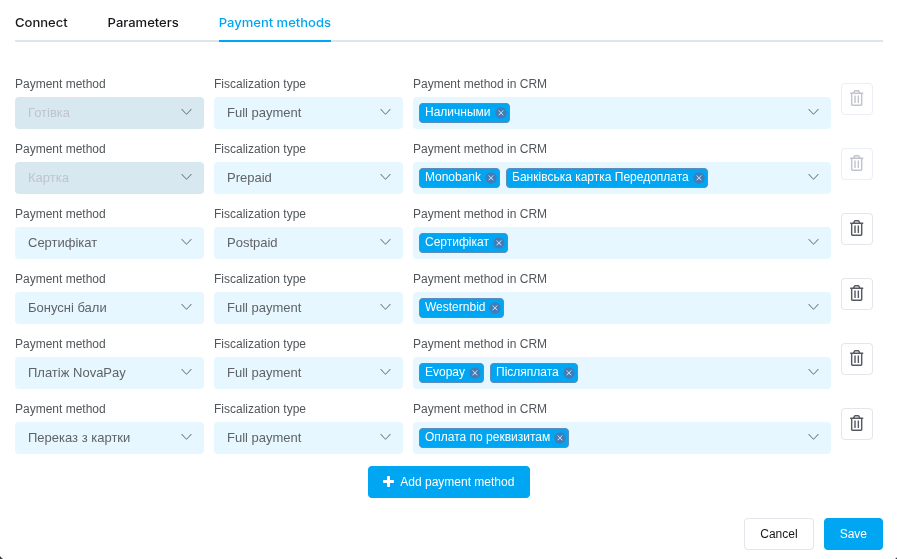
Save the settings after completing the fields. You can edit them, add new methods, or delete added methods by clicking the trash icon.
Payment method names
Choose the correct payment instrument for the receipt based on how you receive the payment. Set this in the «Payment instrument» field.
- Payment by bank card directly to the seller’s account (IBAN) ⮕ «Transfer from a card»;
- Transfer from the buyer’s current account (IBAN) to the seller’s current account (IBAN) ⮕ «Transfer from a current account»;
- Payment through a banking or payment app on a smartphone using a link accessed via a QR code ⮕ «Transfer via QR code»;
- Payment through internet acquiring and a payment QR code (LiqPay, RozetkaPay, Wayforpay, Novapay, Portmone) ⮕ «Payment via LiqPay, RozetkaPay, Wayforpay, Novapay, Portmone». This list is an example: use only the name of the payment service that processed the payment.
- Payment by bank card on a website through a link, such as a “Pay” button ⮕ «Internet acquiring»;
- Payment using bonus points ⮕ «Bonus points»;
- Loan repayment ⮕ «Loan repayment».
After connecting
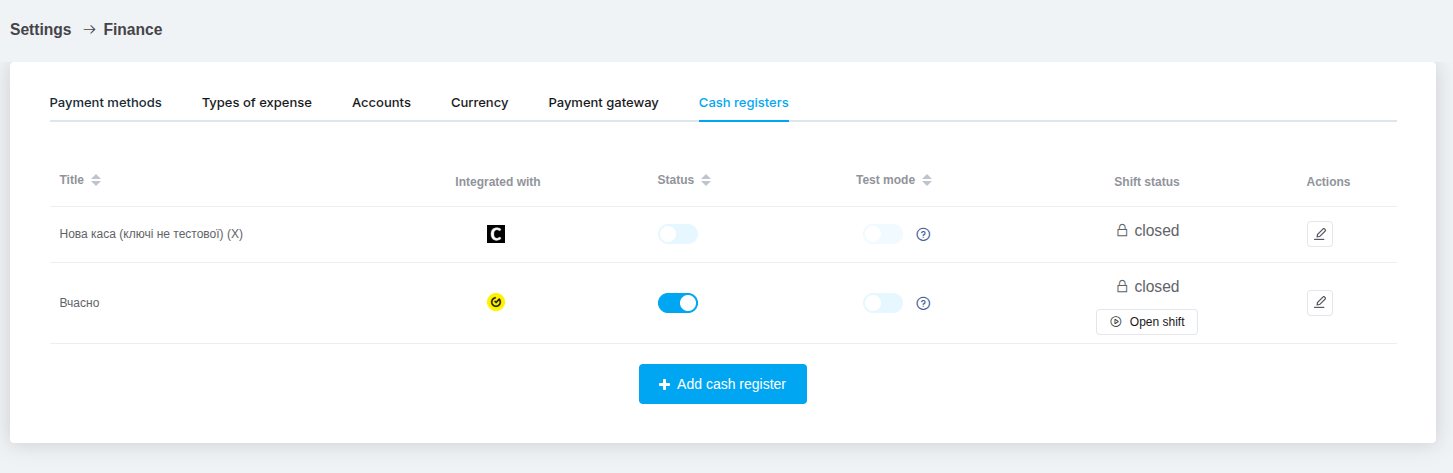
The cash register now appears in the list of connected cash registers, and you can use it to fiscalize receipts. Connect any additional cash registers you need.
The main columns are listed below. Click a column name to sort the cash registers:
- Name — the cash register name specified in its settings;
- Status — a switch that enables or disables the cash register;
- Test mode — a switch that enables or disables test mode;
- Shift status — the current shift status and a button to open or close the shift;
- Actions — a button to edit the cash register settings.
Cash register test mode
After adding a cash register, enable test mode using the corresponding switch. This lets you test the cash register and the fiscalization process without sending data to your Vchasno account or the tax authority.
Opening and closing shifts
keyCRM does not open or close shifts automatically. You must do this manually in one of two ways:
- In the list of connected cash registers, click the button in the «Shift status» column to open or close a shift;
- While fiscalizing a payment in an order, click «Open shift» if the selected cash register has a closed shift.
Opening or closing a shift may take a few seconds.
You can configure automatic shift closing in Vchasno. In this case, the shift status in keyCRM will not update automatically. In the morning, you will need to close the shift first, then open it again.
