Fondy is an international payment system for money transfers. By integrating it with our system, you’ll be able to view your payment history without leaving keyCRM.
Step 1. Obtain a merchant ID and key from Fondy
In your Fondy dashboard, open «Merchant Settings» and click the «General» button.
The window will display the Merchant ID and Payment Key fields, which are required for setup.
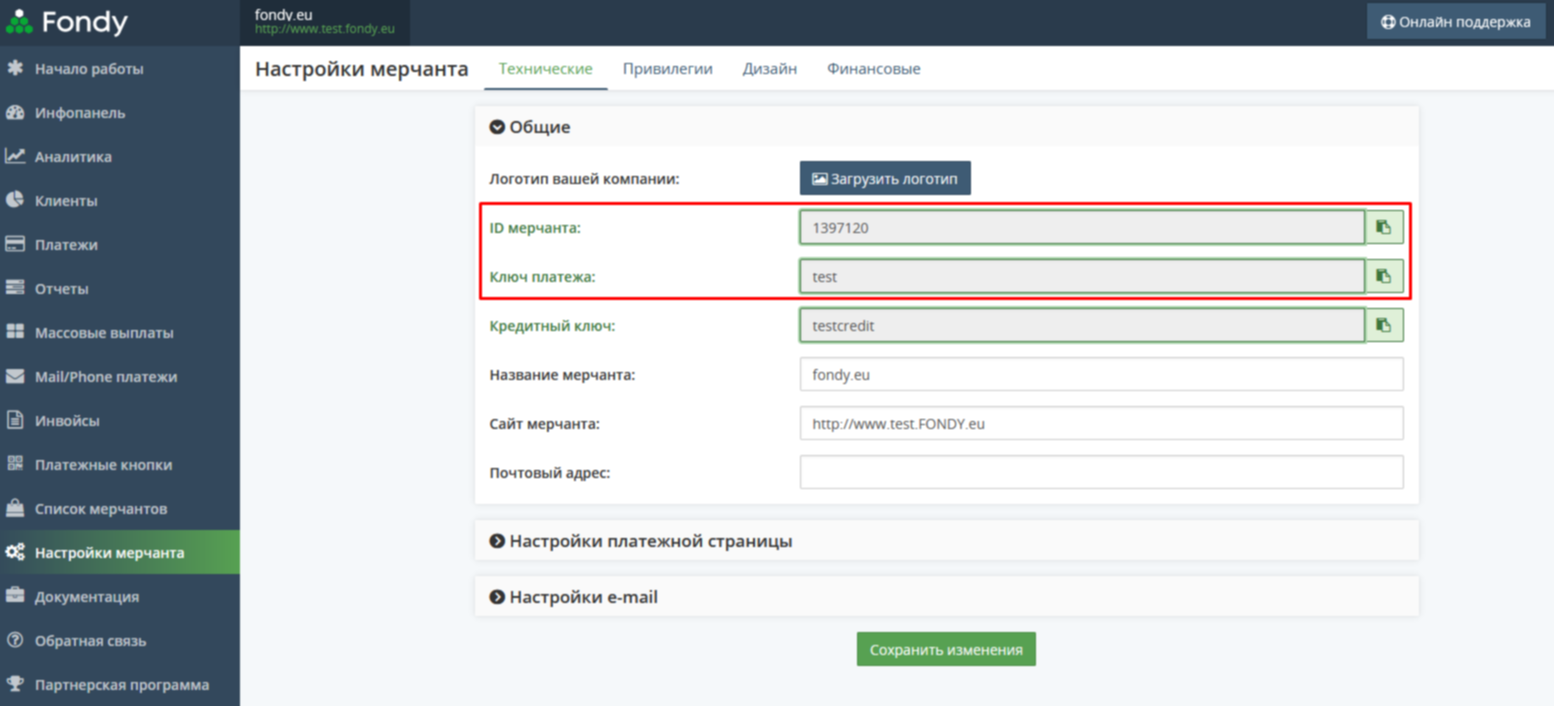
Leave the tab open and proceed to the next step.
Step 2. Connecting Fondy to keyCRM
Go to the «Settings» → «Finance» → «Payment gateways» section and click the «Add payment gateway» button.
In the window that opens:
-
Title — enter a descriptive name for the payment gateway;
-
Integrate with — select Fondy;
-
Merchant ID — enter the Merchant ID from your Fondy dashboard;
-
API key — enter the payment key from your Fondy dashboard;
-
Create invoices in keyCRM — enable the toggle if you need to generate invoices using keyCRM;
-
Language — select the language in which the invoice will be issued;
-
Payment method — select the payment method under which payments will be saved in the system;
-
Click the «Add» button to save the settings:
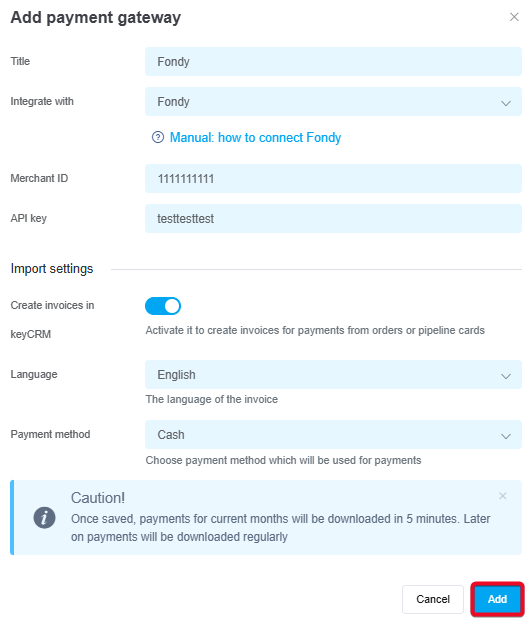
Once you've added the payment service, it will appear in the list. Transactions for the current month will load within 5 minutes, and payments will then be automatically updated every 15 minutes.
Now you don't need to log in to Fondy to see incoming payments. All payments for linked accounts will appear in the «Sales» → «External transactions» section.
Don't miss any payments — add them in just a few clicks to orders or general expenses.
