Having products in the keyCRM catalog lets you use the system more effectively: for inventory management, sending products to production, adding them to orders manually, and analyzing product performance.
Automatic product export from WooCommerce
The integration plugin lets you export all products from your website once and then automatically transfers all newly created products and variants to keyCRM.
For each product, the following details are transferred: name, description, SKU, price, currency, dimensions, weight, and images.
How to start exporting products
To export all products from your website to the CRM, click the corresponding button in the plugin (this is available once) under Products Import:
- Products are transferred gradually. After each product is created, its CRM ID is saved in the website database;
- Once products have been created, their variations are transferred, if any;
- Export time depends on the number of products. Approximately 40–50 products are transferred per minute;
- When the process is complete, the button is replaced with a message that the products have been imported and the import date.
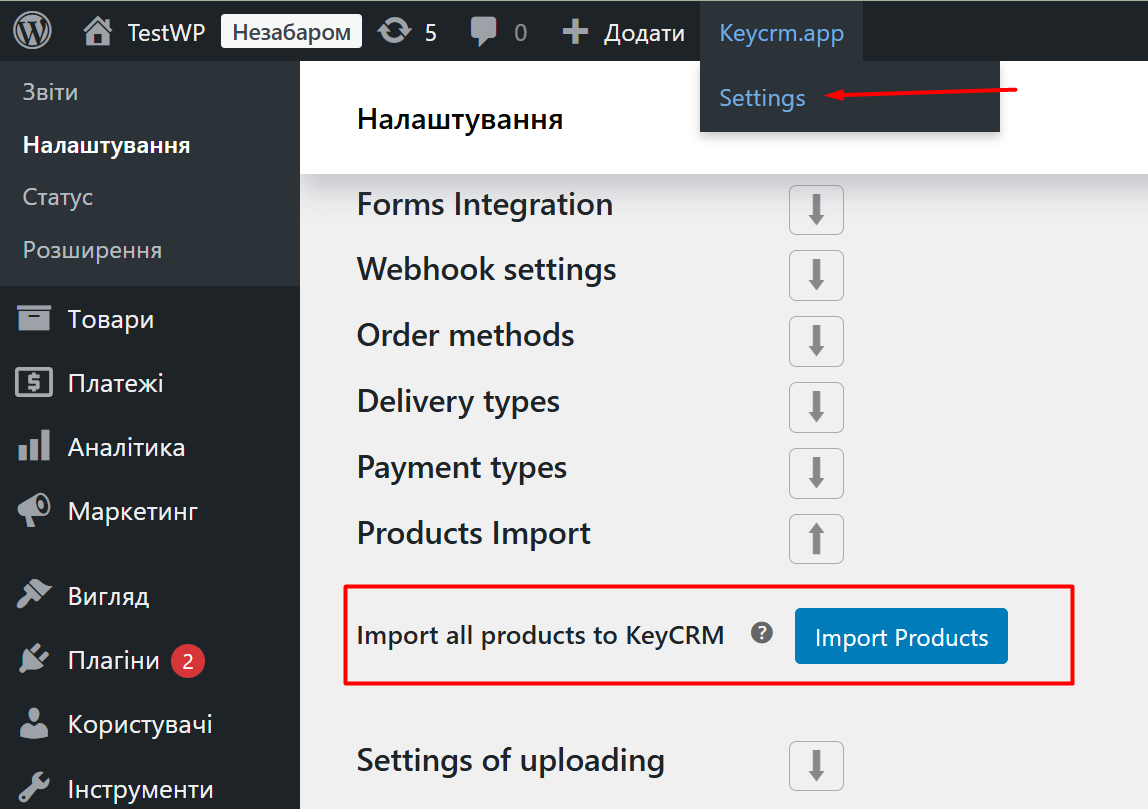
If you need to export all products again, you can use the manual product export or ask a developer to run the following two commands in your website database, one after the other:
DELETE FROM wp_options WHERE option_name = 'keycrm_products_imported';
DELETE FROM wp_postmeta WHERE meta_key = '_keycrm_product_id';
After that, the product export button in the plugin will become available again, and you can start transferring all products to the CRM.
How to check why a product or variant was not transferred
The import process is recorded in the plugin log under WooCommerce → Status → Logs.
The plugin creates a file named “keycrm” every day. Check the file for the day when the products were exported or a new product/variant was created.
Log examples:
- Product import successfully: a record of a successfully transferred product, including the product ID on the website, the product ID in the CRM, SKU, and name;
- Imported * products, failed: *: the bulk import result, showing the number of products successfully transferred and the number that failed;
- The name has already been taken: an error indicating that a product with this name already exists in the CRM;
- The SKU has already been taken: an error indicating that a product with this SKU already exists in the CRM;
- Failed to create product in KeyCRM: Products not yet imported to KeyCRM: an error indicating that the bulk export button has not been used.
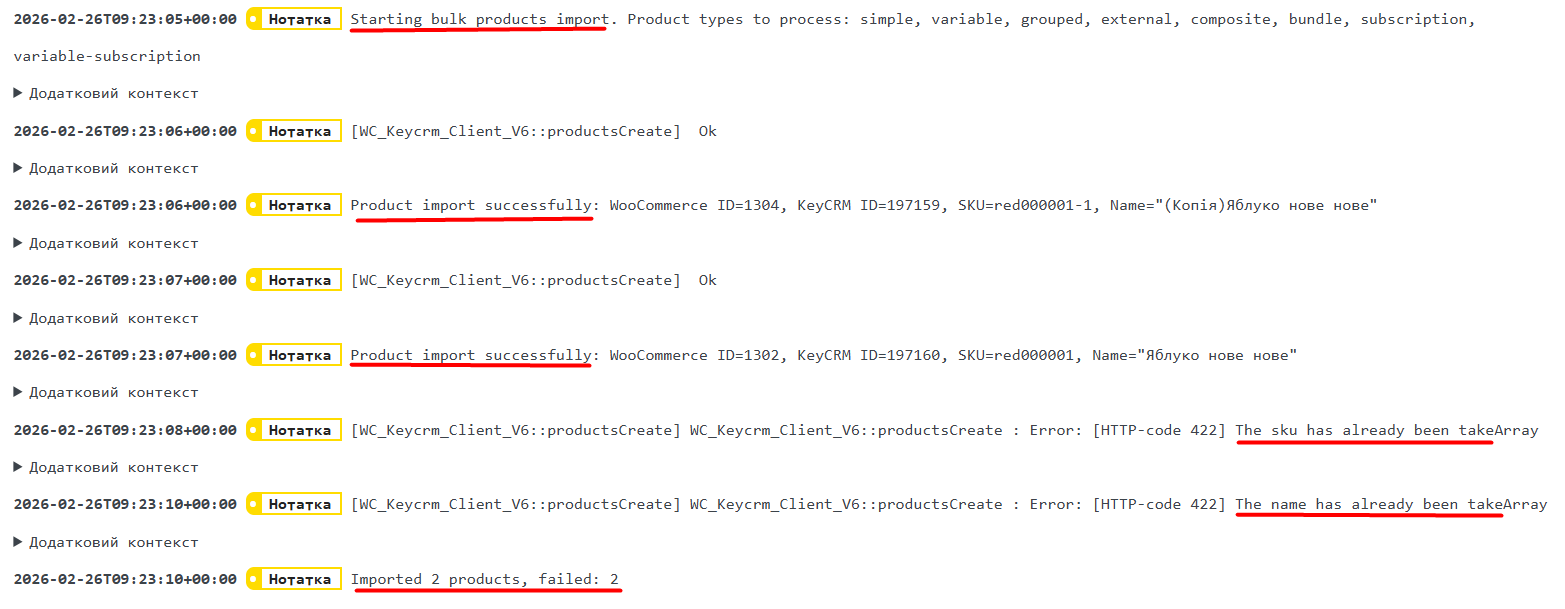
If you have any questions, contact our support team and provide the log file, which you can download using the button:

Manual product export from WordPress
WooCommerce has a built-in product export tool that lets you create a CSV file in just a few clicks. We use it as an example in this guide.
To export products:
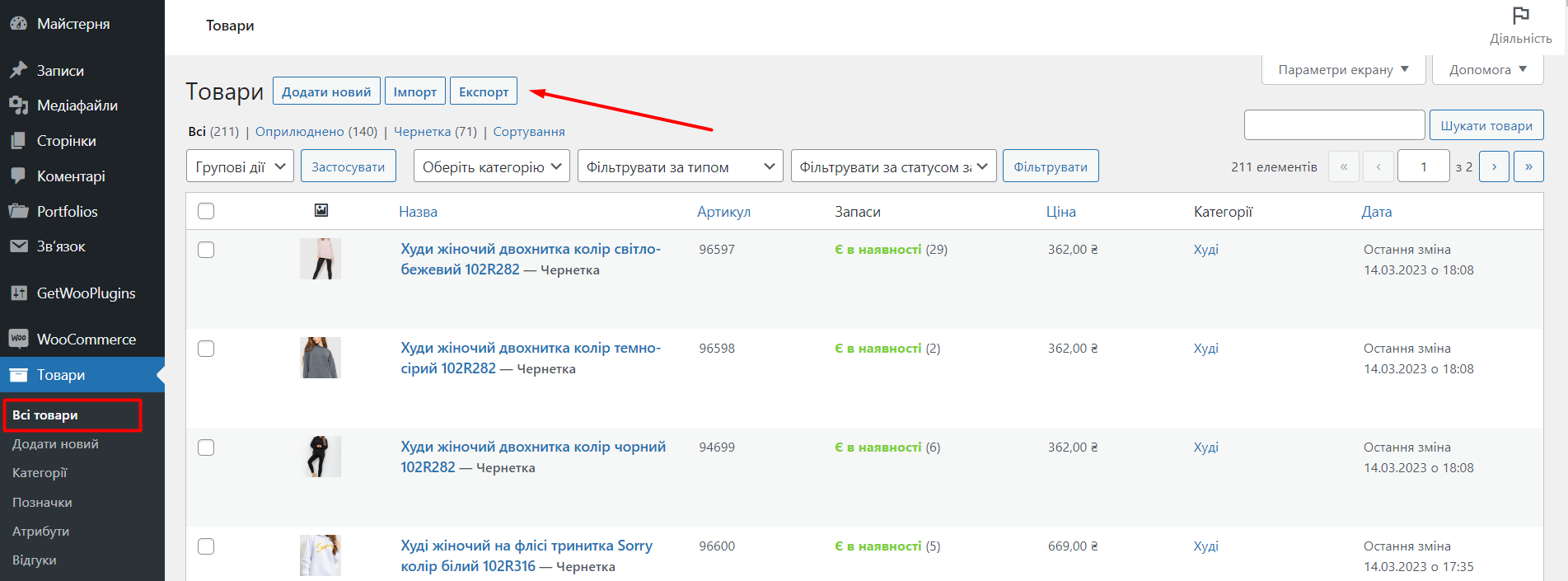
- Go to Products → All Products and click Export (at the top of the page next to the heading):
- In the window that opens, select the specific columns, product types, and categories to export. Leave these fields blank if you want to export all products;
- To start exporting products, click Generate CSV:
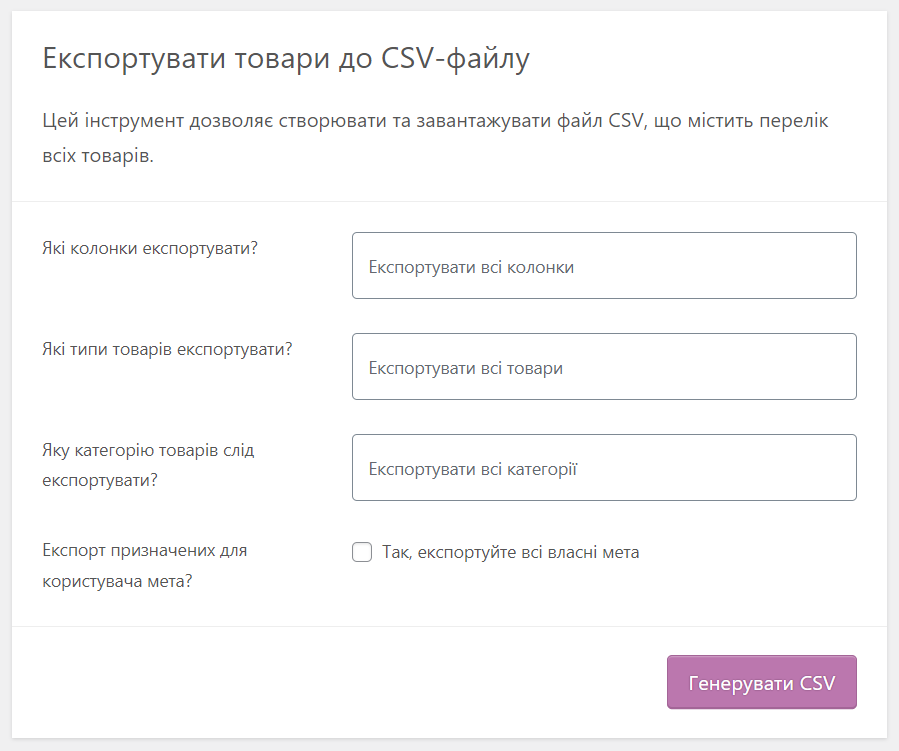
The CSV file containing product information will be saved to your computer. Export time depends on the number of products in the catalog and the selected settings. The process may take from a few seconds to a few minutes.
How to import products from a file into keyCRM
To import products:
- Prepare the file for import;
- Go to Catalog → Products, click the arrow next to Add product, and select Import products from file. In the window, click Select file to import;
- Map each column to the corresponding field in the system and click Import in the lower-right corner.
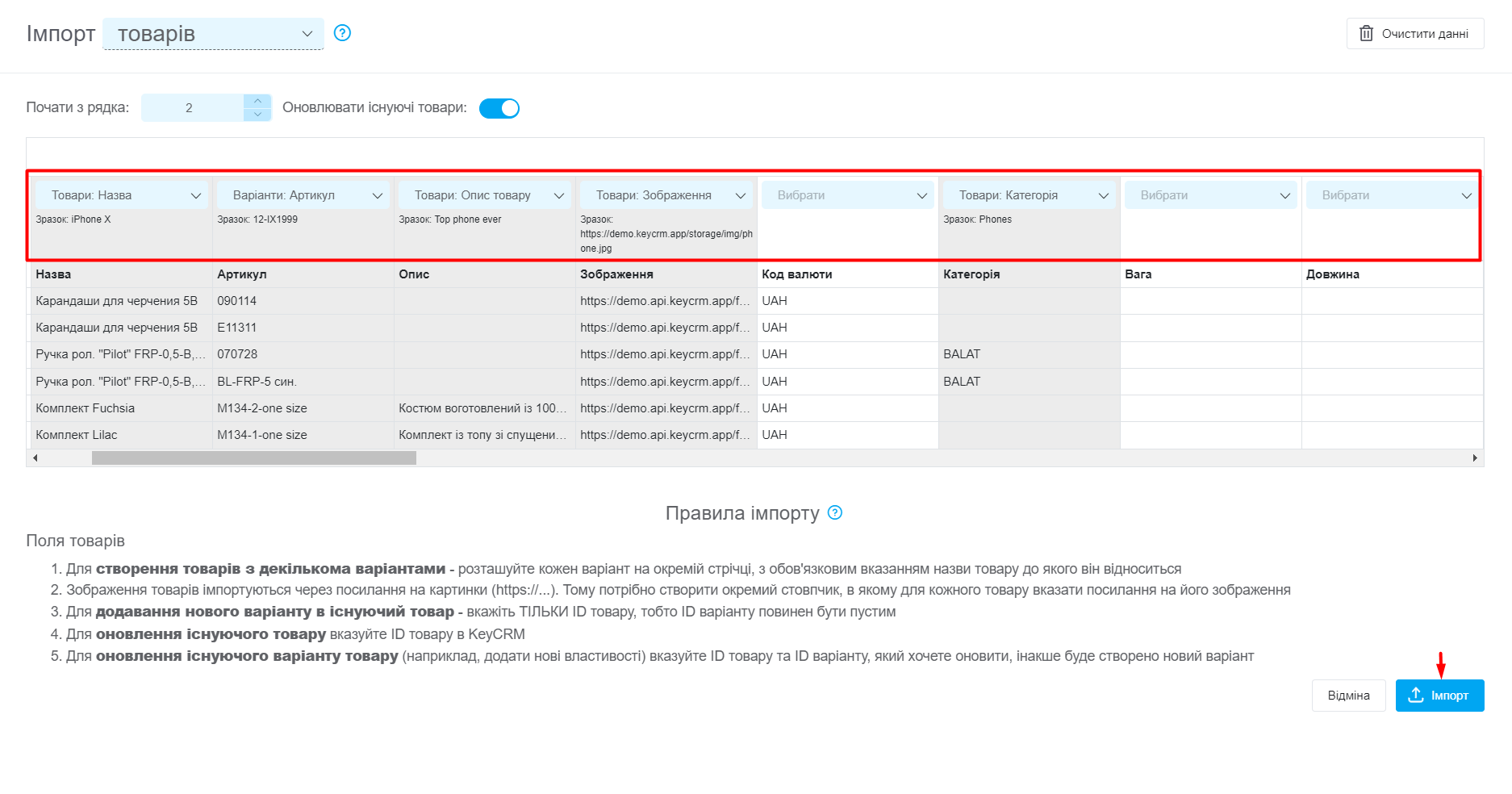.png)
When orders are received from your WordPress website, the products in the orders are matched with products in the catalog by SKU. You can set up inventory management, view product analytics, and configure stock updates on your website.
