RozetkaPay is a payment service that allows you to accept online payments on marketplaces and your own website, and offers customers the option to pay upon receipt of their order with fulfillment by ROZETKA and delivery to ROZETKA stores.
Once connected to keyCRM, you will be able to generate invoices that are automatically credited upon payment.
Connecting RozetkaPay to keyCRM
Go to the «Settings» → «Finance» → «Payment gateways» section and click the «Add payment gateway» button.
In the window that opens:
-
Title — enter a descriptive name for the payment gateway;
-
Integrate with — select RozetkaPay
-
API login — enter your API login, which can be found in the RozetkaPay dashboard;
-
API password — enter your API password, which can be found in the RozetkaPay dashboard;
-
Click the «Add» button to save your settings.
In the «Import settings» section, enable the «Create invoices in keyCRM» toggle and fill in the fields:
-
Payment method — select a payment method for the payment that will be added to the order after the invoice is issued;
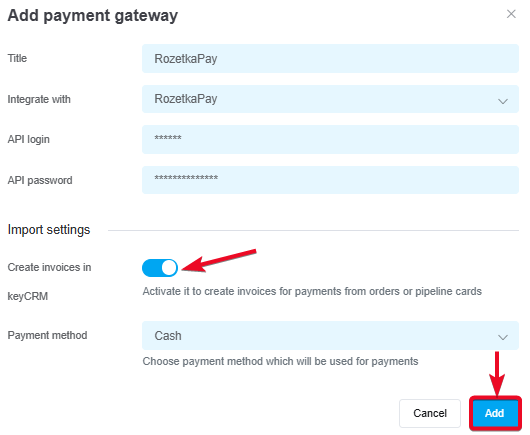
Once you've added the payment service, it will appear in the list, and you can start issuing invoices for payment.
Invoicing
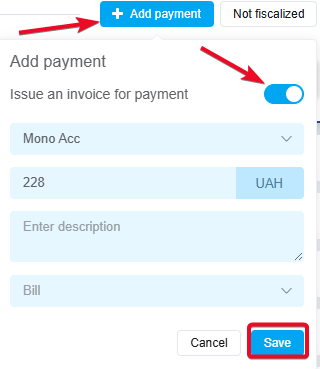
After configuring the settings, you can generate an invoice for payment within an order or a pipeline card. To do this:
-
In the payment section, click «+ Add Payment»;
-
Toggle the «Issue an invoice for payment» switch;
-
Select the payment service from which the invoice will be issued;
-
Enter the amount to be paid;
-
Optionally, you can leave a description for this payment in the system (it is not included in the invoice and is used for internal notes);
-
Click «Save».
How to manage invoices
After creating an invoice, the corresponding payment will be added to the payments in the order or in the sales pipeline card. You can:
-
Track the payment status, which automatically updates after the invoice is paid;
-
Copy the payment link to send to the buyer. The link is valid for 1 week;
-
Cancel the created invoice. Hover over the payment status, and the «Rejected» button will appear.

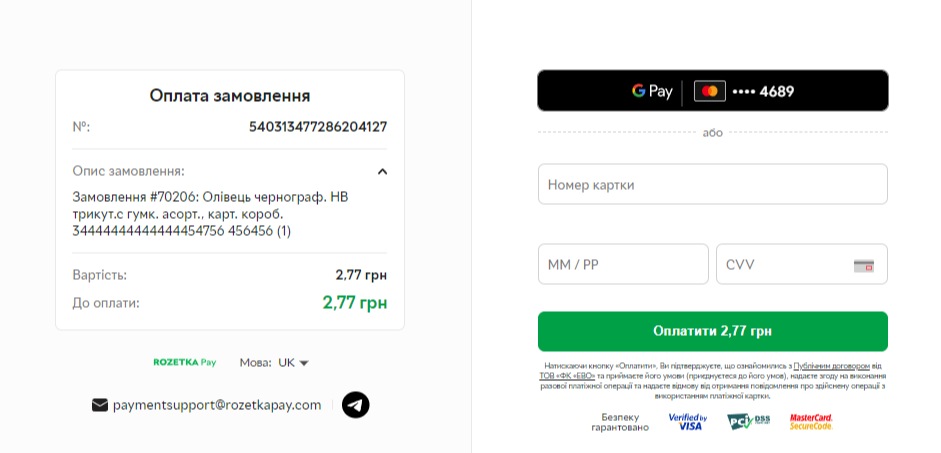
What the generated invoice looks like
When the customer clicks the payment link, the payment service page will open: